
Vai al contenuto
Supporto Spoki

Documentation for Spoki use

  • Italiano
  • Italiano

Onboarding

6
  • Best practices for API usage
  • Piani e tariffe | Spoki
  • Attivazione Spoki – autorizzazione da Meta BM
  • Prima di attivare Spoki: Cosa devi sapere sul tuo numero WhatsApp esistente
  • 2. Verifica Meta Business Manager
  • 3. Corso di Formazione Spoki

Integrazioni

35
  • Setting Up Your Spoki Voice Agent
  • EmailChef
  • Connect Shopify to Spoki AI Sales Agent
  • Zadarma
  • Gorgias
  • Make
  • Ringover
  • Magnews Flow
  • Salesforce Flow
  • Spoki WhatsApp Chat Chrome Extension
  • Integrare WhatsApp con Paypal
  • Come inviare un Webhook in uscita da Spoki vs un gestionale
  • Inserisci Pulsante di Chat su Shopify
  • Integrare Prestashop a WhatsApp
  • Integrare Calendly con Spoki
  • Integrare WhatsApp con Google Calendar
  • Integrare Spoki con qualsiasi gestionale attraverso API
  • Integrare Spoki con i Webhook
  • Incorpora Spoki nel tuo software
  • Integrare WhatsApp con Semplisio
  • Integrare WhatsApp a WPNotif
  • Integrazione di Spoki con Connectif: Automazione dei messaggi WhatsApp
  • Integra WhatsApp con Zoho
  • Integrare WhatsApp con IFTTT
  • Integrare WhatsApp con Qapla’
  • Integrare WhatsApp con Zapier
  • Integrare WhatsApp con Shopify
  • Integrazione WhatsApp e WooCommerce
  • Integrazione Klaviyo e Spoki
  • Integrare WhatsApp con Hubspot
  • Integrare Spoki con Brevo (ex sendinblue)
  • Integrare WhatsApp con ActiveCampaign
  • Integrare Spoki con i moduli di Facebook
  • Integrare WhatsApp con Google Fogli

Regole WhatsApp

8
  • Conversazioni
  • Tipologie di messaggi
  • Qualità dei messaggi inviati
  • Limiti contatti “giornalieri”
  • Regole per evitare il ban da WhatsApp
  • Autorizzazione all’utilizzo
  • Cosa fare se sei stato bannato da WhatsApp
  • Cosa fare se il tuo account è in qualità bassa

Piattaforma

17
  • Deals – User Guide
  • Guida a Spoki Forms: Come Raccogliere Dati dai Contatti WhatsApp
  • Automazioni Pronte in Spoki
  • Come verificare l’autenticità delle email Spoki
  • Richiedere l’OBA (Account Business Ufficiale) WhatsApp
  • Dashboard
  • Chat
  • Automazioni
  • Campagne
  • Messaggi template
  • Ticket
  • Integrazioni
  • Gestione Contatti in Spoki
  • Liste
  • Pulsanti di chat
  • Campi dinamici
  • Tag

How to

71
  • Step “Trasforma campo contatto”: quando e come usarlo
  • Come recedere dal servizio Spoki
  • Spoki sul tuo Smartphone – Web App e notifiche
  • Guida all’Analisi del Sentiment
  • Come Caricare una Lista di Contatti su Spoki
  • Come creare prompts per l’AI
  • Guida allo step “Risposta del cliente”
  • Introduzione all’uso del codice OTP
  • Guida all’Opzione Diramazione nelle Automazioni
  • Accettazione Marketing su Spoki: Guida Operativa
  • Come creare un’automazione semplice dalla sezione Campagne
  • Come filtrare le chat per uno o più tag/operatori/liste/ticket
  • Azione rapida “If/else”
  • Step “Ritardo”: Quando e come usarlo
  • Come tracciare i click sui link dei messaggi Template: UTM
  • Come scrivere i documenti per l’AI
  • Come creare un funnel di marketing su Shopify
  • Campi Dinamici: perché usarli?
  • Come attivare la visualizzazione del catalogo su WhatsApp
  • Come terminare automazione manualmente per specifici contatti
  • Come generare una lista da Statistiche Campagna
  • Come aggiungere Tag in automazione prima di inserirlo
  • Nuove funzionalità di Active Campaign
  • Come creare una lista per i contatti in uno specifico step automazione
  • Come cambiare media nel Template prima di inviarlo in chat
  • Come esportare tutti i messaggi di una chat come CSV
  • Eliminare Definitivamente un Contatto su Spoki
  • Trascrizione e traduzione audio in chat
  • Ripristina tutti i contatti bloccati
  • Come istruire l’intelligenza artificiale (AI) su Spoki
  • Spoki – primi passi
  • Integrare Spoki con le Inserzioni Meta
  • Template suggerito dall’Intelligenza Artificiale (AI)
  • Come inviare il contenuto di un messaggio ad un webhook esterno
  • Come gestire automaticamente chi risponde/ non risponde ad un messaggio
  • Step multipli nell’automazione
  • Come far uscire un singolo contatto da tutte le automazioni
  • Messaggi liberi con bottoni
  • Come trasferire i contatti dalla tua App Whatsapp a Spoki
  • Come gestire i casi in cui devo inviare la risposta in chat ad un cliente dopo 24 ore?
  • COME COLLEGARE SPOKI ALLE CAMPAGNE INTERAZIONE DI FACEBOOK
  • Come gestire prenotazione Calendly + Active Campaign + Spoki
  • Come consultare la reportistica delle automazioni
  • Come inviare messaggi multi lingua
  • Come posso identificare quale utente ha risposto in chat ad un messaggio?
  • Come attivare automazione per il messaggio di auguri compleanno
  • Come gestire automaticamente chi non risponde
  • Come attivare il plugin di Woocommerce associato a Spoki
  • Come attivare un’automazione per gli orari non lavorativi
  • Come attivare un messaggio automatico da far partire nei giorni festivi
  • Come collegare Spoki alle campagne Facebook
  • Come collegare un pulsante chat sul sito ad una risposta automatica
  • Come inserire il pulsante di chat WhatsApp sul sito WordPress
  • Proporzioni consigliate per le immagini nei messaggi Whatsapp
  • Come creare un’automazione con risposta ai bottoni del template
  • Come avviare un’automazione con API
  • Come attivare le notifiche su Spoki
  • Come aggiornare il profilo WhatsApp di Spoki
  • Come creare nuovi utenti e attribuire ruoli diversi
  • Come integrare Spoki per i tuoi clienti nel tuo software
  • Come bloccare/ sbloccare i contatti in automatico
  • Come recuperare i carrelli abbandonati su Woocommerce
  • Come avviare un messaggio di reminder in automatico tramite Spoki
  • Come duplicare le automazioni/ template
  • Gestire i messaggi liberi nel flusso di automazione
  • Come attribuire o rimuovere i tag ai contatti di una lista
  • Visualizzare solo le chat non lette
  • Come eliminare contatti multipli
  • Come utilizzare il webhook di ritorno da Spoki a Zapier
  • Migrazione da vecchio provider Twilio

Strategie

11
  • Suggerimenti per invii massivi superiori a 10.000 contatti
  • Strategie WhatsApp per il Natale: La Guida Completa per Massimizzare Vendite e Soddisfazione Cliente
  • Whatsapp e Black Friday: ecco le automazioni che ti faranno vendere di più
  • WhatsApp per E-commerce: Come Trasformare Conversazioni in Vendite con Spoki
  • Perché l’AI di Spoki è Essenziale in ogni Strategia di Comunicazione e Vendita
  • WhatsApp che Fa Vendere – MiniGuida Strategica Settoriale
  • Raggiungi Tutti i Tuoi Contatti Senza Eccezioni: Gli SMS Integrati nelle Automazioni Spoki
  • Guida pratica per creare, ottimizzare e approvare template WhatsApp con Spoki e ChatGPT
  • Le 6 automazioni più efficaci da fare con Spoki
  • Calendario e-commerce 2025

Release Notes

4
  • Template Carosello
  • Report Tickets
  • Commerce Triggers
  • Step automazione “Avvia automazione”
  • Home
  • Docs
  • Integrazioni
  • Setting Up Your Spoki Voice Agent
View Categories

Setting Up Your Spoki Voice Agent

This manual explains how to configure AI-driven voice calls, test them for quality, and integrate them into automated customer journeys.


1. Creating Your First Voice Agent #

The Voice Agent is the “brain” of your phone call. It uses AI technology to converse naturally with customers.

Step-by-Step Configuration: #

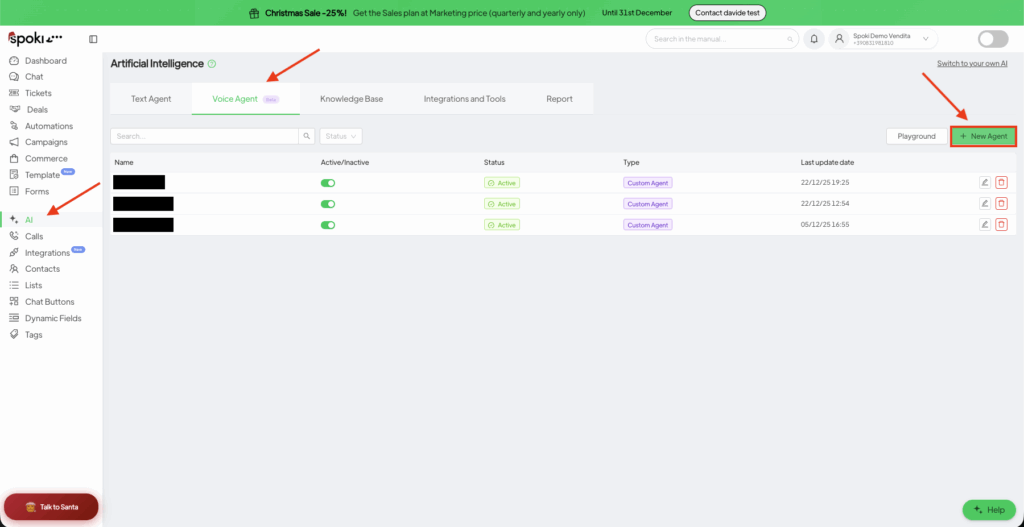
  1. Access the AI Panel: Open your Spoki Dashboard and click on Intelligenza Artificiale (AI) in the left sidebar.
  2. Start New Agent: Click the Voice Agent tab and then the green + New button. Choose Custom Agent.
  3. Core Settings:
    • Name: Internally identify the agent (e.g., “Appointment Confirmation Bot”).
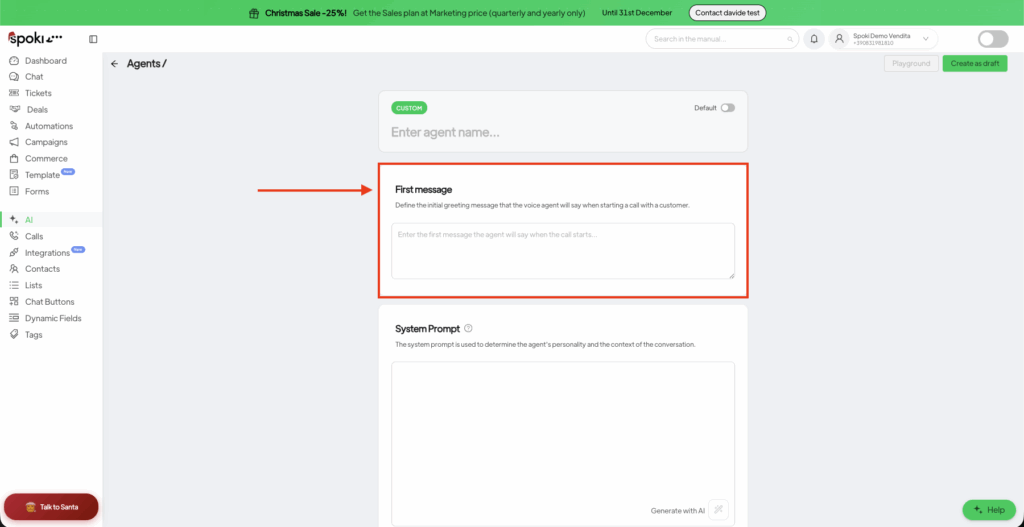
    • First Message: This is the very first thing the AI says.Example: “Hi! I’m calling from Spoki to confirm your demo for tomorrow. Is now a good time?”
    • System Prompt: This is the most important part. Define the “Rules of Engagement.”
      • Who is the AI? (e.g., “You are a helpful sales assistant”).
      • What is the goal? (e.g., “Confirm the date and time of the meeting”).
      • Tone: (e.g., “Be professional but friendly”).
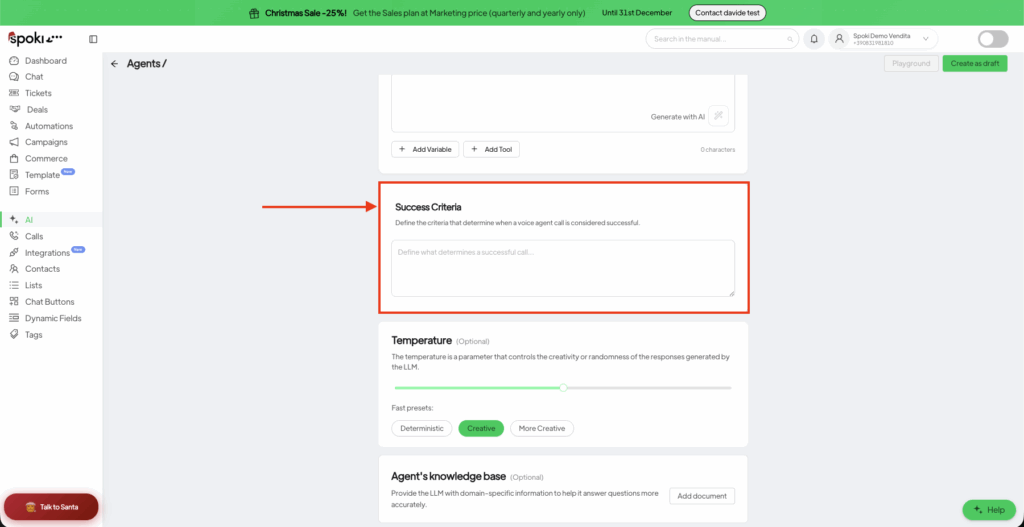
    • Success Criteria: Define what a “Win” looks like. The AI will analyze the call to see if this was met.

AI page
First Message
Success Criteria

2. Refining Voice & Tone #

A natural voice is key to customer retention.

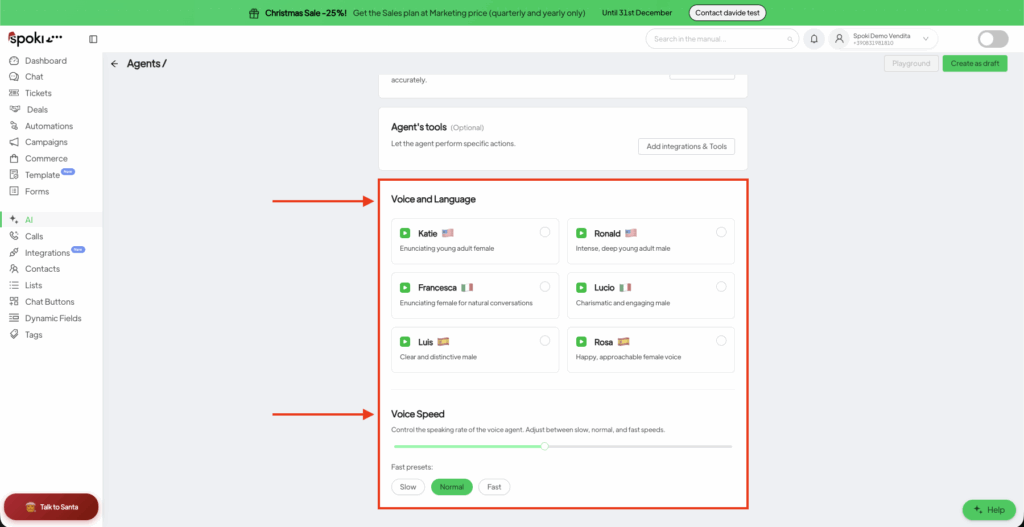
  • Voice Selection: Choose from various profiles (e.g., Katie, Ronald, Francesca). Match the voice to your brand persona.
  • Temperature: * Lower (0.1 – 0.3): More focused and repetitive. Good for strictly regulated industries.
    • Higher (0.7 – 1.0): More creative and human-like. Good for sales and general support.
  • Voice Speed: We recommend a setting between 0.9x and 1.1x. Anything faster feels “robotic,” and slower feels sluggish.

Voice Config

3. Testing in the “Playground” #

Never launch an automation without testing the logic first.

  1. Click the Playground button in the top right.
  2. Select your Agent and click Start Call.
  3. Live Interaction: Speak to the agent as if you were a customer. Try to “trick” it or ask off-topic questions to see how it recovers.
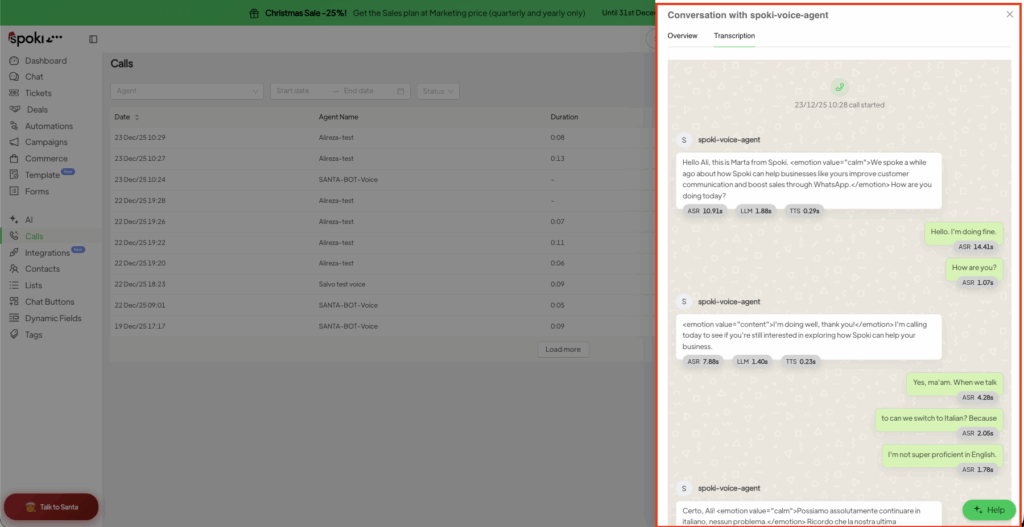
  4. Analyze Results: Go to the Calls menu on the sidebar. Here you can:
    • Listen to the audio recording.
    • Read the Full Transcription.
    • See the Summary generated by the AI.

Playground
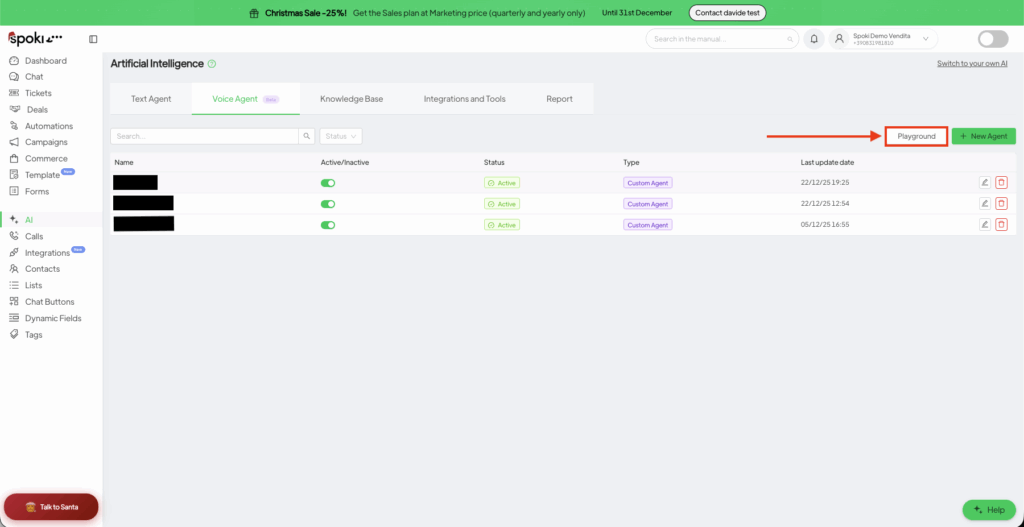
Click on Agent to Start the live call
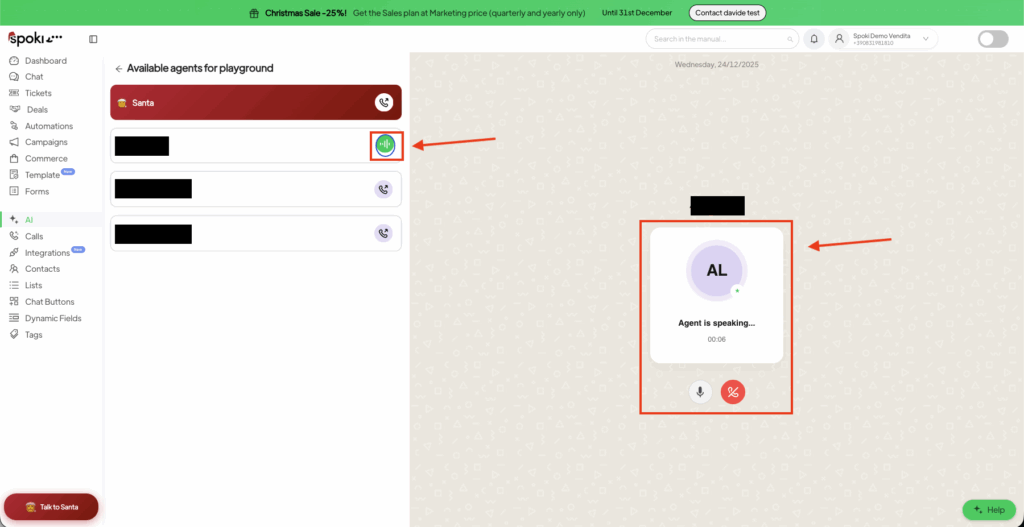
Check the details
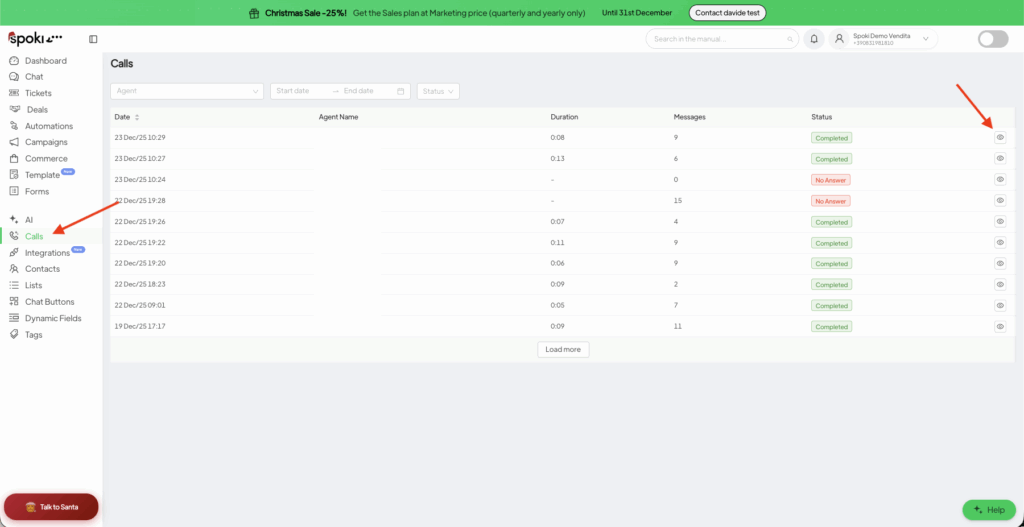
Call Overview
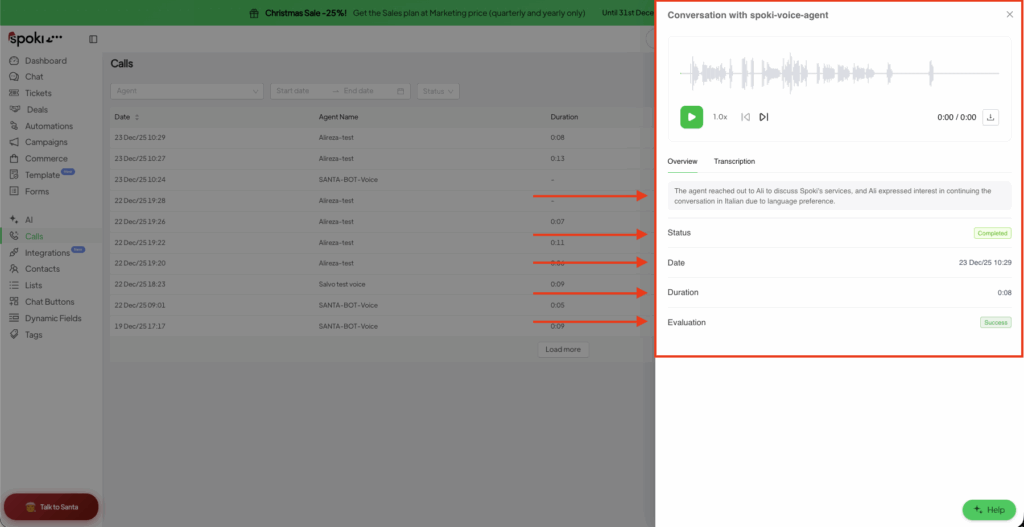
Call Transcription

4. Automating the Call Workflow #

Once the agent is ready, you can make it part of a larger workflow (e.g., calling a lead 5 minutes after they fill out a form).

  1. Go to Automations and click + New.
  2. Add an Action and select Spoki Voice.
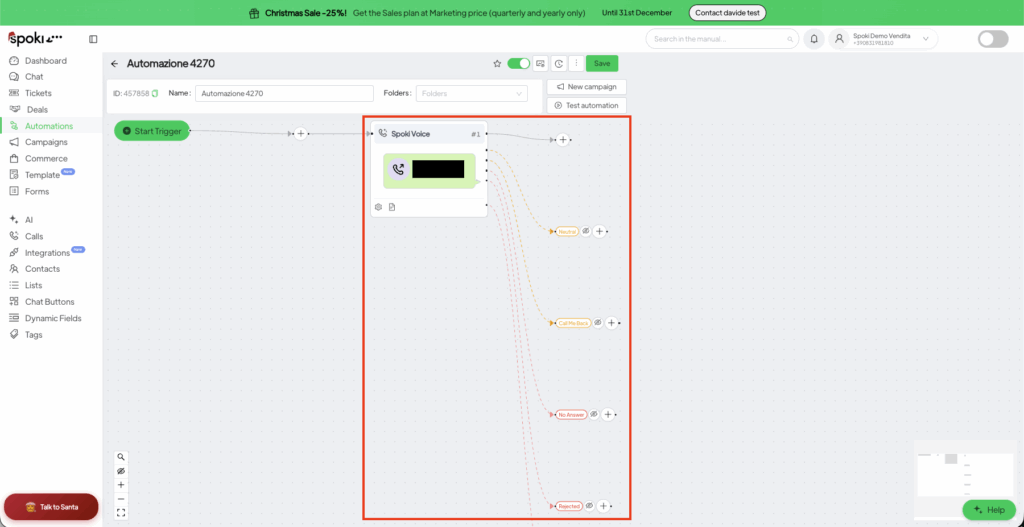
  3. Smart Branching: Once you add the voice action, Spoki creates branches based on what happened during the call:
    • Success: The goal was met (e.g., Appointment confirmed).
    • Neutral: The conversation happened but no specific outcome was reached.
    • Call Me Back: The customer asked to be contacted later.
    • No Answer/Rejected: Use this branch to send a follow-up WhatsApp message automatically.

Step Voice in Automations
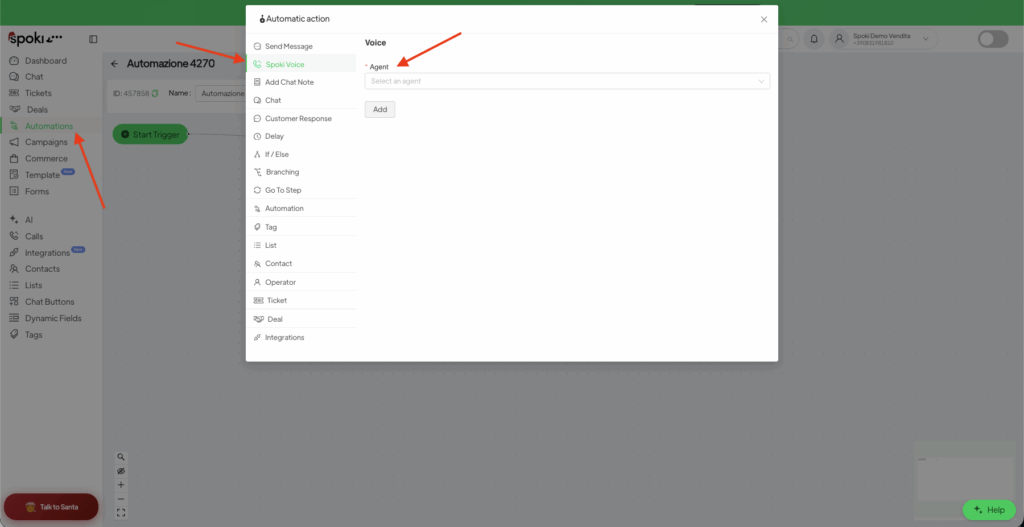
Step Voice
#

What are your Feelings

Share This Article :

  • Facebook
  • X
  • LinkedIn
  • Pinterest
Still stuck? How can we help?

How can we help?

Updated on Dicembre 24, 2025
EmailChef

Powered by BetterDocs

Table of Contents
  • 1. Creating Your First Voice Agent
    • Step-by-Step Configuration:
  • 2. Refining Voice & Tone
  • 3. Testing in the "Playground"
  • 4. Automating the Call Workflow
Spoki
Sviluppa il tuo Business con Spoki e WhatsApp
Prova ora gratis

Contatti

  • support@spoki.com
  • Informativa Privacy

Menu

  • Home
  • Prezzi
  • Funzionalità
  • Integrazioni
  • Intelligenza Artificiale
  • Chi siamo

Soluzioni

  • Marketing
  • Vendita
  • Assistenza Clienti
  • Developers

Supporto

  • API Documentation
  • Blog
  • Casi Studio
  • Learning Center
  • Manuale

Spoki.it © All rights reserved NextAI Srl P.IVA IT02717930743 Viale Francia snc, 72019 San Vito Dei Normanni (BR) Italy

  • Italiano