
Vai al contenuto
Supporto Spoki

Documentation for Spoki use

  • Italiano
  • Italiano

Onboarding

6
  • Best practices for API usage
  • Piani e tariffe | Spoki
  • Attivazione Spoki – autorizzazione da Meta BM
  • Prima di attivare Spoki: Cosa devi sapere sul tuo numero WhatsApp esistente
  • 2. Verifica Meta Business Manager
  • 3. Corso di Formazione Spoki

Integrazioni

34
  • EmailChef
  • Connect Shopify to Spoki AI Sales Agent
  • Zadarma
  • Gorgias
  • Make
  • Ringover
  • Magnews Flow
  • Salesforce Flow
  • Spoki WhatsApp Chat Chrome Extension
  • Integrare WhatsApp con Paypal
  • Come inviare un Webhook in uscita da Spoki vs un gestionale
  • Inserisci Pulsante di Chat su Shopify
  • Integrare Prestashop a WhatsApp
  • Integrare Calendly con Spoki
  • Integrare WhatsApp con Google Calendar
  • Integrare Spoki con qualsiasi gestionale attraverso API
  • Integrare Spoki con i Webhook
  • Incorpora Spoki nel tuo software
  • Integrare WhatsApp con Semplisio
  • Integrare WhatsApp a WPNotif
  • Integrazione di Spoki con Connectif: Automazione dei messaggi WhatsApp
  • Integra WhatsApp con Zoho
  • Integrare WhatsApp con IFTTT
  • Integrare WhatsApp con Qapla’
  • Integrare WhatsApp con Zapier
  • Integrare WhatsApp con Shopify
  • Integrazione WhatsApp e WooCommerce
  • Integrazione Klaviyo e Spoki
  • Integrare WhatsApp con Hubspot
  • Integrare Spoki con Brevo (ex sendinblue)
  • Integrare WhatsApp con ActiveCampaign
  • Integrare Spoki con i moduli di Facebook
  • Integrare WhatsApp con Google Fogli

Regole WhatsApp

8
  • Conversazioni
  • Tipologie di messaggi
  • Qualità dei messaggi inviati
  • Limiti contatti “giornalieri”
  • Regole per evitare il ban da WhatsApp
  • Autorizzazione all’utilizzo
  • Cosa fare se sei stato bannato da WhatsApp
  • Cosa fare se il tuo account è in qualità bassa

Piattaforma

16
  • Guida a Spoki Forms: Come Raccogliere Dati dai Contatti WhatsApp
  • Automazioni Pronte in Spoki
  • Come verificare l’autenticità delle email Spoki
  • Richiedere l’OBA (Account Business Ufficiale) WhatsApp
  • Dashboard
  • Chat
  • Automazioni
  • Campagne
  • Messaggi template
  • Ticket
  • Integrazioni
  • Gestione Contatti in Spoki
  • Liste
  • Pulsanti di chat
  • Campi dinamici
  • Tag

How to

69
  • Spoki sul tuo Smartphone – Web App e notifiche
  • Guida all’Analisi del Sentiment
  • Come Caricare una Lista di Contatti su Spoki
  • Come creare prompts per l’AI
  • Guida allo step “Risposta del cliente”
  • Introduzione all’uso del codice OTP
  • Guida all’Opzione Diramazione nelle Automazioni
  • Accettazione Marketing su Spoki: Guida Operativa
  • Come creare un’automazione semplice dalla sezione Campagne
  • Come filtrare le chat per uno o più tag/operatori/liste/ticket
  • Azione rapida “If/else”
  • Step “Ritardo”: Quando e come usarlo
  • Come tracciare i click sui link dei messaggi Template: UTM
  • Come scrivere i documenti per l’AI
  • Come creare un funnel di marketing su Shopify
  • Campi Dinamici: perché usarli?
  • Come attivare la visualizzazione del catalogo su WhatsApp
  • Come terminare automazione manualmente per specifici contatti
  • Come generare una lista da Statistiche Campagna
  • Come aggiungere Tag in automazione prima di inserirlo
  • Nuove funzionalità di Active Campaign
  • Come creare una lista per i contatti in uno specifico step automazione
  • Come cambiare media nel Template prima di inviarlo in chat
  • Come esportare tutti i messaggi di una chat come CSV
  • Eliminare Definitivamente un Contatto su Spoki
  • Trascrizione e traduzione audio in chat
  • Ripristina tutti i contatti bloccati
  • Come istruire l’intelligenza artificiale (AI) su Spoki
  • Spoki – primi passi
  • Integrare Spoki con le Inserzioni Meta
  • Template suggerito dall’Intelligenza Artificiale (AI)
  • Come inviare il contenuto di un messaggio ad un webhook esterno
  • Come gestire automaticamente chi risponde/ non risponde ad un messaggio
  • Step multipli nell’automazione
  • Come far uscire un singolo contatto da tutte le automazioni
  • Messaggi liberi con bottoni
  • Come trasferire i contatti dalla tua App Whatsapp a Spoki
  • Come gestire i casi in cui devo inviare la risposta in chat ad un cliente dopo 24 ore?
  • COME COLLEGARE SPOKI ALLE CAMPAGNE INTERAZIONE DI FACEBOOK
  • Come gestire prenotazione Calendly + Active Campaign + Spoki
  • Come consultare la reportistica delle automazioni
  • Come inviare messaggi multi lingua
  • Come posso identificare quale utente ha risposto in chat ad un messaggio?
  • Come attivare automazione per il messaggio di auguri compleanno
  • Come gestire automaticamente chi non risponde
  • Come attivare il plugin di Woocommerce associato a Spoki
  • Come attivare un’automazione per gli orari non lavorativi
  • Come attivare un messaggio automatico da far partire nei giorni festivi
  • Come collegare Spoki alle campagne Facebook
  • Come collegare un pulsante chat sul sito ad una risposta automatica
  • Come inserire il pulsante di chat WhatsApp sul sito WordPress
  • Proporzioni consigliate per le immagini nei messaggi Whatsapp
  • Come creare un’automazione con risposta ai bottoni del template
  • Come avviare un’automazione con API
  • Come attivare le notifiche su Spoki
  • Come aggiornare il profilo WhatsApp di Spoki
  • Come creare nuovi utenti e attribuire ruoli diversi
  • Come integrare Spoki per i tuoi clienti nel tuo software
  • Come bloccare/ sbloccare i contatti in automatico
  • Come recuperare i carrelli abbandonati su Woocommerce
  • Come avviare un messaggio di reminder in automatico tramite Spoki
  • Come duplicare le automazioni/ template
  • Gestire i messaggi liberi nel flusso di automazione
  • Come attribuire o rimuovere i tag ai contatti di una lista
  • Visualizzare solo le chat non lette
  • Come eliminare contatti multipli
  • Come utilizzare il webhook di ritorno da Spoki a Zapier
  • Migrazione da vecchio provider Twilio

Strategie

11
  • Suggerimenti per invii massivi superiori a 10.000 contatti
  • Strategie WhatsApp per il Natale: La Guida Completa per Massimizzare Vendite e Soddisfazione Cliente
  • Whatsapp e Black Friday: ecco le automazioni che ti faranno vendere di più
  • WhatsApp per E-commerce: Come Trasformare Conversazioni in Vendite con Spoki
  • Perché l’AI di Spoki è Essenziale in ogni Strategia di Comunicazione e Vendita
  • WhatsApp che Fa Vendere – MiniGuida Strategica Settoriale
  • Raggiungi Tutti i Tuoi Contatti Senza Eccezioni: Gli SMS Integrati nelle Automazioni Spoki
  • Guida pratica per creare, ottimizzare e approvare template WhatsApp con Spoki e ChatGPT
  • Le 6 automazioni più efficaci da fare con Spoki
  • Calendario e-commerce 2025

Release Notes

4
  • Template Carosello
  • Report Tickets
  • Commerce Triggers
  • Step automazione “Avvia automazione”
  • Home
  • Docs
  • Integrazioni
  • Spoki WhatsApp Chat Chrome Extension
View Categories

Spoki WhatsApp Chat Chrome Extension

Starting a conversation on WhatsApp has never been so simple and fast!

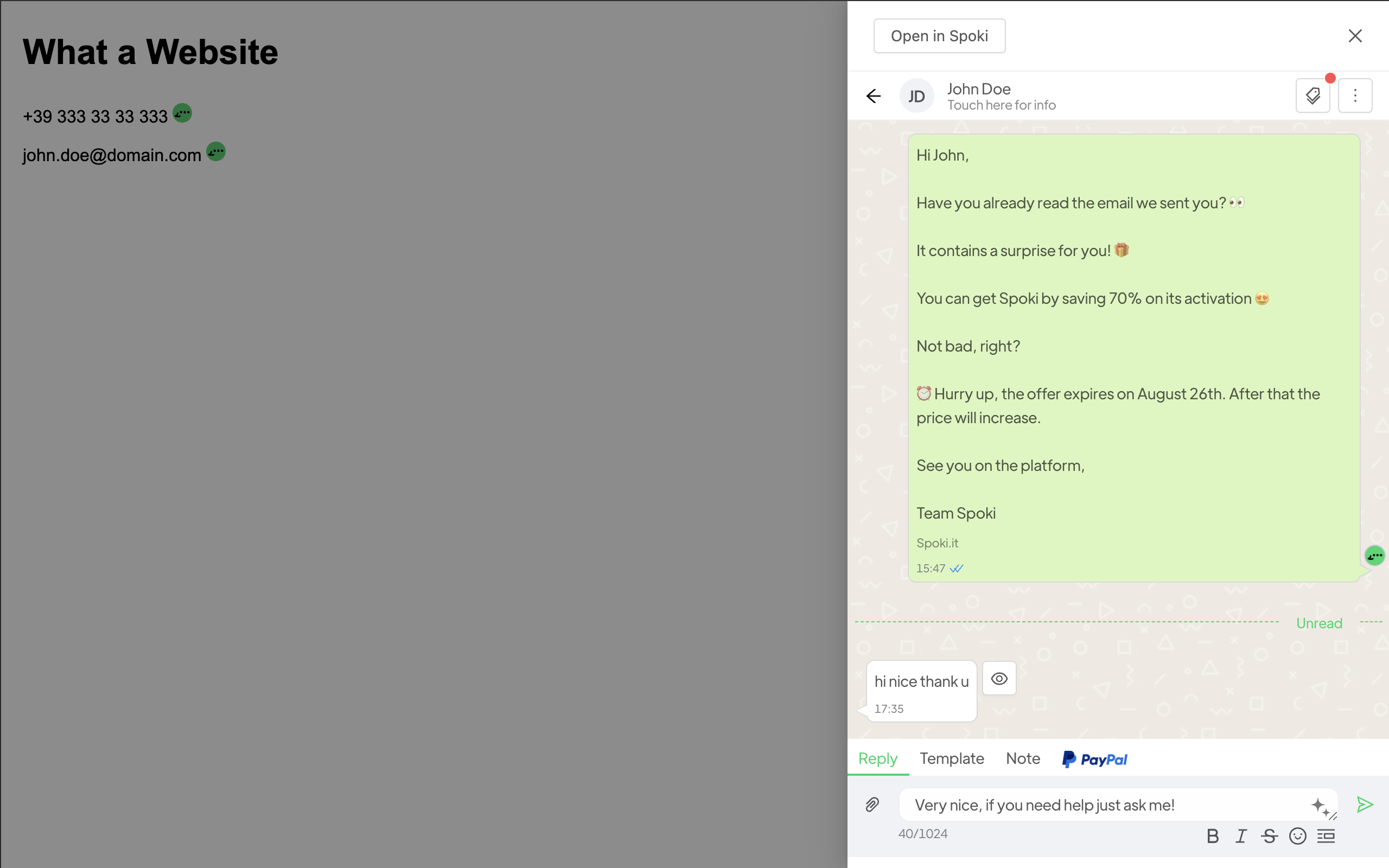
Spoki WhatsApp Chat automatically detects emails and phone numbers on web pages, allowing you to instantly start a WhatsApp chat with Spoki, all while staying conveniently within the same tab.

Forget about complicated steps and unnecessary clicks: with just one tap, you’re ready to connect with anyone quickly and directly.

Spoki WhatsApp Chat is the perfect tool for those looking to maximize productivity and simplify online communication management.

Discover the pleasure of smoother browsing and smarter interactions!

How To #

To configure the extension you need to perform the following steps:

  1. Request the Api Key
  2. Generate the Private Token
  3. Configuration
  4. Usage

1. Request the Api Key #

  • Go to Integrations / Spoki WhatsApp Chat Chrome Extension

If you don’t have an Api Key follow next steps:

  • Click on “Request Api Key“
  • Insert as motivation “I want to set up the Spoki WhatsApp Chats chrome extension.”
  • Click on “Request Api Key”

2. Generate the Private Token #

The Private Token is associated to a specific user of your account.
To obtain the Private Token for your own user follow these steps:

  • Click on “Generate new Private Key“
  • Save the Private Key.
    IMPORTANT: Make sure to save it, you won’t be able to access it again. Keep the key protected, anyone who has it can act for you. If so, regenerate the key.

Already have a Private Key?
You don’t need to generate it again, just use your current Private Key.

3. Configuration #

  • Go to Integrations / Spoki WhatsApp Chat Chrome Extension
  • Click “Copy Settings”
  • Open Spoki in Google Chrome
  • Go to Integrations / Spoki WhatsApp Chat Chrome Extension
  • Click on “Download”
  • Click on “Add” from the Chrome Web Store
  • Click on the Extensions icon on the top right of the Google Chrome Browser
  • Then click “Spoki WhatsApp Chat”
  • Paste settings you copied before from Spoki
  • Click on “Enable”
  • You can always refresh the data or disable the extension later
URL List instructions #

If the field is not populated the extension is active on all pages.
You can decide to activate it only on some domains or on specific pages by entering the URLs separated by commas.

  • Start strictly with http, https or *: http | https | * ;
  • Contain domain and zone without masks, or only mask: example.com | *.example.com | * ;
  • End with a specific path or *: /path | /* ;
  • Host must end with a delimiter: / .

Examples of working patterns:

  • https://example.com/
  • https://www.example.com/
  • http://example.com/
  • *://example.com/
  • https://*.example.com/
  • https://example.com/path
  • https://example.com/*
  • *://example.com/*
  • *://*.example.com/*
  • *://*/*

These patterns won’t work:

  • http://example.com
  • https://www.example.*/
  • http*://example.com/
  • example.com

  • Reload the page from the browser
  • On the mid right of the page a Spoki Toggle will be shown, by default is disabled
  • Click on it to enable Spoki on the current page domain
  • After clicked Spoki will be enabled and a Spoki logo will appear near every Phone Number and Email found in the current page

4. Usage #

Once the extension is enabled, browsing the URLs you are interested in you will see the Spoki icon next to the phone numbers or emails.

  • Click on the icon to open a side panel where you can chat with the selected number contact
  • If the contact does not exists in your Spoki account you’ll be able to create it, then chat

What are your Feelings
Share This Article :
  • Facebook
  • X
  • LinkedIn
  • Pinterest
Still stuck? How can we help?

How can we help?

Updated on Settembre 11, 2024
Salesforce FlowIntegrare WhatsApp con Paypal

Powered by BetterDocs

Table of Contents
  • How To
    • 1. Request the Api Key
    • 2. Generate the Private Token
    • 3. Configuration
      • URL List instructions
    • 4. Usage
Spoki
Sviluppa il tuo Business con Spoki e WhatsApp
Prova ora gratis

Contatti

  • support@spoki.com
  • Informativa Privacy

Menu

  • Home
  • Prezzi
  • Funzionalità
  • Integrazioni
  • Intelligenza Artificiale
  • Chi siamo

Soluzioni

  • Marketing
  • Vendita
  • Assistenza Clienti
  • Developers

Supporto

  • API Documentation
  • Blog
  • Casi Studio
  • Learning Center
  • Manuale

Spoki.it © All rights reserved NextAI Srl P.IVA IT02717930743 Viale Francia snc, 72019 San Vito Dei Normanni (BR) Italy

  • Italiano