
Description #
The Go High Level Trigger allows you to start Spoki automations when Go High Level (GHL) workflows send data to Spoki via webhooks.
Use this for the GHL → Spoki direction: trigger WhatsApp automations from GHL events (e.g. form submissions, pipeline changes, campaign actions) to create a bi-directional integration with the Go High Level Integration Step.
🎯 Overview #
The Go High Level trigger enables your automations to:
- 🔔 Receive Data from GHL – Start Spoki automations when GHL workflows send webhook requests
- 📞 Identify Contacts – Match incoming data to Spoki contacts (e.g. by phone)
- 🔄 Bi-directional Integration – Combine with the Go High Level Integration Step (Spoki → GHL) for full two-way workflows
- 📊 Sync Custom Fields – Populate contact fields with data from GHL
- ⚡ Real-time Start – Trigger WhatsApp flows from GHL events (form submit, deal stage change, tag added, etc.)
💡 When to Use #
Use this trigger when you need to:
| Use Case | Example |
|---|---|
| GHL form to WhatsApp | Start a Spoki automation when a contact submits a GHL form |
| Pipeline stage change | Send WhatsApp messages when a deal moves to a specific stage |
| Campaign or sequence event | Trigger Spoki when a contact enters/exits a GHL campaign |
| Tag-based workflows | Start automations when a contact is tagged in GHL |
| Calendar or booking | Trigger follow-up when an appointment is booked in GHL |
| CRM updates | Run Spoki flows when contact/opportunity data changes in GHL |
✅ Prerequisites #
Before using the Go High Level trigger, you need to:
- Have a Go High Level Account – Active GHL account with workflow/automation access
- Create a Spoki Automation – An automation that will be started by the trigger
- Get the Webhook URL – Obtain the Spoki webhook URL from the Go High Level trigger configuration
- Understand the Payload – Know what data GHL must send (e.g. phone for contact identification)
⚠️ Note: Trigger availability and webhook endpoint details may depend on your Spoki setup. Contact your Spoki administrator if the Go High Level trigger is not visible or you need the exact webhook specification.
⚙️ Configuration #
Step 1: Add Go High Level Trigger to Automation #
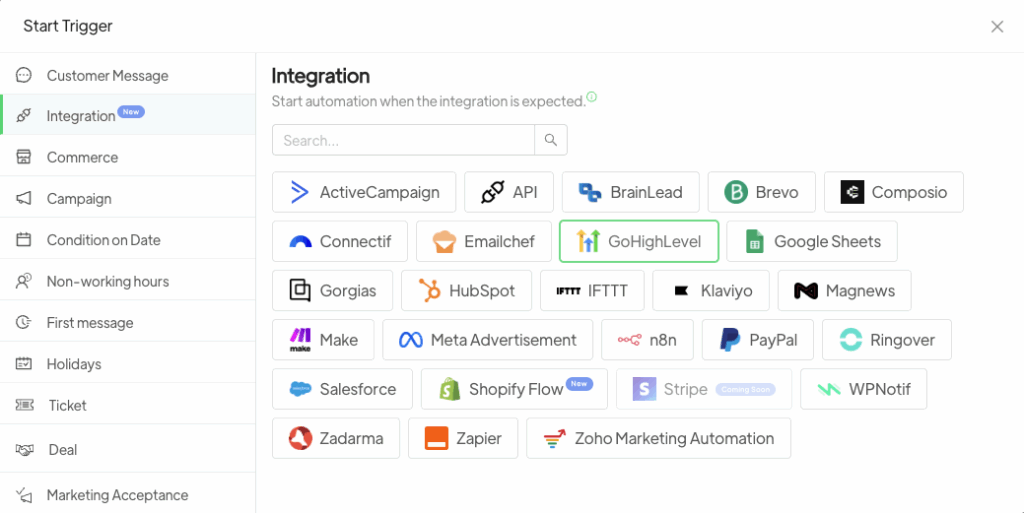
In the Spoki automation editor:
- Create a new automation (or edit an existing one)
- In the Trigger section, click Select Trigger
- Choose Go High Level from the integrations list
Step 2: Copy the Webhook URL and Secret #
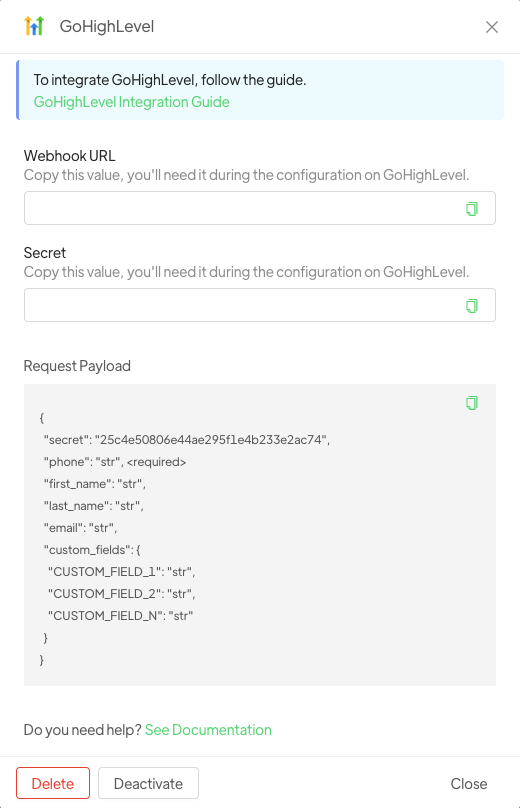
The trigger configuration displays:
- Webhook URL – Unique URL that GHL will call to start this automation
- Secret / token (if applicable) – For authenticating requests from GHL
Copy these values; you will use them in your GHL workflow.
Step 3: Configure Your GHL Workflow #
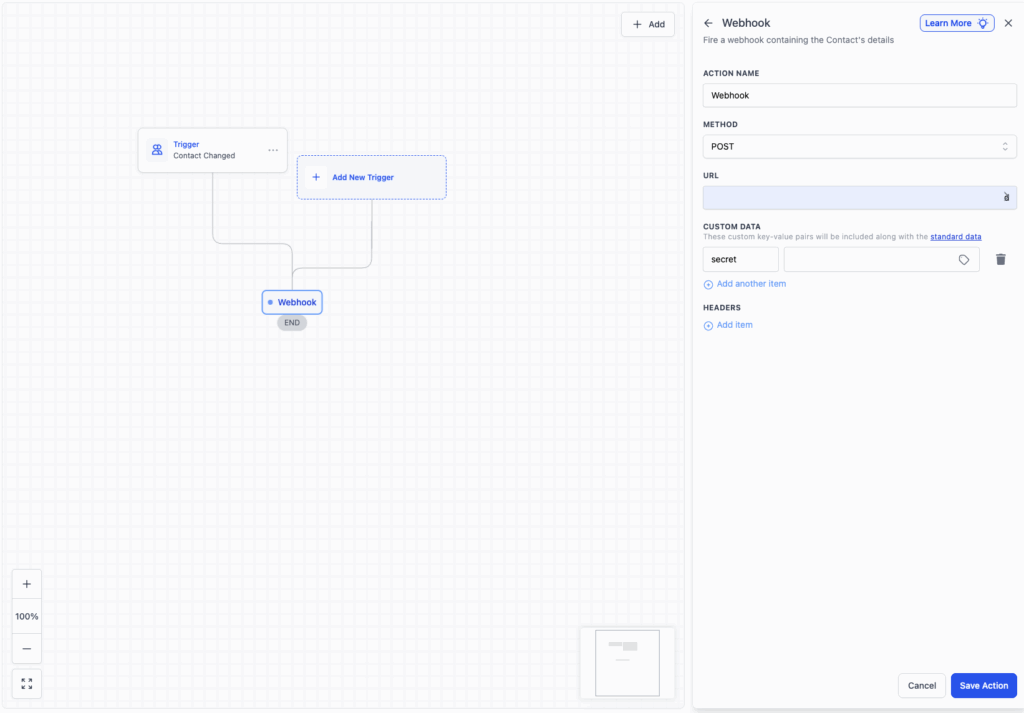
In Go High Level:
- Create or edit a workflow that should start the Spoki automation
- Add an action that sends an HTTP request (webhook action) to the Spoki webhook URL
- Set Method to
POSTand Content-Type toapplication/json - Build the request body with the required fields (see Request Payload section)
Step 4: Test the Trigger #
Before going live:
- Run the GHL workflow with test data
- Confirm the Spoki automation starts
- Verify the correct contact is identified and any custom fields are set as expected
🔧 Webhook Setup #
Flow: GHL → Spoki #
- GHL workflow runs (e.g. on form submit, stage change, or schedule)
- GHL sends an HTTP POST to the Spoki webhook URL with contact and custom data
- Spoki validates the request and starts the automation for the identified contact
Requirements #
- Workflow in GHL must send a valid JSON body including at least the data needed for contact identification (e.g. phone)
- Webhook URL from Spoki must be used exactly as provided (no trailing slash or query params unless documented)
- If a secret is required, include it in the request (e.g. header or body) as shown in the trigger configuration
📦 Request Payload #
Spoki expects a JSON payload from GHL. Typical structure:
{
  "phone": "+393491234567",
  "first_name": "Mario",
  "last_name": "Rossi",
  "email": "mario.rossi@example.com",
  "custom_fields": {
    "LEAD_SOURCE": "GHL Form",
    "CAMPAIGN_ID": "abc123"
  }
}
Key Fields #
| Field | Type | Description |
|---|---|---|
phone | string | Contact phone (E.164); used to identify contact |
first_name | string | Optional; contact first name |
last_name | string | Optional; contact last name |
email | string | Optional; contact email |
custom_fields | object | Optional; key-value pairs for custom fields |
Exact required and optional fields depend on Spoki’s current API; refer to the trigger configuration or Spoki administrator if something is rejected.
👤 Contact Identification #
The trigger uses the incoming payload to find or create the contact in Spoki:
- Phone – Primary identifier; include E.164 phone so Spoki can match the contact
- If no contact exists, Spoki may create one based on the payload (behavior may depend on configuration)
- Custom fields from the payload can be applied to the contact for use in the automation
📝 Examples #
Example 1: GHL Form Submission → WhatsApp Welcome #
Scenario: When someone submits a GHL form, start a Spoki automation that sends a WhatsApp welcome message.
GHL:
- Create a workflow triggered by Form Submission
- Add Webhook (or HTTP) action
- URL: Spoki webhook URL from the Go High Level trigger
- Body: map form fields to
phone,first_name,last_name,email, and anycustom_fields - Save and activate
Spoki:
- Trigger: Go High Level
- First step: Send WhatsApp message (e.g. “Thanks for submitting, we’ll be in touch!”)
Result: Form submitters receive an automated WhatsApp message from Spoki.
Example 2: Deal Stage Change → WhatsApp Notification #
Scenario: When a deal moves to “Proposal Sent” in GHL, trigger a Spoki automation to notify the contact via WhatsApp.
GHL:
- Workflow trigger: Opportunity Stage Changed (e.g. to “Proposal Sent”)
- Webhook action to Spoki URL with contact
phoneand custom fields (e.g. deal name, value) - Activate workflow
Spoki:
- Trigger: Go High Level
- Steps: e.g. send message with proposal summary and CTA
Result: Contacts get a WhatsApp message when their deal reaches the chosen stage.
Example 3: Bi-directional Loop with Integration Step #
Scenario: Spoki sends leads to GHL (step); GHL nurtures them and then triggers Spoki again (trigger).
- Spoki → GHL: Use the Go High Level Integration Step to send contact data to a GHL workflow (e.g. create contact, add to campaign).
- GHL → Spoki: In GHL, when a contact completes a step (e.g. “Opened email” or “Replied”), use a workflow to call the Spoki Go High Level trigger webhook with the contact’s phone and any custom data.
- Spoki: The triggered automation can send a WhatsApp follow-up or update the journey.
Result: Full loop: WhatsApp → GHL → GHL events → WhatsApp.
✅ Best Practices #
- Use E.164 for phone – Normalize phone numbers in GHL before sending to Spoki.
- Secure the webhook – Keep the webhook URL and any secret private; use GHL’s secure variables if available.
- Test with one contact – Verify contact matching and custom fields with a test contact before scaling.
- Map fields consistently – Align GHL custom fields with Spoki custom field names to avoid missing data.
- Handle errors in GHL – If the webhook fails, use GHL error handling or retries and log for debugging.
❓ FAQ #
What’s the difference between the Go High Level Trigger and the Go High Level Integration Step? #
Go High Level Trigger: GHL → Spoki. A GHL workflow sends data to Spoki; Spoki starts an automation (e.g. WhatsApp flow).
Go High Level Integration Step: Spoki → GHL. A Spoki automation step sends data to a GHL webhook (e.g. create/update contact, start campaign).
Use both for bi-directional integration.
Do I need the Integration Step to use the Trigger? #
No. The trigger works independently. You can start Spoki automations from GHL even if you never use the Integration Step.
What if the contact phone is not in Spoki? #
Behavior depends on Spoki configuration: Spoki may create a new contact or reject the trigger. Ensure phone is in E.164 format and that your settings allow contact creation if needed.
Can one GHL workflow trigger multiple Spoki automations? #
Typically, each automation has its own webhook URL. To trigger multiple automations from one GHL workflow, call each automation’s webhook URL in sequence (or use multiple HTTP actions).
Is the Go High Level Trigger available in my Spoki account? #
Availability can depend on plan or configuration. If you don’t see the Go High Level trigger, contact your Spoki administrator.





