
What you need to activate the number from Meta’s Business Manager
To activate Spoki using a phone number linked to a WhatsApp Business account, you need the following:
Business Manager Data
- Login credentials with administrator permissions to your company’s Business Manager
- The website URL you will enter in the Business Manager during activation
- Your website must be reachable and contain all business information
Phone Number Type
Remember to keep the device with the WhatsApp Business app installed nearby, as you will receive a notification from your Facebook business account to continue the process.
The number can be either a physical SIM card or an eSIM.
Activation Procedure
Login to Spoki
- Log in to the Spoki page at: the Spoki dashboard
- If you don’t remember your password, you can request a new one by clicking the Forgot password? link
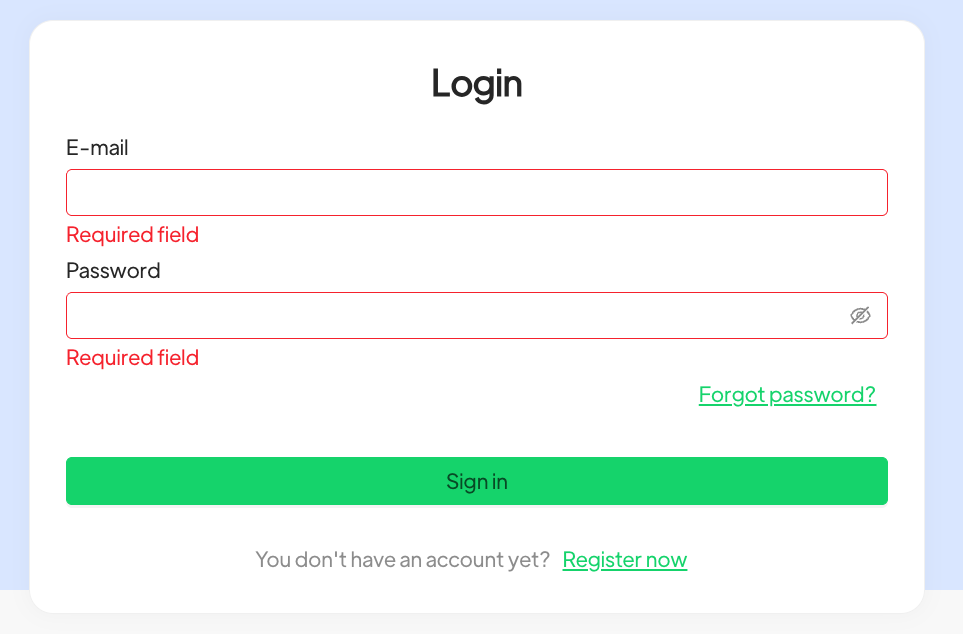
Click the Activate Number button in the top left of the side menu
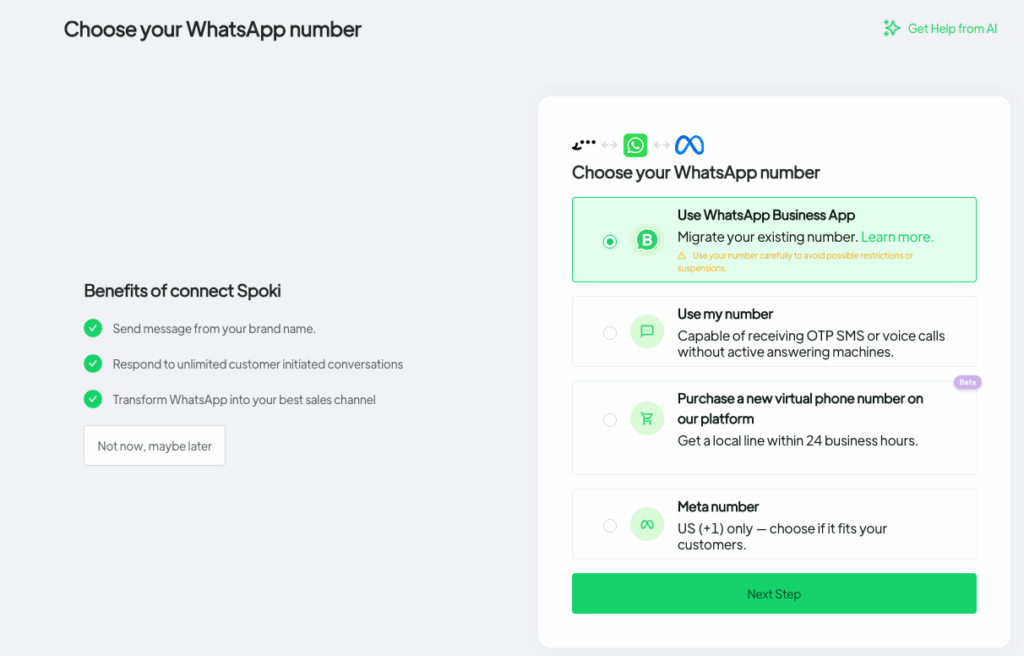
Selection of the number type to connect
On the phone number type selection screen, select Use WhatsApp Business App and click the Next step button.
This option allows you to sync contacts and the last 6 months of chat history between the WhatsApp Business app and Spoki.
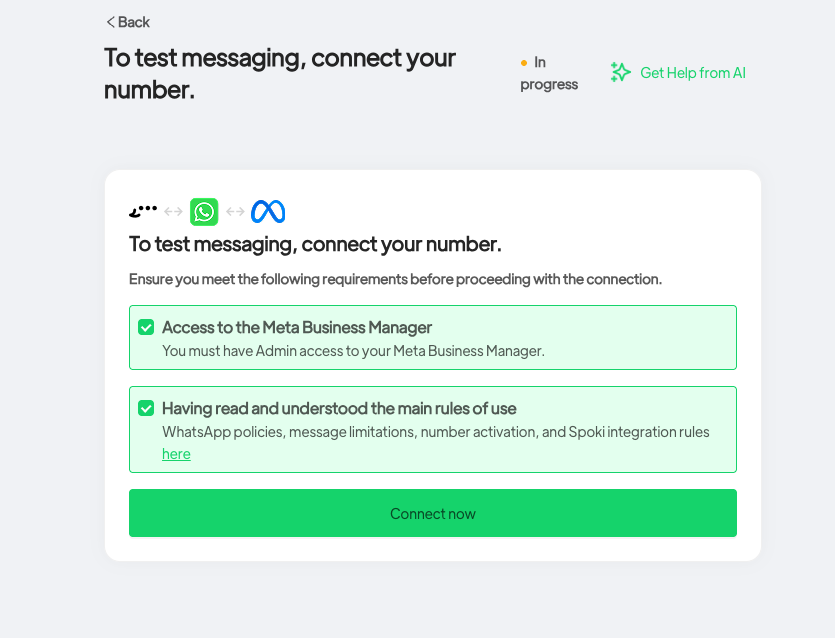
On the next screen, check both checkboxes and click the Connect now button
Click the blue Start Facebook setup button to proceed to your Business Manager
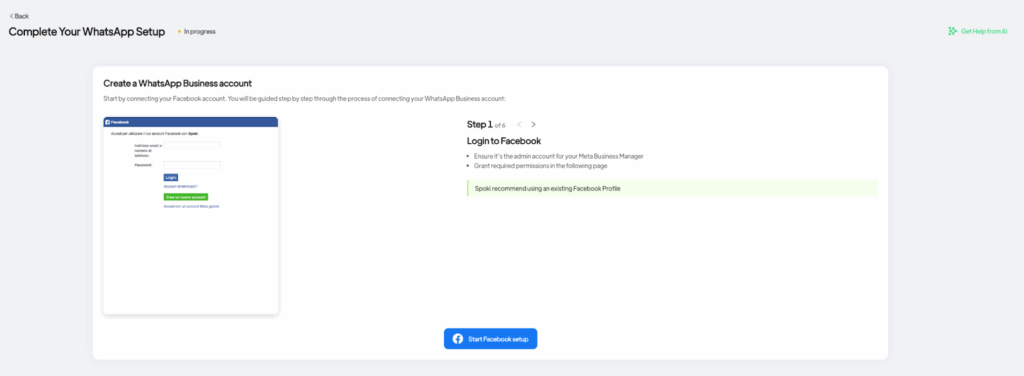
Access to Meta’s Business Manager #
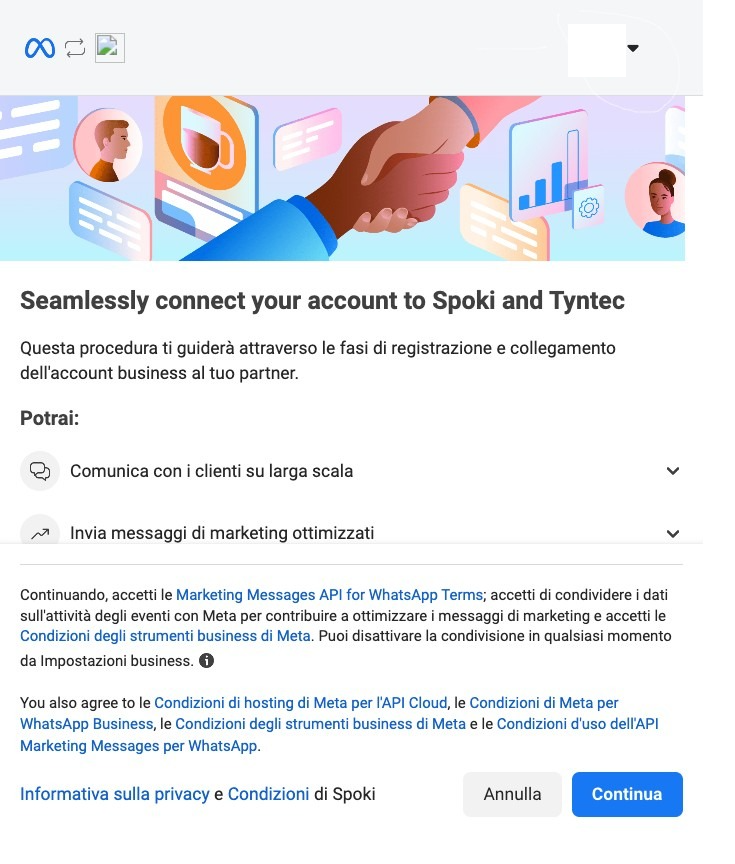
In the tab that follows, select in the top right box the profile linked to the company’s business portfolio to connect to Spoki. If you are not logged in with your account, you can click the Add another account option in the dropdown menu to manually add the correct profile, then click Continue.
Linking WhatsApp Business account to the Business Portfolio #
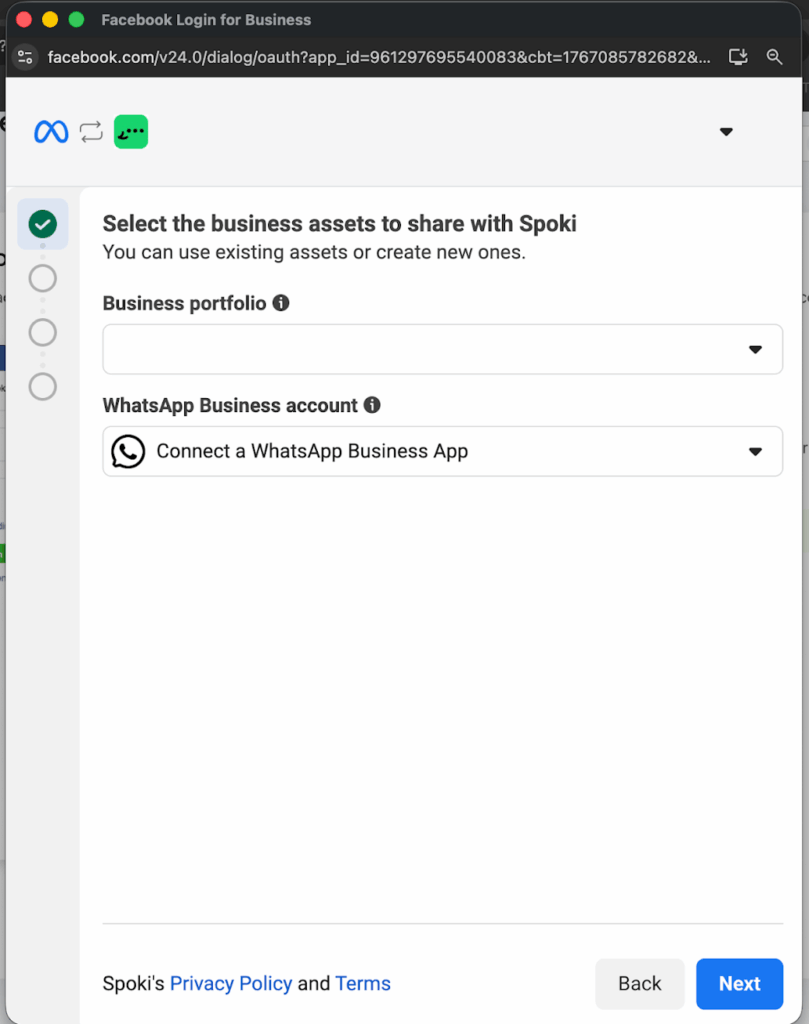
In the following section, select the correct business portfolio and choose the option Connect a WhatsApp Business App to create a new account to link to Spoki from the dropdown menu, then click Next to continue.
Phone Number Entry #
On the next screen, you will need to enter the phone number to link to the resource you just created in the Business Manager
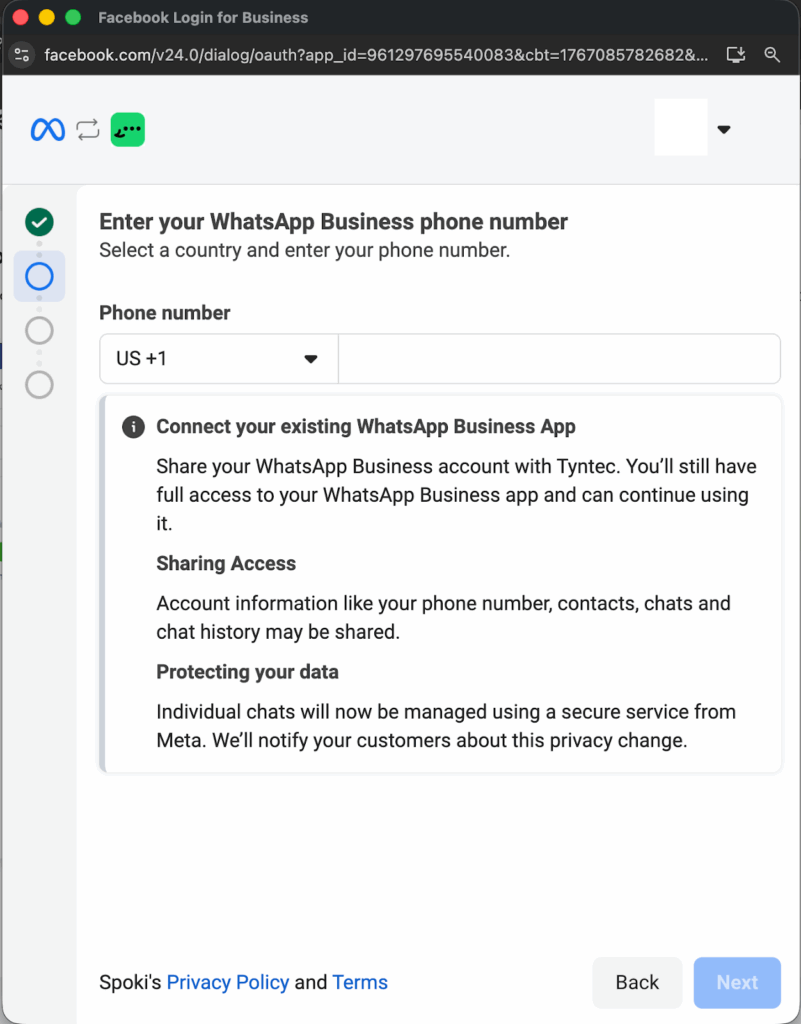
Select the country code and enter the phone number to connect, then click Next.
Enter the verification code and click Next.
QR Code to authorize the number association
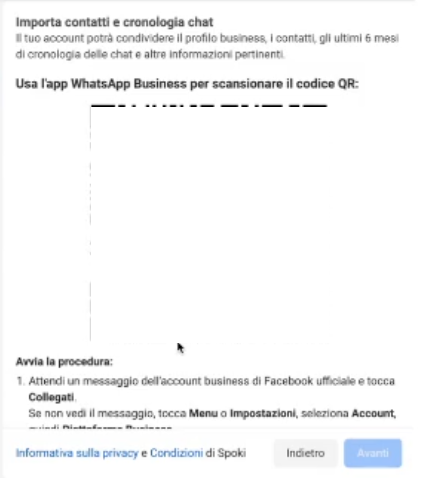
You will receive a message on the WhatsApp Business app and you can scan the QR code on the new screen from the app. If you do not receive the code, you can navigate to the settings menu of the WhatsApp Business app by following the instructions.
Final Steps #
After scanning the QR code, this loading screen will appear. This is an automatic process that will complete on its own.
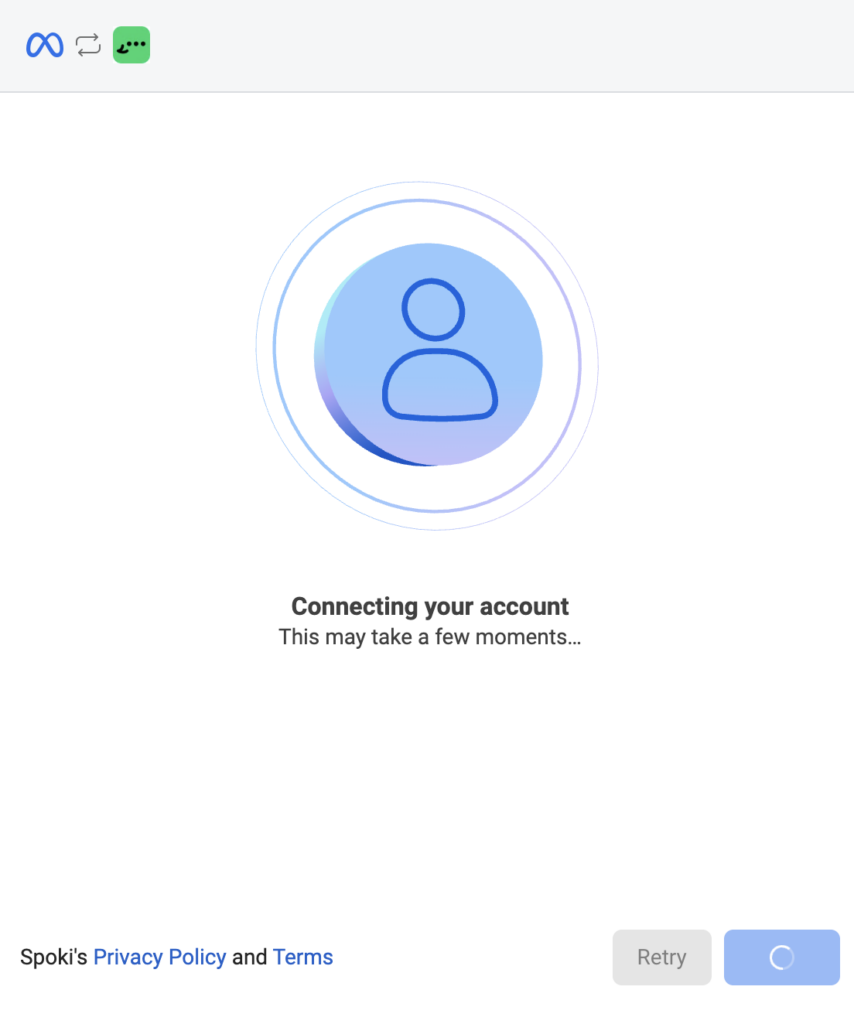
Confirm the data you are granting Spoki access to on the final screen by clicking the Confirm button.
Congratulations, you have completed the Spoki activation process with your phone number! You will be taken directly to the platform Dashboard and Meta will take up to 24 hours to approve your phone number.