

A campaign allows you to schedule, at a specific date and time, the sending of a mass message to one or more contact lists. It is the ideal tool for promotional, informational or service communications on a large scale. To send a campaign it is necessary to have a template approved by Meta, which will contain the message to be delivered to the recipients. Before setting up a campaign, it is necessary to have some fundamental elements available:
- Name: useful identifier to manage and recognize the campaign;
- Contacts list: it is possible to select multiple lists, ensuring that the total sum of contacts does not exceed the daily limit allowed by your account (this information is visible in the dashboard under “WhatsApp Status”). If there are duplicate contacts in the lists, the message will be sent only once to each contact.
- Automation: you can indicate the automation that contains the message to be sent (see how to create an automation).
- Scheduled start date: exact moment when the campaign will be sent.
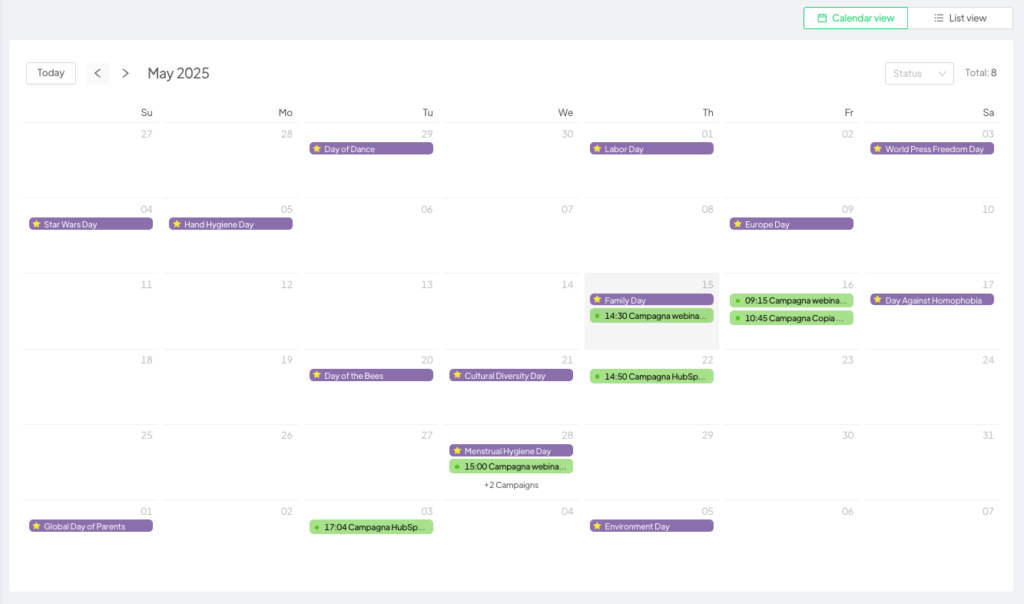
Entering the Campaigns section, the main screen shows a calendar view that highlights all scheduled campaigns. Here you can also see holidays and events, useful elements for planning communications at the most strategic moments.
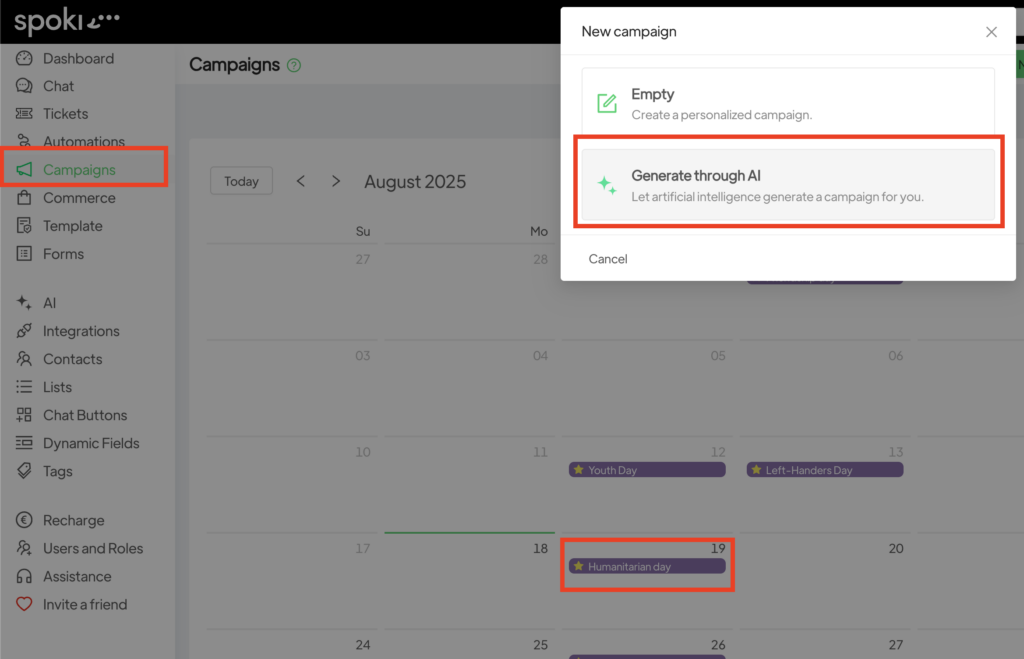
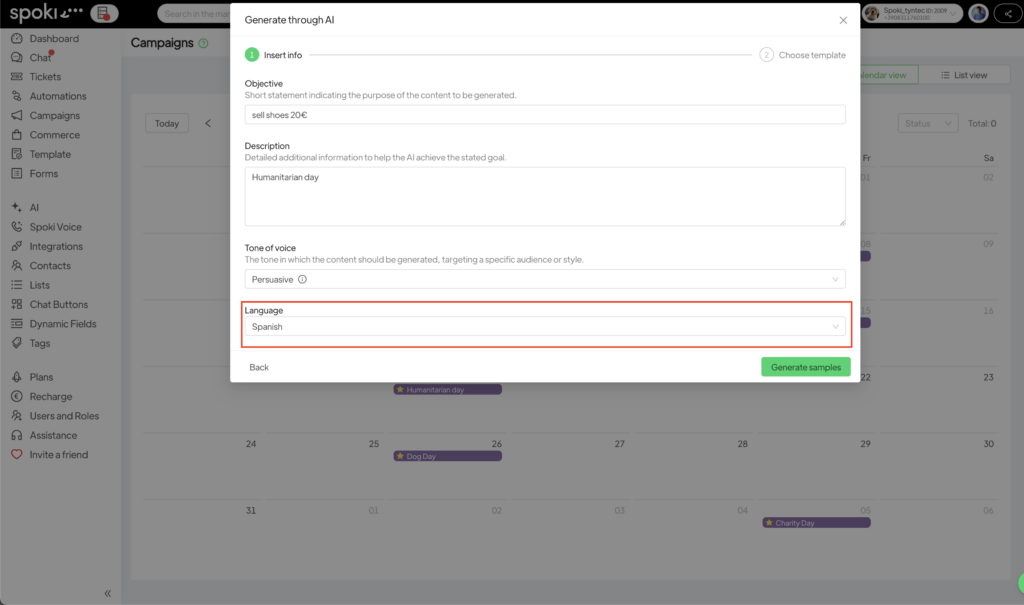
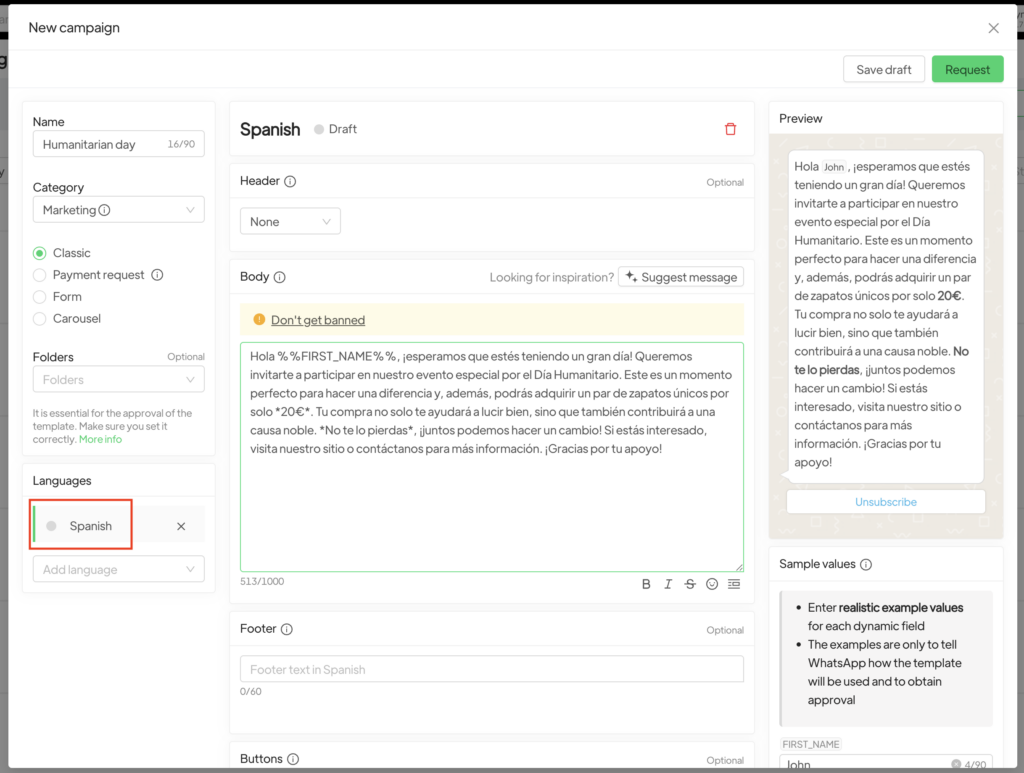
By clicking on an event, you can automatically generate a template with AI, select the desired language, and get content immediately ready for your campaign.
If you prefer, you can switch to list view, which presents all campaigns in a tabular format with essential information, such as name, status, progress, start date, and more.
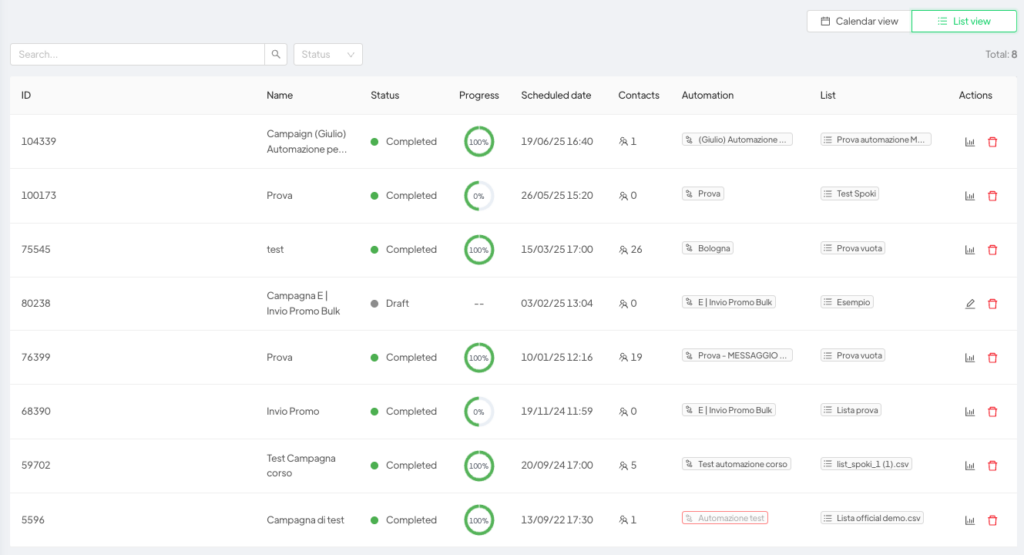
To create a new campaign, click on New. Here you can choose to write the message from scratch or use artificial intelligence to automatically generate a template (see how to write a Template).
In addition to the message, you will need to set:
- the campaign name;
- the contact list;
- the start date.
You can choose whether the campaign involves only sending the template or starting an automation.
It is also possible to add contacts not present in a list in a campaign by clicking on the Box under Add more contacts manually.
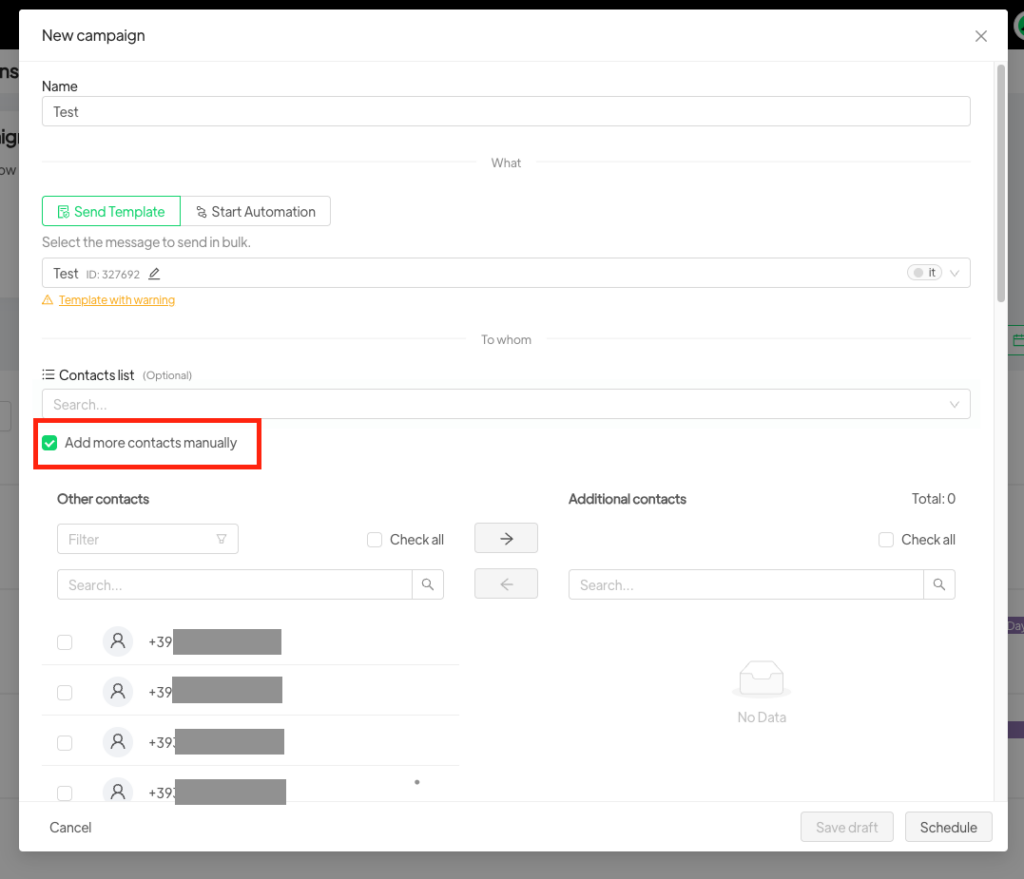
Once you click on Add contacts manually, it will be possible to add all the contacts that are not present in the lists by clicking on the box corresponding to the contact and moving the contacts to the left column (Additional contacts).
Then, it will be possible to schedule the campaign, which will be sent to contacts both to the list and to the individual contacts inserted manually.
You can decide whether the campaign only involves sending the template or if you want to start a complete automation, which includes additional actions or subsequent steps.
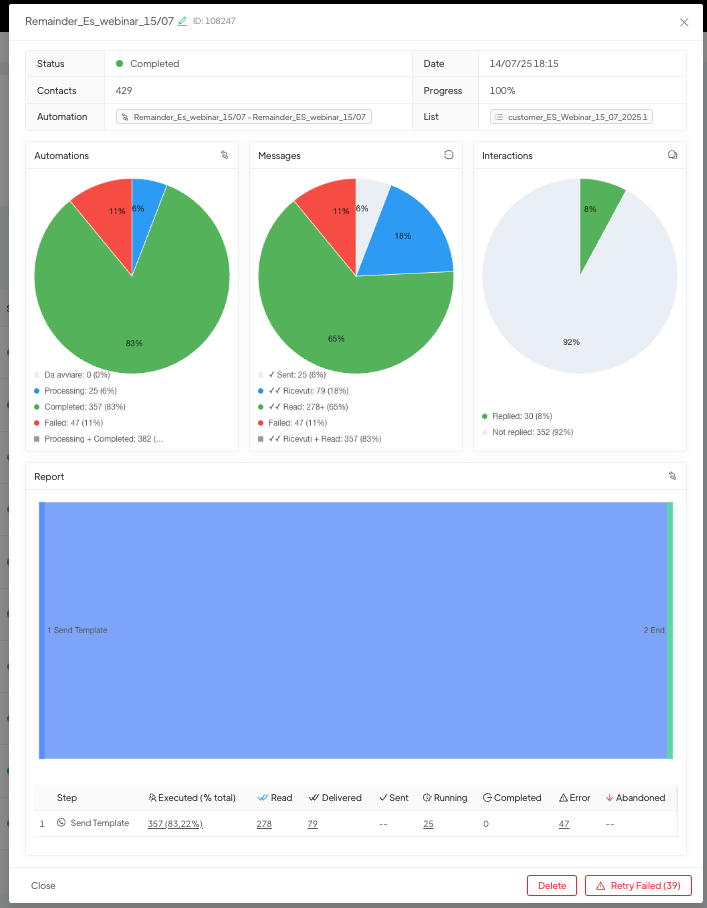
A campaign can be saved as draft or scheduled. As long as the status is “Scheduled”, it can be modified or deleted. At the end of the sending, it is possible to consult the detailed statistics, including:
- Automation status: to start, in progress, completed, failed
- Message status: sent, received, read, failed
- Interactions: number and percentage of customers who have responded or taken actions. If some sends have failed, you can use the Retry Failed button to automatically create a new campaign only for those contacts, rescheduling it to a new date and time.
You can also pause an active campaign: only contacts not yet reached will be suspended. The pause can also happen automatically, for example, in case of template reporting, allowing you to reorganize the sending.
Once the campaign has been sent, and therefore completed, it is possible to view the sending statistics by clicking on the chart icon on the right.
In the statistics it is possible to check:
For automations: the number and percentage of automations still “To start” are indicated; the “in progress” automations are those for which multiple steps are planned, so for this number of contacts there are still steps that could be completed; “Completed” are the automations completed in all the set steps; “Failed” are the automations for which it was not possible to send the message contained in the automation because for example the contact number is not valid.
For messages: the detail at message level is highlighted (Sent, received and read) so the number and percentage of “sent” messages are indicated, these are messages sent to numbers that have a WhatsApp account but for which the customer either has the phone turned off or has not activated WhatsApp notifications; “Received” are messages with double check marks for which the customer has set on their account not to communicate whether the message has been read or not; “Read” are messages with blue double check marks certainly read by customers; “Failed” are messages that were not delivered because for example the contact number is not valid (these conversations that are not started are also not paid for).
Interactions: the number and percentage of customers who have interacted with the automation are indicated.
How to send the message only to customers for whom the sending failed #
In the bottom right button “Retry Failed” the contacts for whom the automation failed are indicated, but for whom the number is valid. This category can include customers who have not installed WhatsApp on their number or can include all numbers for whom the campaign was not successful due to exceeding the daily sending limit.
By clicking on the button, a campaign identical to the one you created will be automatically generated, which has as a list only the contacts for whom the sending failed. If you want to start the automation for these contacts, you will therefore have to indicate to Spoki the day and time and schedule the campaign created through that button (you will find the new campaign in draft).
Pausing campaigns #
It is possible to set the ‘Paused’ status for active campaigns. In this case, if the campaign has already started, only the contacts that have not yet started the automation, i.e. the ‘remaining’ ones, will be paused.
Furthermore, the campaign will automatically change from ‘Active’ to ‘Paused’ status if an error occurs or if the template is reported. In this way, it will be possible to create a new campaign exclusively for the contacts that have been paused.
Related articles #
Rules to avoid ban from WhatsApp





