
The platform offers various types of statistics, each with different levels of detail.
By accessing each automation, you can select a reference period for generating reports.
To do this, open the automation and click on the “Report” icon.
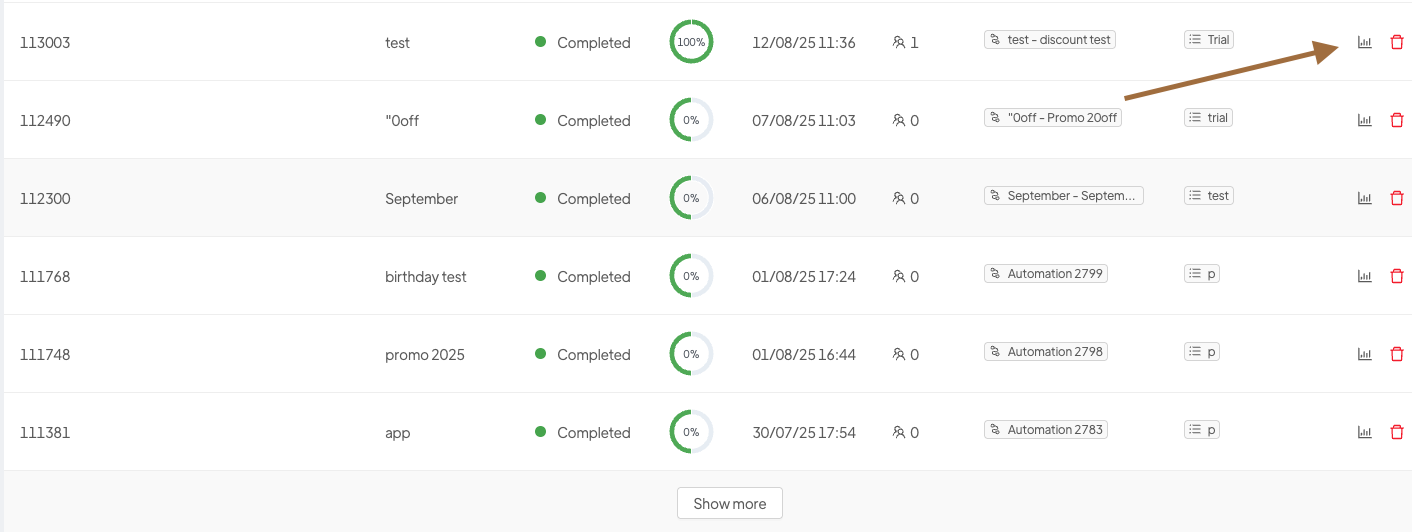
A screen will open, allowing you to select the period for which you want to extract statistics.
If you do not enter a specific period, the statistics will refer to the total number of mailings made with that automation.
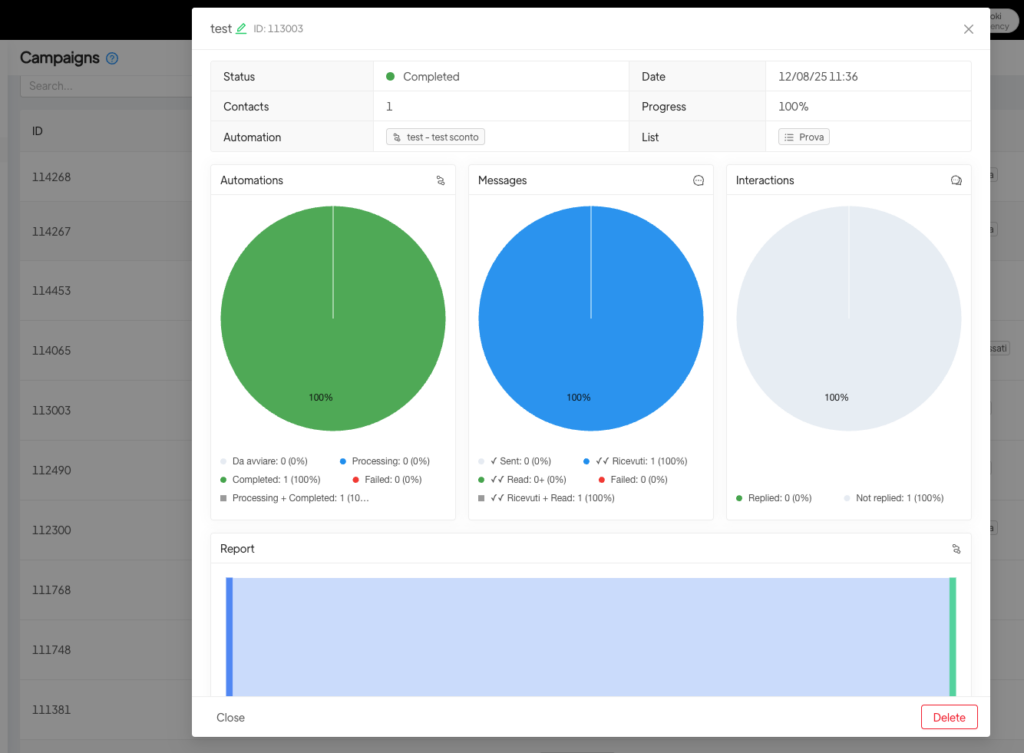
For each step within the automation (messages, tags, etc.), the following metrics are available:
- Executed (% of total): total number of executed sends (excluding errors).
- Read: messages with a blue double check, confirmed as read.
- Delivered: messages with a grey double check, successfully delivered.
- Sent: messages with a single check, sent but not yet delivered.
- Pending: messages waiting due to a delay configured in the automation.
- In progress: messages where WhatsApp has not yet returned read feedback.
- Error: messages not sent due to invalid numbers, template errors, or other issues.
- Drop-offs: contacts who did not continue to the next step.
By clicking on the number of Read, Delivered, or Sent, you can view the list of contacts in that status.
Attention when modifying templates #
Important: If you modify a template, you will lose the statistics associated with it, including those for past periods in which it was used in the automation.
To avoid losing data:
- Create a new automation while keeping the previous one unchanged, or
- Save screenshots of the statistics you want to keep.
Tracking responses #
To track responses received after sending a template, use the “Any customer reply” step immediately after the message is sent.
This way:
- Customers who remain in the “Any reply” step are those who did not reply;
- Customers who move on from that step are those who did reply.
Example:
22 customers replied → automatically tagged as “to be read and answered”.
118 templates sent
96 customers pending in the “Any reply” step → did not reply





