
Skip to content
Supporto Spoki

Documentation for Spoki use

  • English
    • Italiano
    • Español
  • English
    • Italiano
    • Español

Integrations

34
  • Integrate WhatsApp with Google Sheets
  • Integrating Spoki with Facebook forms.
  • Integrating Spoki with Brevo (formerly sendinblue)
  • Integrating WhatsApp with Zapier
  • WhatsApp and WooCommerce Integration
  • Integrating WhatsApp with Hubspot
  • Integrating WhatsApp with Qapla’
  • Integrating WhatsApp with ActiveCampaign
  • Klaviyo and Spoki Integration.
  • Integrating WhatsApp with IFTTT
  • Integrate WhatsApp with Zoho
  • Integrate WhatsApp to WPNotif
  • Integrate WhatsApp with Semplisio
  • Integrating Spoki with Webhooks
  • Integrate Prestashop to WhatsApp
  • Integrate Spoki with any management system via API
  • Integrating Calendly with Spoki
  • Integrate WhatsApp with Google Calendar
  • How to send a Webhook out of Spoki vs. a management system
  • Integrating WhatsApp with Paypal
  • Zadarma
  • Embed Spoki on your Software
  • Spoki Integration with Connectif: Automating WhatsApp Messages
  • Integrate WhatsApp with Shopify
  • Insert Chat Button on Shopify
  • Get Started with Spoki MCP
  • Sync Klaviyo Lists and Segments with Spoki
  • Gorgias
  • Make
  • Shopify App
  • Ringover
  • Magnews Flow
  • Salesforce Flow

Platform

15
  • Lists
  • Dynamic fields
  • Import CSV from Lists
  • Apply for OBA (Official Business Account) WhatsApp
  • Ticket
  • How to verify the authenticity of Spoki emails
  • Contact
  • Dashboard
  • Chat
  • Campaigns
  • Template messages
  • Chat buttons
  • Tags
  • Integrations
  • Automations

How to

86
  • How to create a simple automation from the Campaigns section
  • Spoki on your Smartphone – Web App and Notifications
  • “Delay” Step: When and How to Use It
  • Quick Action “If/Else”
  • How to Filter Chats by One or More Tags/Agents/Lists/Tickets
  • Marketing Consent on Spoki: Operational Guide
  • Guide to the Branching Option in Automations
  • Introduction to Using the OTP Code
  • Guida allo step “Attendi risposta”
  • How to Upload a Contact List on Spoki: A Step-by-Step Guide
  • Crafting AI Prompts
  • How to send the content of a message to an external webhook
  • Multiple steps in automation
  • HOW TO TRACK CLICKS ON TEMPLATE MESSAGE LINKS: UTM
  • How to write documents for AI
  • Template suggested by Artificial Intelligence (AI)
  • How to create a marketing funnel on Shopify
  • Integrating Spoki with Meta Listings
  • How to build your own AI Agent
  • Restore all blocked contacts
  • Translate messages and replies if the contact has a different language
  • Transcription and translation of audio in chat
  • Permanently delete a contact on Spoki
  • How to export all messages from a chat as CSV
  • How to change media in the Template before sending it in chat
  • How to create a list for contacts in a specific automation step
  • New features of Active Campaign
  • How to populate a dynamic field
  • How to activate catalog display on WhatsApp
  • How to add Tag in automation before inserting it
  • How to generate a list from Campaign Statistics
  • How to segment clients within Automations.
  • How not to let your recharge expire
  • How to automatically manage who replies/does not reply to a message
  • How to terminate automation manually for specific contacts
  • How to terminate automation manually for specific contacts
  • HOW TO CREATE A LIST FOR CONTACTS IN A SPECIFIC AUTOMATION STEP
  • HOW TO GENERATE A LIST FROM CAMPAIGN STATISTICS
  • HOW TO ADD TAG IN AUTOMATION BEFORE INSERTING IT
  • New features of Active Campaign
  • How to change media in Template before sending it to chat
  • How to export all chat messages as CSV
  • Audio transcription and translation in chat
  • Delete contact permanently on Spoki
  • Train artificial intelligence (AI) on Spoki
  • Integrating Spoki with Meta Listings
  • How to set up a CTA with dynamic field
  • How to send the content of a message to an external webhook
  • How to automatically manage who replies/doesn’t reply to a message
  • Free messages with buttons
  • How to get a single contact out of all automations
  • Spoki – first steps
  • How to transfer contacts from your Whatsapp app to Spoki
  • How to handle cases when I have to send a chat reply to a customer after 24 hours?
  • How to withdraw from Spoki service
  • HOW TO LINK SPOKI TO FACEBOOK INTERACTION CAMPAIGNS
  • How to manage booking Calendly + Active Campaign + Spoki
  • How to consult automation reporting
  • How to send multi-language messages
  • How can I identify which user has replied in chat to a message?
  • How to populate a dynamic field via CSV upload and submit a campaign
  • How to enable automation for birthday greeting message
  • How to automatically handle those who do not respond
  • How to activate the Woocommerce plugin associated with Spoki Pro
  • How to enable automation for non-working hours
  • How to link Spoki to Facebook campaigns
  • How to activate an automatic message to run on holidays
  • How to link a Chat Button on the website to an automated response
  • How to insert WhatsApp chat button on WordPress site
  • How to update Spoki’s WhatsApp profile
  • Recommended proportions for images in Whatsapp messages
  • How to create template button response automation
  • How to start an automation with API
  • How to enable notifications on Spoki
  • How to lock/unlock contacts automatically
  • How to create new users and assign different roles
  • How to integrate Spoki for your customers into your software
  • How to recover abandoned shopping carts on Woocommerce
  • How to Automatically Send a Reminder Message Using Spoki
  • How to duplicate automations/ templates
  • Managing Free Messages in the Automation Flow
  • How to attribute or remove tags to contacts in a list
  • How to delete multiple contacts
  • Migration from old Twilio provider
  • View only unread chats
  • How to Use the Return Webhook from Spoki to Zapier

Strategies

13
  • Tips for mass mailings over 10,000 contacts
  • WhatsApp Strategies for Christmas: The Complete Guide to Maximizing Sales and Customer Satisfaction
  • WhatsApp That Sells – Mini Strategic Guide by Sector
  • WhatsApp for E-commerce: How to Turn Conversations into Sales with Spoki
  • Why Spoki AI is Essential in Every Communication and Sales Strategy
  • Reach All Your Contacts Without Exceptions: SMS Integrated into Spoki Automations
  • Practical Guide to Creating, Optimizing, and Approving WhatsApp Templates with Spoki and ChatGPT
  • Practical Guide to Creating, Optimizing, and Approving WhatsApp Templates with Spoki and ChatGPT
  • The 6 Most Effective Automations to Use with Spoki
  • Tips for mass mailings over 10,000 contacts

WhatsApp rules

8
  • “Daily” contact limits
  • Authorization for use
  • Quality of messages sent
  • Types of messages
  • Conversations
  • What to do if your account is in low quality
  • What to do if you have been banned from WhatsApp
  • Rules to avoid ban from WhatsApp

Onboarding

6
  • 2a. Accepting notification from Tyntec
  • 2. Verify Meta Business Manager
  • Spoki activation – authorization from Meta BM
  • Before activating Spoki: What you need to know about your existing WhatsApp number
  • Plans and prices | Spoki
  • 3. Spoki Training Course

Release Notes

4
  • Carousel Template
  • Report Tickets
  • Commerce Triggers
  • Automation step “Start automation”
  • Home
  • Docs
  • How to
  • Free messages with buttons
View Categories

Free messages with buttons

When building automations in response to the first template sent, it is possible to send complementary messages (i.e., messages not subject to WhatsApp approval) of three types. You can only send this type of message if the client has written to us within the last 24 hours.

The types of free messages are as follows:

  • Free simple message
  • Free Message with Buttons
  • Free Message List

You can access these messages by clicking on “+” within the automation of responding to a customer message:
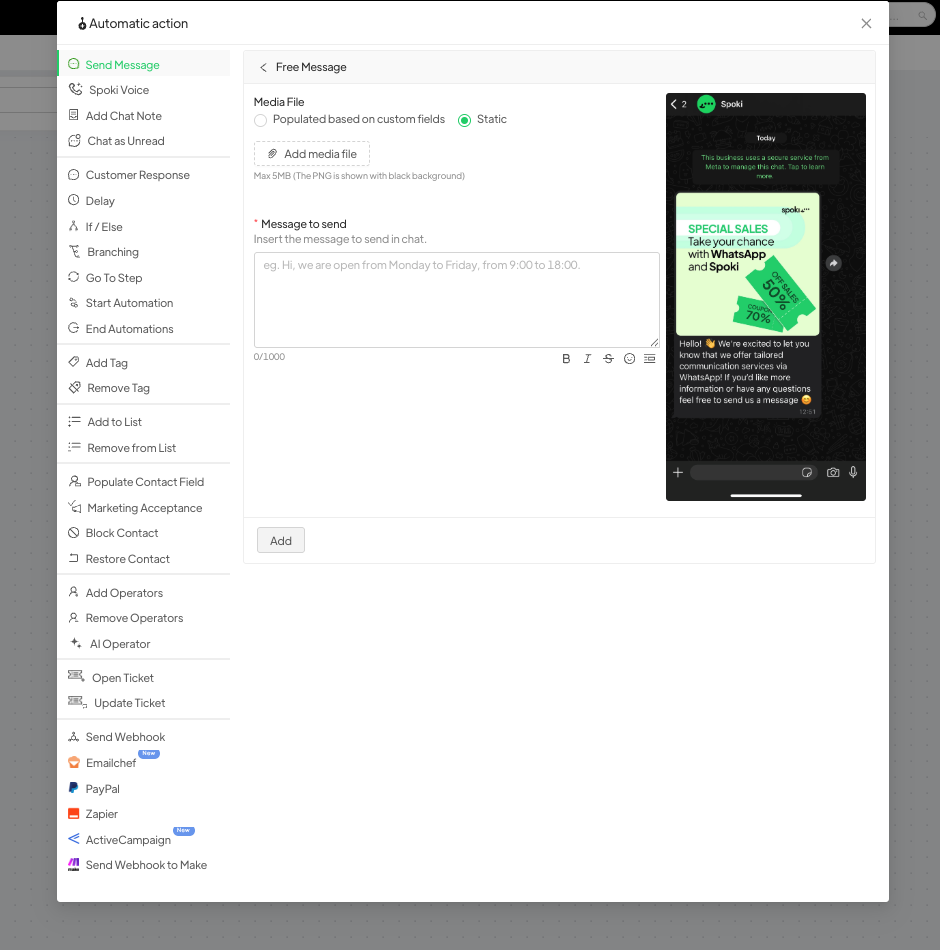
Free simple message #

By selecting “+” “Send Free Message”, you can write the message you want to send to the customer. The message may contain an attachment and text.

You can also define whether to start the message after a specific time from when the trigger is triggered (not recommended).

Free Message with Buttons #

Selecting “+” and then “Send Free Message with Buttons” allows you to write the message you want to send to the customer. The message may contain an attachment and text.

The buttons that you can insert in this message are exclusively text type buttons.

It is NOT possible to insert LINK or Call type buttons. To insert this type of button, you will need to request a template.

For each button created, it will be possible to create an automatic response automation by clicking in the lower right corner under each button.

Free Message List #

Selecting “+” >> “Send Free Message with List” allows you to write the message you want to send to the customer, including a header and footer, and a list of buttons (with a maximum of 10).

This message is typically used to allow customers, for example, to select the store closest to their home, etc.

Clicking will open the following screen:

The fields that you can populate are as follows:

  • LIST TEXT: This field contains the title to be given to the button that will contain the list.
  • CATEGORY NAME: optional field, if you want to further clusterize the buttons you are going to insert later (multiple categories can be added);
  • TEXT: Give the name of the individual buttons.
  • DESCRIPTION: Optional field, you can enter a description for each button.

An automatic response automation may be set up for each button, which can contain another list message to allow the customer to continue making a selection. Ex. Region – Province – City.

What are your Feelings
Share This Article :
  • Facebook
  • X
  • LinkedIn
  • Pinterest
Still stuck? How can we help?

How can we help?

Updated on August 29, 2025
How to get a single contact out of all automations

Powered by BetterDocs

Table of Contents
  • Free simple message
  • Free Message with Buttons
  • Free Message List
DEVELOP YOUR BUSINESS WITH SPOKI AND WHATSAPP
Try now for free

Contacts

  • info@spoki.it
  • +39 351 5495135
  • Informativa Privacy

Menu

  • Home
  • Prices
  • Functionality
  • Integrations
  • Artificial Intelligence
  • About us

Solutions

  • Marketing
  • Sales
  • Customer Care
  • Developers

Support

  • API Documentation
  • Blog
  • Case Study
  • Learning Center
  • Manual

Spoki.it © All rights reserved NextAI Srl P.IVA IT02717930743 Viale Francia snc, 72019 San Vito Dei Normanni (BR) Italy

Soluzioni

  • Marketing
  • Vendita
  • Assistenza Clienti
  • Developers
  • Italiano (Italian)
  • English
  • Español (Spanish)
