
The “If/Else” functionality is one of the most powerful tools for customizing your automations and improving contact management. By applying this condition, you can make automated decisions based on specific characteristics or behaviors of your contacts, enabling you to personalize the user experience and optimize your communication flow.
What Is the “If/Else” Condition? #
The If/Else condition is a logic rule that allows you to make automatic choices based on a predefined condition. In practice, it lets you tell the system: “If this condition is true, do this; otherwise, do something else.”
This feature allows you to create far more dynamic and personalized automations, responding differently to contacts depending on their characteristics, behaviors, or preferences. By using If/Else, you can segment your contacts and provide them with a tailored experience.
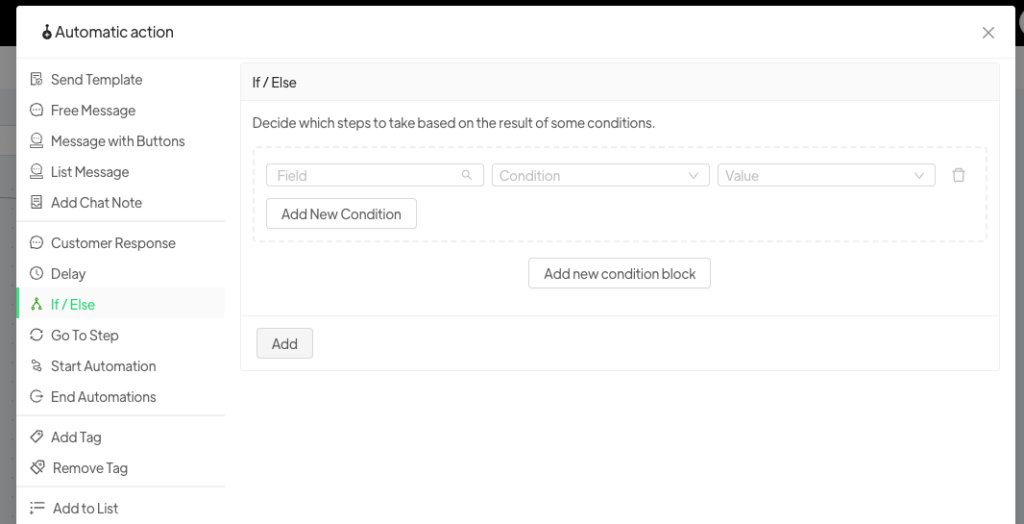
The If/Else functionality enables you to build advanced automations by checking specific conditions related to your contacts. It allows you to make automated decisions based on particular variables connected to your contacts, their behaviors, and the information associated with them.
What Can You Check with “If/Else”? #
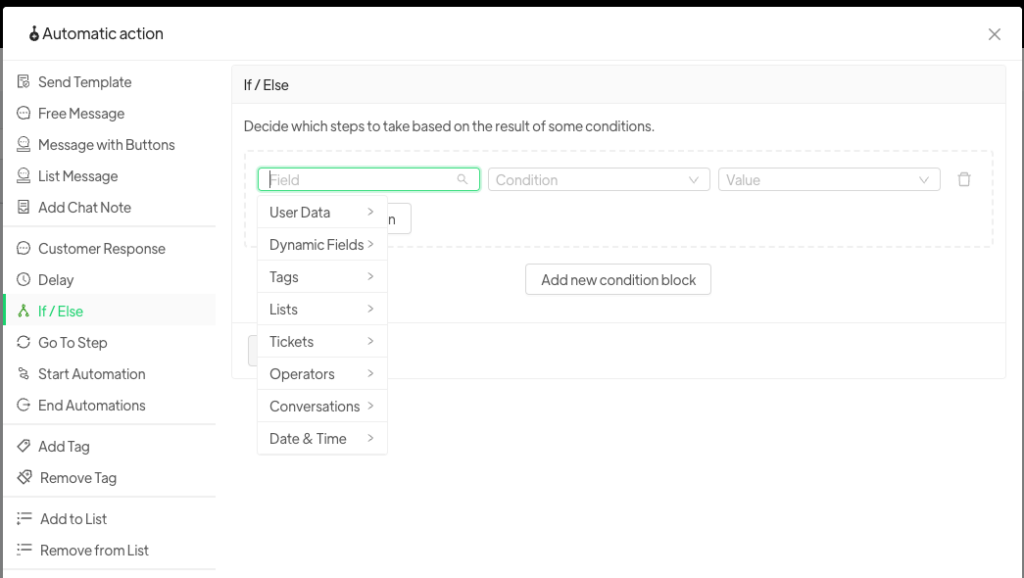
When selecting If/Else, you can define and verify a wide range of conditions based on:
- User Data: Verify specific contact information such as name, email, subscription status, etc.
- Dynamic Fields: Check custom fields you have added to your contacts, such as their interest in a product or service.
- Tags: Check whether the contact has a specific tag identifying certain behaviors or characteristics.
- Lists: Verify whether the contact belongs to a particular list—useful for segmenting contacts into targeted groups.
- Tickets: Check whether the contact has an open ticket or has resolved a previous issue, optimizing customer service.
- Operators: Verify the condition of an operator (such as a support agent or salesperson), if relevant to the contact.
- Conversations: Check the contact’s conversation status—for example, whether they have interacted recently or received specific responses.
- Date and Time: Verify time- and date-based conditions—whether it’s a specific time, earlier or later than a set point, or on a specific day, month, or year.
Logical Operators: “AND” and “OR” #
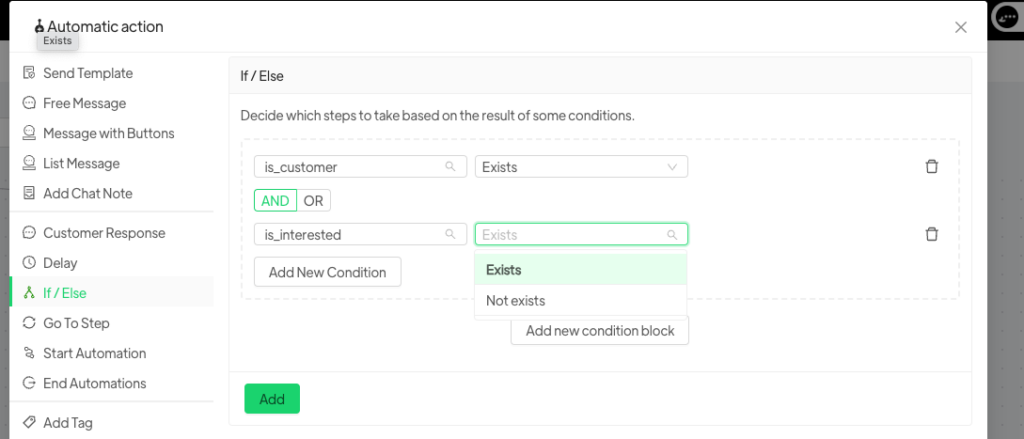
When setting conditions, you can use logical operators “AND” and “OR” to combine multiple variables and define your automation logic:
- “AND” Operator:
- Description: By selecting the “And” operator, all conditions must be true for the action to be executed. In other words, the contact must meet all the selected conditions.
- Example: The contact must have both Tag A and Tag B.
“OR” Operator:
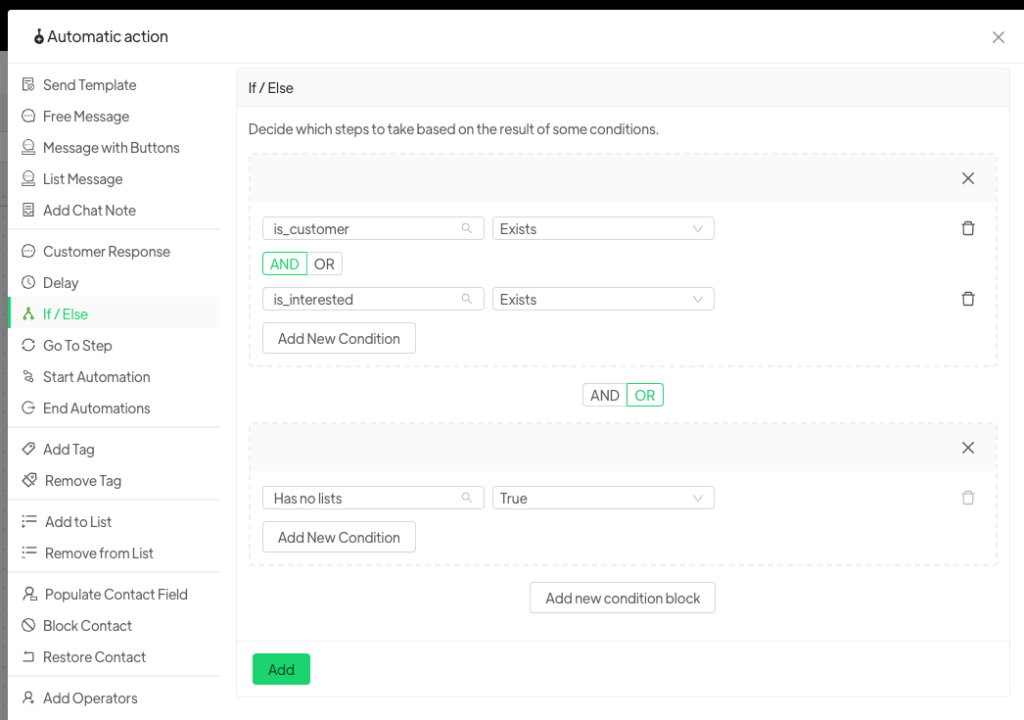
Description: By selecting the “OR” operator, only one of the conditions needs to be true for the action to be executed. If the contact meets any one of the conditions, the automation proceeds.
You can insert one or more blocks to better identify the customer—requiring them to meet either multiple conditions or just a single one.
Benefits of Using “If/Else” #
- Smarter automations: The ability to combine multiple conditions allows you to create highly customized workflows.
- Improved user experience: By tailoring content to the specific needs of each contact, you can enhance user satisfaction and increase conversion rates.
- Greater efficiency: Automating decisions based on precise conditions saves time and resources, ensuring fast and relevant responses to your contacts.
Conclusion #
The If/Else functionality is a powerful tool for optimizing your automations, enabling you to respond to contacts dynamically and personally. By applying logical conditions based on user data, behaviors, and other variables, you can build automated flows that deliver more targeted and relevant experiences—boosting campaign effectiveness and improving conversions. With the ability to combine conditions and apply logical operators, If/Else offers unmatched flexibility in managing your automations.




