
When building automations in response to the first template sent, it is possible to send complementary messages (i.e., messages not subject to WhatsApp approval) of three types. You can only send this type of message if the client has written to us within the last 24 hours.
The types of free messages are as follows:
- Free simple message
- Free Message with Buttons
- Free Message List
You can access these messages by clicking on “+” within the automation of responding to a customer message:
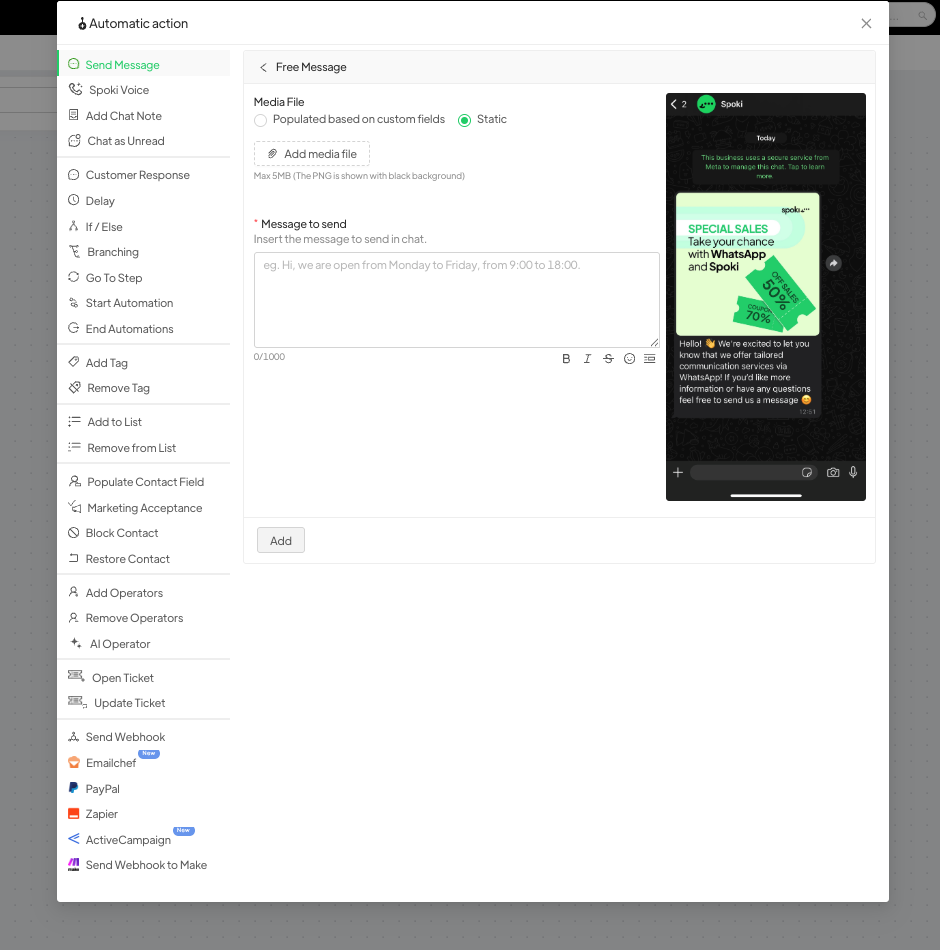
Free simple message #
By selecting “+” “Send Free Message”, you can write the message you want to send to the customer. The message may contain an attachment and text.
You can also define whether to start the message after a specific time from when the trigger is triggered (not recommended).
Free Message with Buttons #
Selecting “+” and then “Send Free Message with Buttons” allows you to write the message you want to send to the customer. The message may contain an attachment and text.
The buttons that you can insert in this message are exclusively text type buttons.
It is NOT possible to insert LINK or Call type buttons. To insert this type of button, you will need to request a template.
For each button created, it will be possible to create an automatic response automation by clicking in the lower right corner under each button.
Free Message List #
Selecting “+” >> “Send Free Message with List” allows you to write the message you want to send to the customer, including a header and footer, and a list of buttons (with a maximum of 10).
This message is typically used to allow customers, for example, to select the store closest to their home, etc.
Clicking will open the following screen:
The fields that you can populate are as follows:
- LIST TEXT: This field contains the title to be given to the button that will contain the list.
- CATEGORY NAME: optional field, if you want to further clusterize the buttons you are going to insert later (multiple categories can be added);
- TEXT: Give the name of the individual buttons.
- DESCRIPTION: Optional field, you can enter a description for each button.
An automatic response automation may be set up for each button, which can contain another list message to allow the customer to continue making a selection. Ex. Region – Province – City.





