
The introduction of the new update to the “Customer Response” step marks a significant evolution in automation management. With this new functionality, it is now possible to wait for a message from the customer within a specified time frame, enabling more flexible and dynamic automated workflows.
This update enhances automated communication with customers, reducing wait times and increasing the likelihood of completing the desired journey. Let’s take a closer look at how it works and the advantages it offers.
How the New “Customer Response” Step Works #
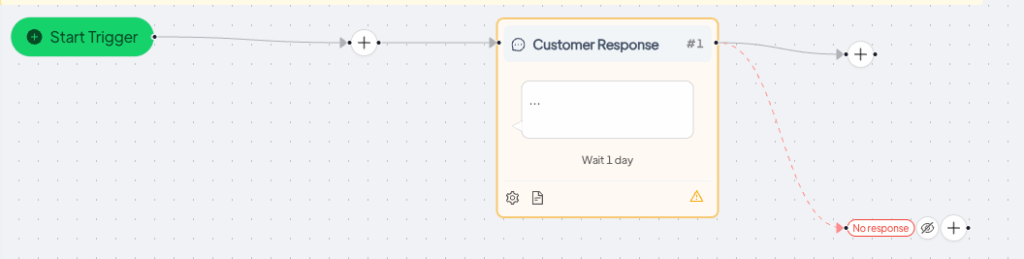
The “Customer Response” step now allows you to set a timer during which the automation will wait for a message from the contact. If the customer responds within the set time, the automation will proceed along the main path (default path). If not, an alternative path called “No Response” will be triggered.
This logic is similar to the “If” step but focuses specifically on customer replies. Incorporating this mechanism enables an immediate distinction between responsive and non-responsive contacts, allowing for differentiated treatment.
Step Configuration and Customizable Parameters #
To use this new feature, simply insert the “Customer Response” step within your automation and define the maximum waiting time (e.g., 10 minutes, 1 hour, 24 hours, etc.).
Within the step, you can configure two distinct paths:
- Default Path: the standard flow followed if the customer replies.
- No Response Path: triggered if no reply is received within the defined timeframe.
This setup allows for precise control over automation behavior based on customer interaction.
Practical Benefits of Using the New “Customer Response” Step #
One of the main benefits is the ability to build automations that are responsive and based on customer behavior. For instance, if a customer receives a confirmation request (such as “Would you like to proceed with activation?”), their response—or lack thereof—determines the next step in the flow.
This prevents contacts from becoming stuck in automation flows and helps manage scenarios such as:
- Automatic reminders
- Escalation to a human agent
- Automatic ticket closure
- Personalized notifications
Additionally, it improves data quality by recording actual user behavior.
Strategic Use in Customer Care Automations #
In customer care, timing is crucial. Thanks to this update, you can design flows that adapt in real time to user behavior. If the customer does not respond to a clarification request, the system can automatically send a reminder or archive the conversation.
Another strategic application is in post-sales automations, where you may want to assess customer interest in an upgrade, upsell, or feedback request. If there is no response, the system can exit the flow and move to the next phase without waiting indefinitely.
Comparison with the “If” Step and Combined Use Cases #
The “If” step allows for evaluating static conditions (such as attributes or tags). The new “Customer Response” step, on the other hand, works with a dynamic, time-based condition: the receipt of a message within a specific timeframe.
Used together, these two steps enable the creation of highly customized and complex automations. For example:
“If the customer has purchased product X and replies to the verification message within 2 hours, send an advanced guide. Otherwise, send a reminder after 12 hours.”
Impact on User Experience and Operational Management #
This feature positively impacts both end-users and operational teams. Customers feel more closely and promptly supported, while operators can focus on urgent cases, leaving less responsive contacts to be managed automatically.
Moreover, automation becomes a filtering and prioritization tool, assigning importance only to users who demonstrate real interest or engagement—saving time and resources.
Conclusion: A Breakthrough in Automation Logic #
This update to the “Customer Response” step represents a substantial advancement in automation logic. Timed customer interaction is a powerful tool for managing the customer journey flexibly and strategically.
Effectively leveraging this functionality can make a meaningful difference in service quality, customer satisfaction, and overall operational efficiency. It’s a step forward toward smarter, more user-centric automations.





