Thanks to this integration, you will be able to start a Spoki automation every time there is an event on a Ticket in Gorgias.
Integration Guide #
If you haven’t done so yet, log in to the Spoki platform at this link: https://spoki.app/
1. Spoki Automation #
1.1 Create a New Automation #
Below we will see how to create a new automation to connect to Gorgias. If you’ve already created the automation, you can skip this step.
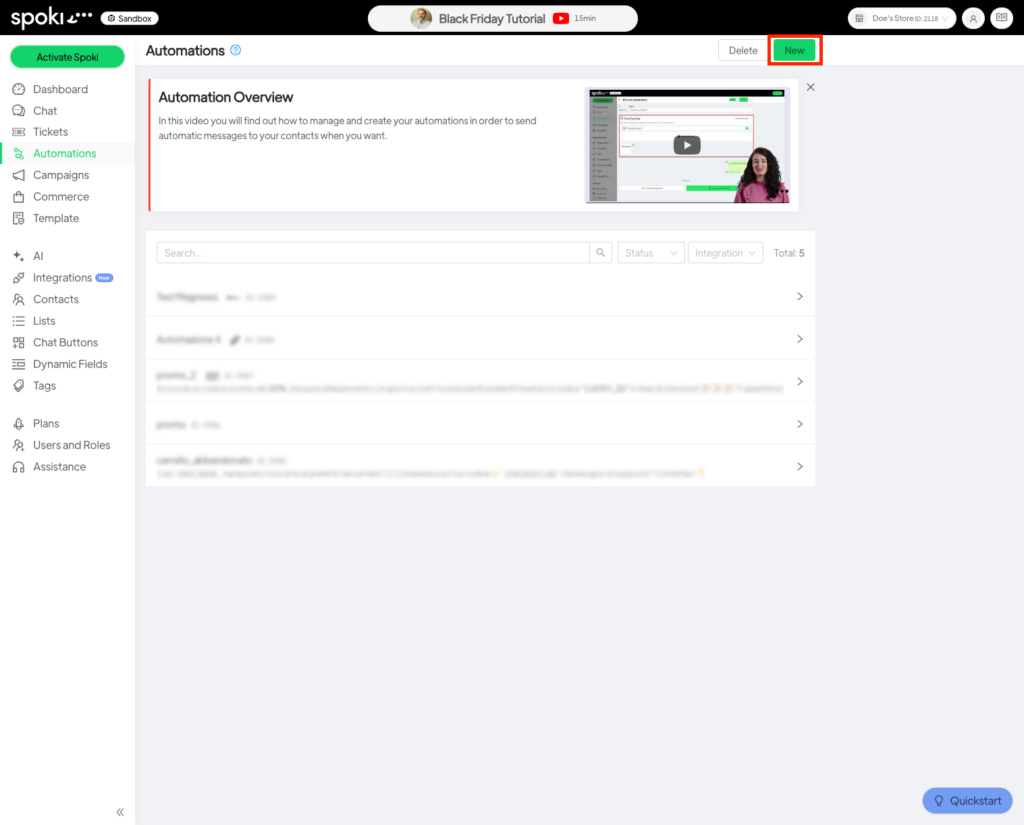
First, navigate to the Automations section as shown below and click on the New button in the upper right corner.
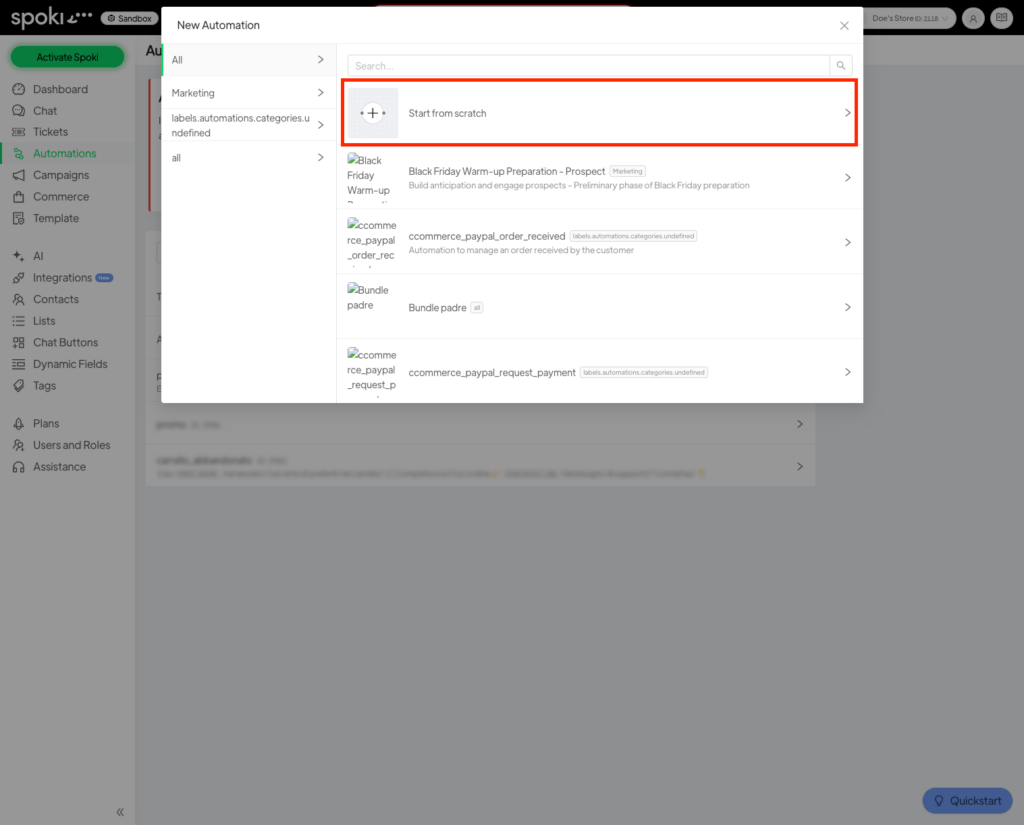
Now choose a template for your automation, or click on Blank Automation if you want to build your automation from scratch.
In the following example, we will start from an empty automation.
1.2 Add the start trigger #
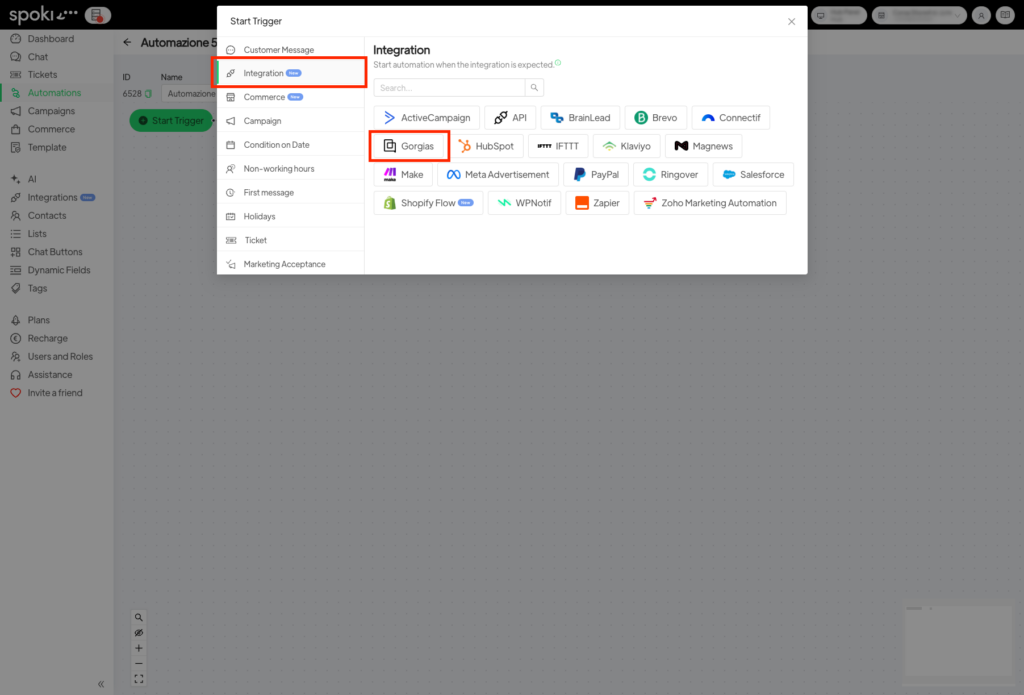
Once you have created your automation, click on Add start trigger and in the menu that appears, select Integrations from the list on the left and finally click on Gorgias.
In the window that opens, take note of the Webhook Url and the Secret.
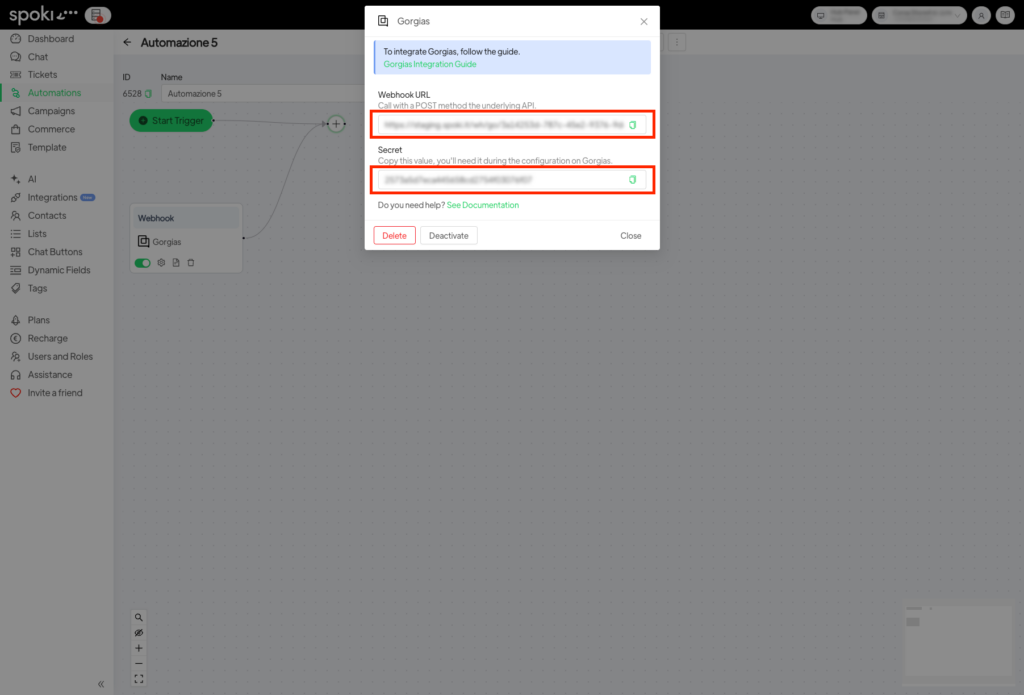
Now you are ready to move to Gorgias.
2. Gorgias #
If you haven’t already done so, log in to your Gorgias account.
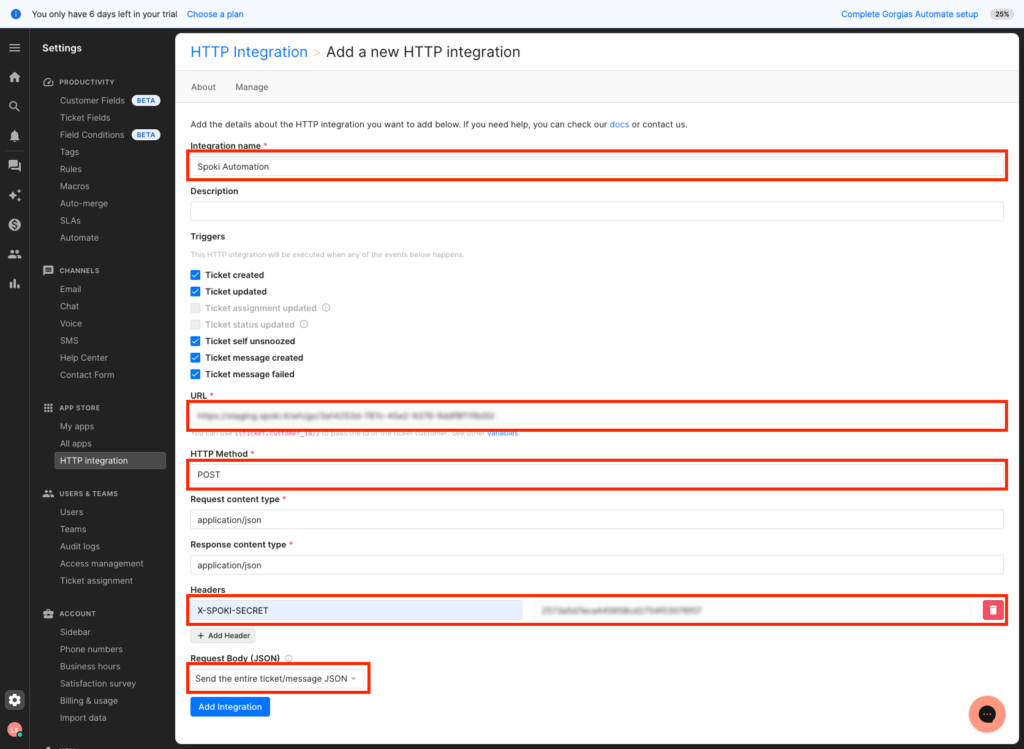
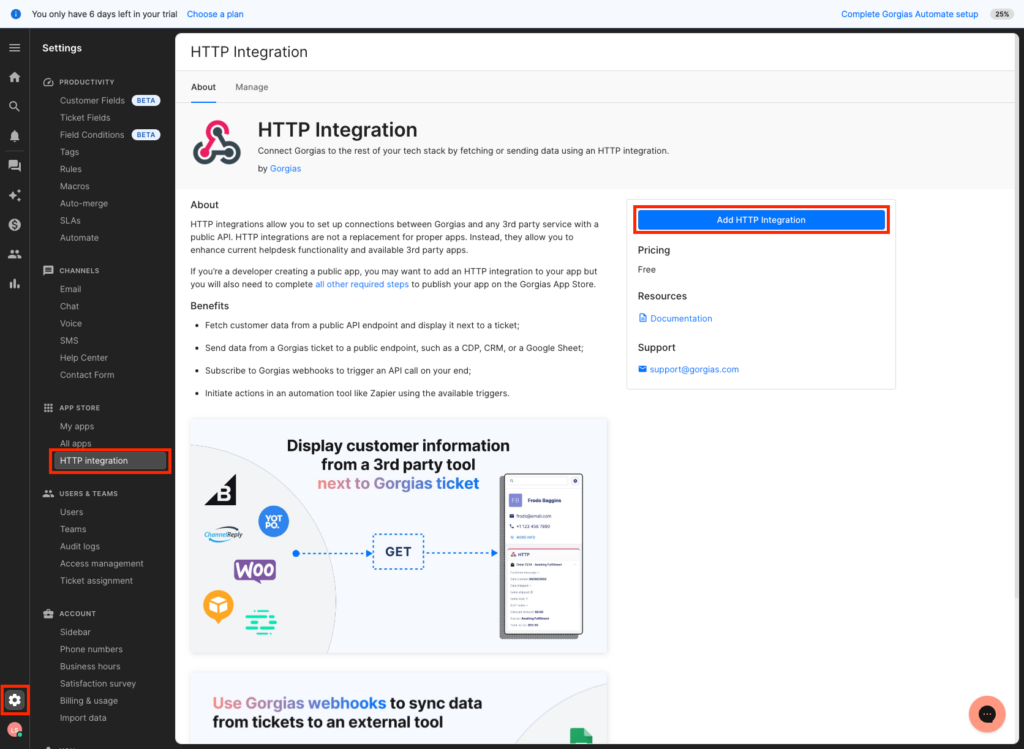
Click on the gear icon in the bottom left, then on HTTP Integration, and finally on Add HTTP Integration.
Enter a name for the integration and select the triggers that interest you.
In the URL section, enter the Webhook URL provided by Spoki and select the POST method in HTTP Method.
Add a new X-SPOKI-SECRET header and enter the secret provided by Spoki.
Finally, select Send the entire ticket/message JSON in the Request Body field and click on Add Integration.