
Thanks to this integration, you will be able to launch a Spoki automation within a Magnews Flow.
Integration Guide #
If you haven’t done so yet, log in to the Spoki platform at this link: https://spoki.app/
1. Spoki Automation #
1.1 Create a New Automation #
Below, we will see how to create a new automation to link with Magnews. If you have already created the automation, you can skip this step.
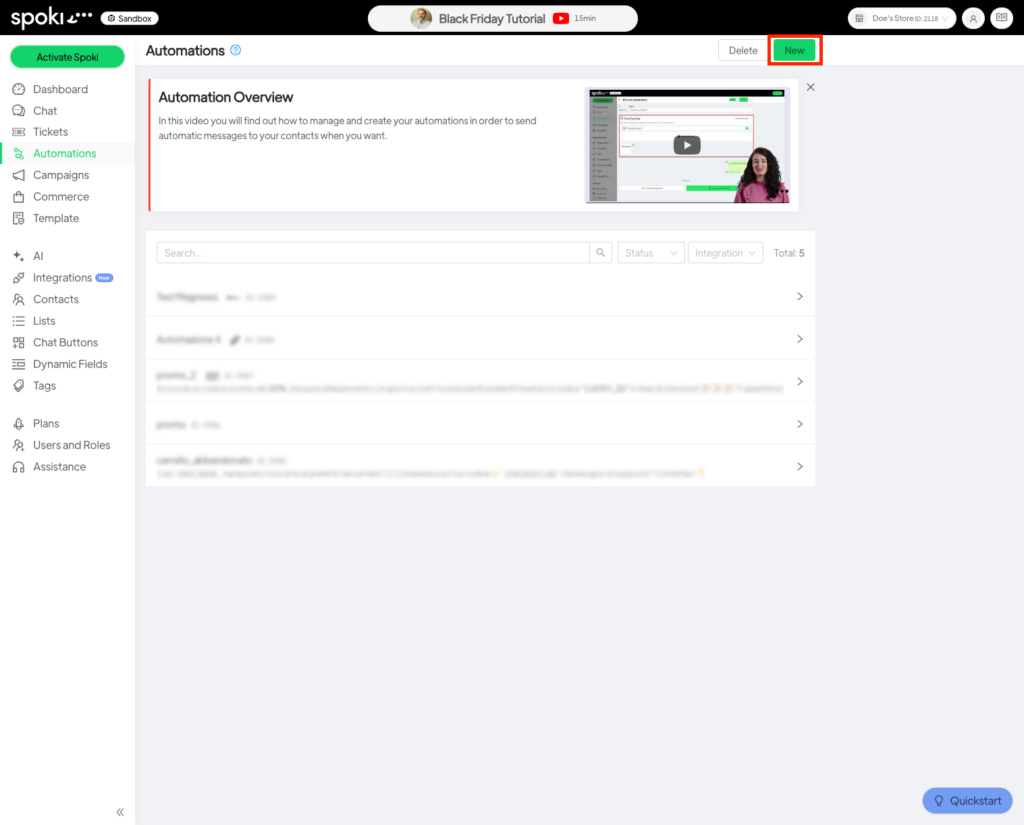
First, navigate to the Automations section as shown below and click on the New button in the upper right corner.
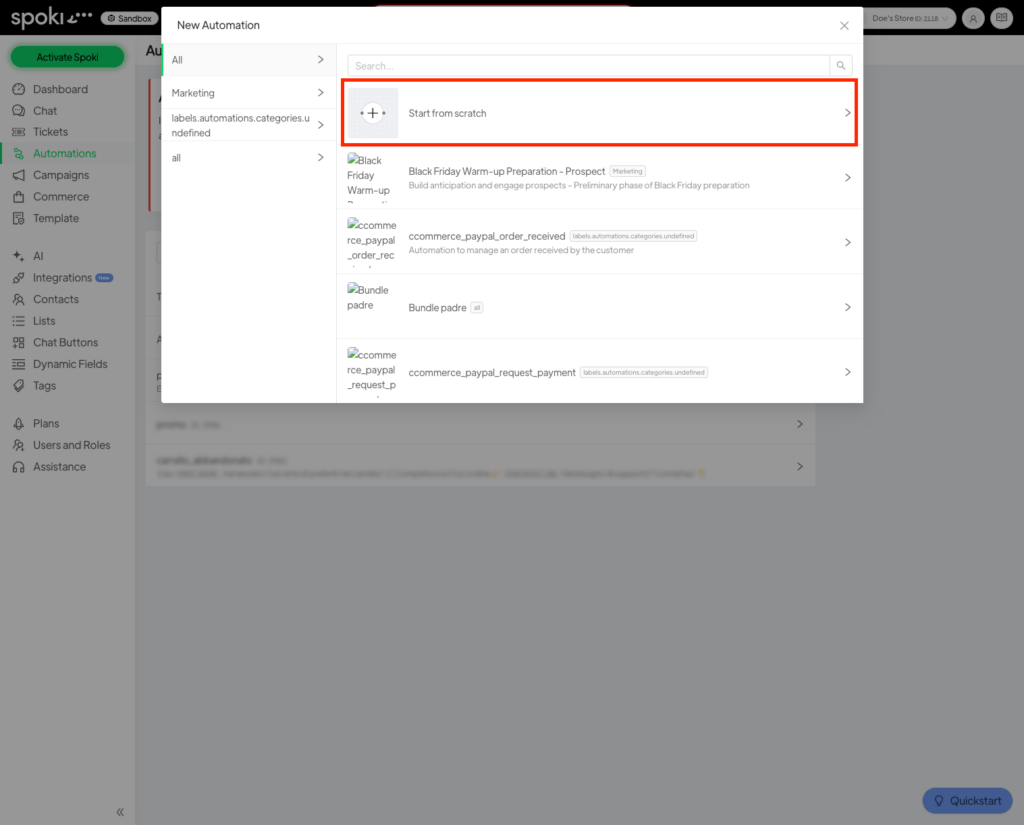
Now choose a template for your automation, or click on Blank Automation if you want to build your automation from scratch.
In the following example, we will start from an empty automation.
1.2 Add the start trigger #
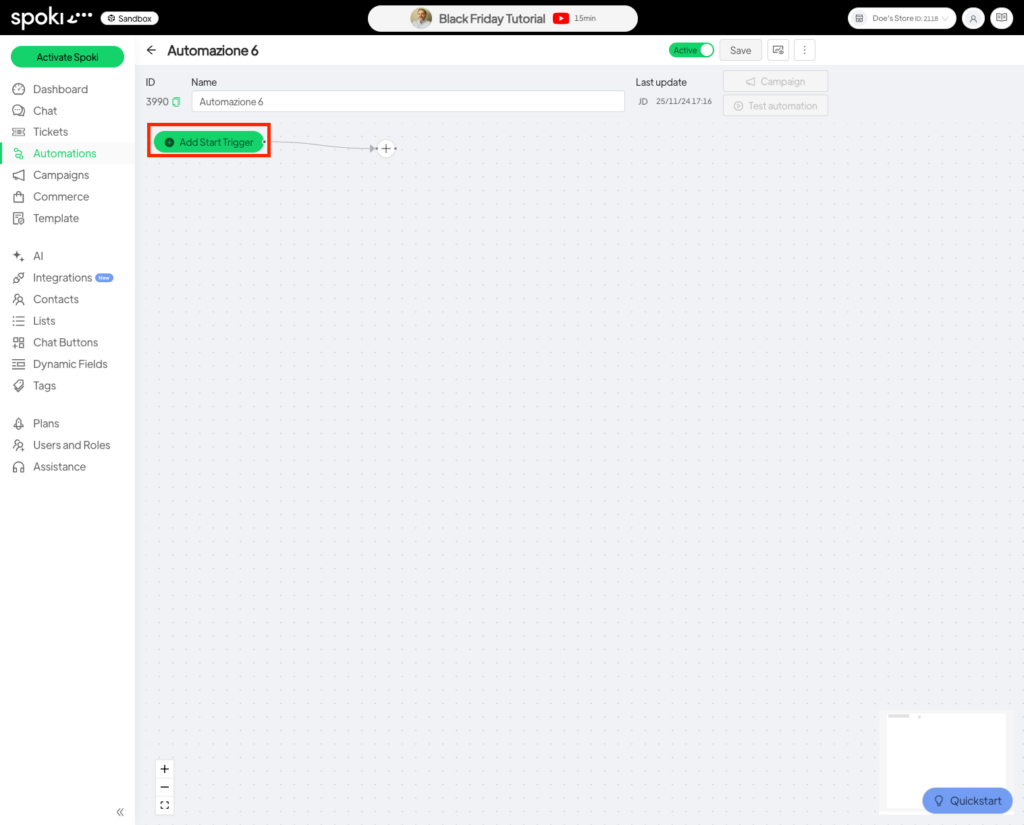
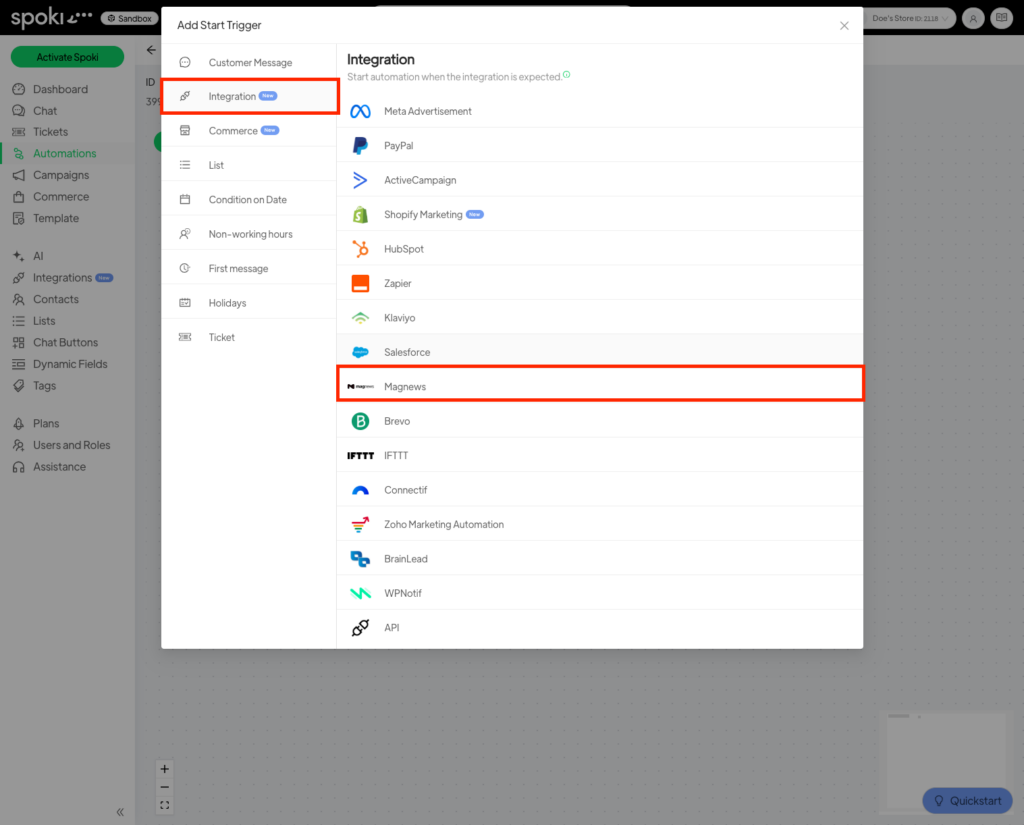
Once you have created your automation, click on Add trigger and in the menu that appears, select Integrations from the list on the left, and then click on Magnews.
In the window that opens, take note of the URL, the Secret, and the Payload of the request.
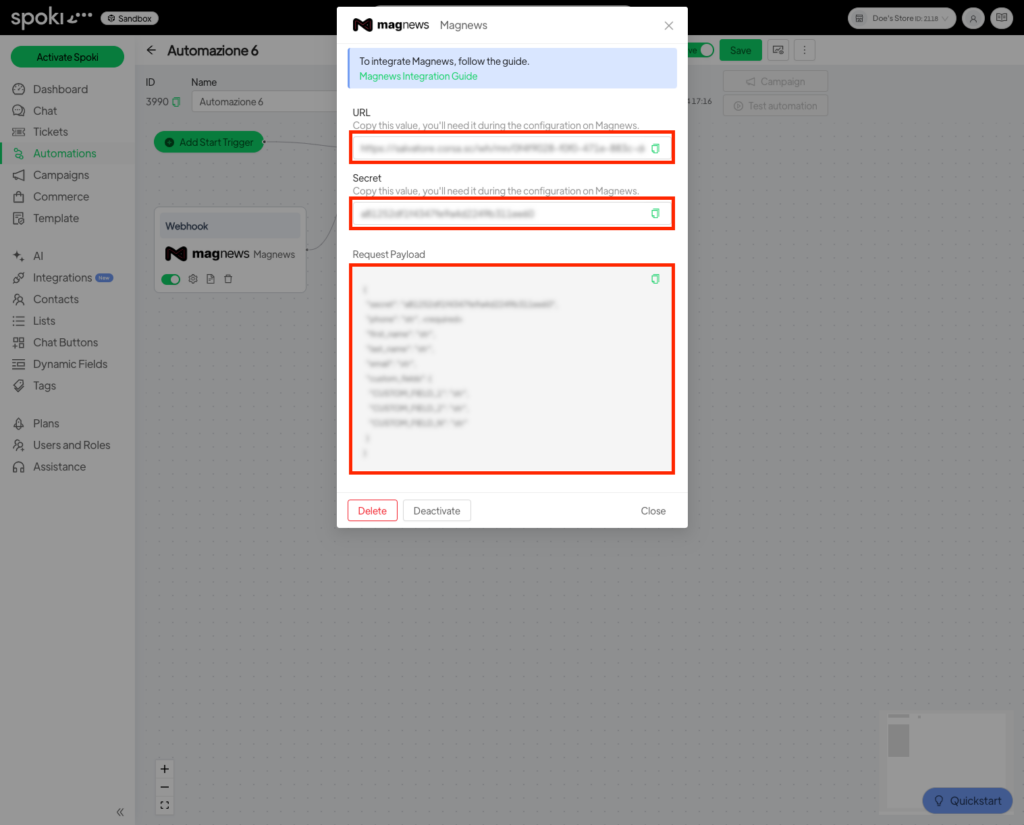
Now you’re ready to switch to Magnews.
2. Magnews Flow #
If you haven’t done so yet, log in to your Magnews account.
2.1 Creating the Journey in Magnews #
Once logged in, click on Journey Lab at the top, then select the relevant journey, click on Automated Flows, and finally click New Flow.
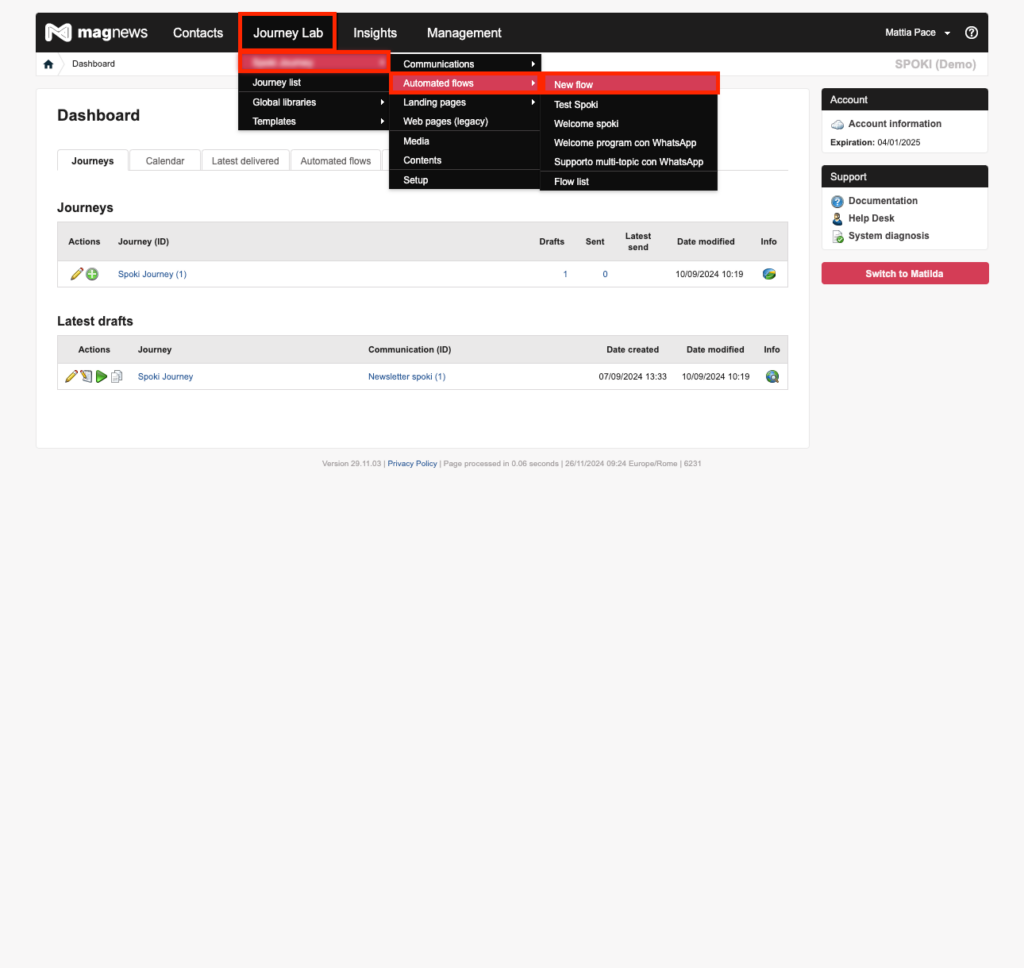
In the screen that opens, enter a name for the new flow and click Create in the top right corner.
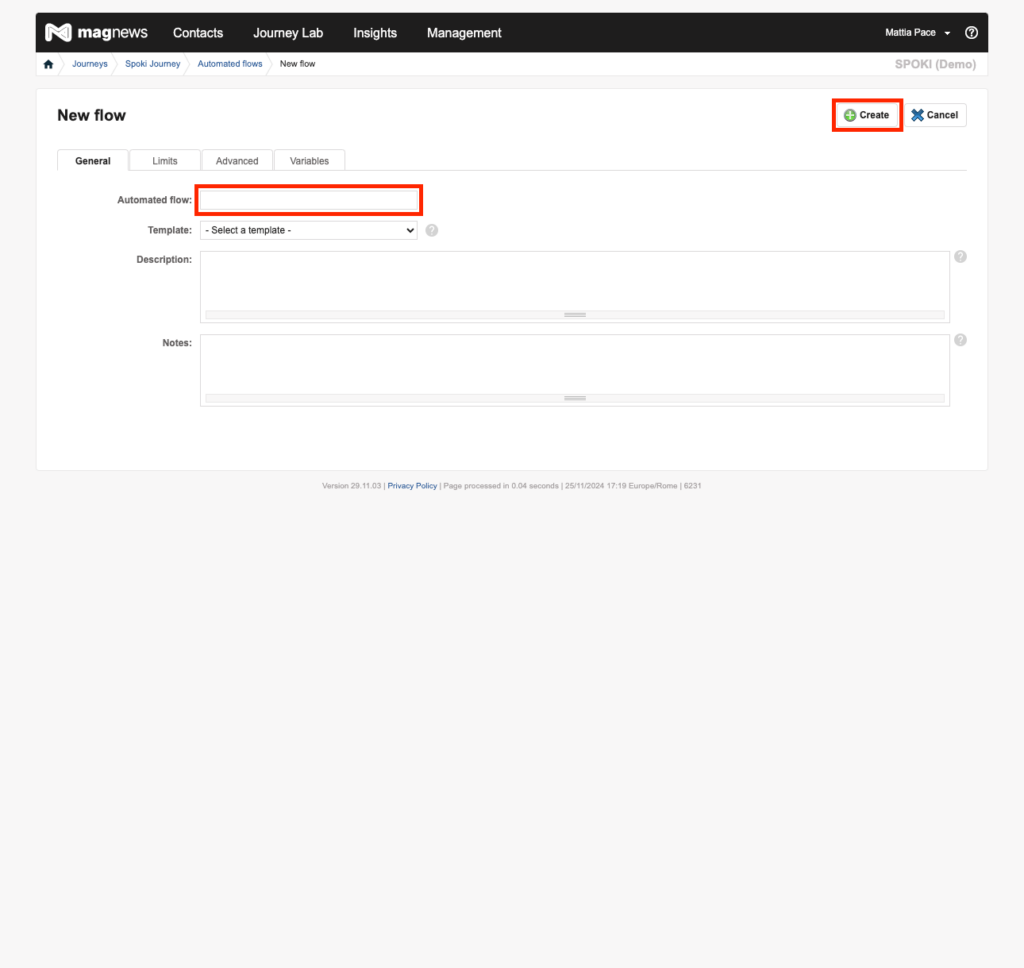
Now click on Design in the top right corner.
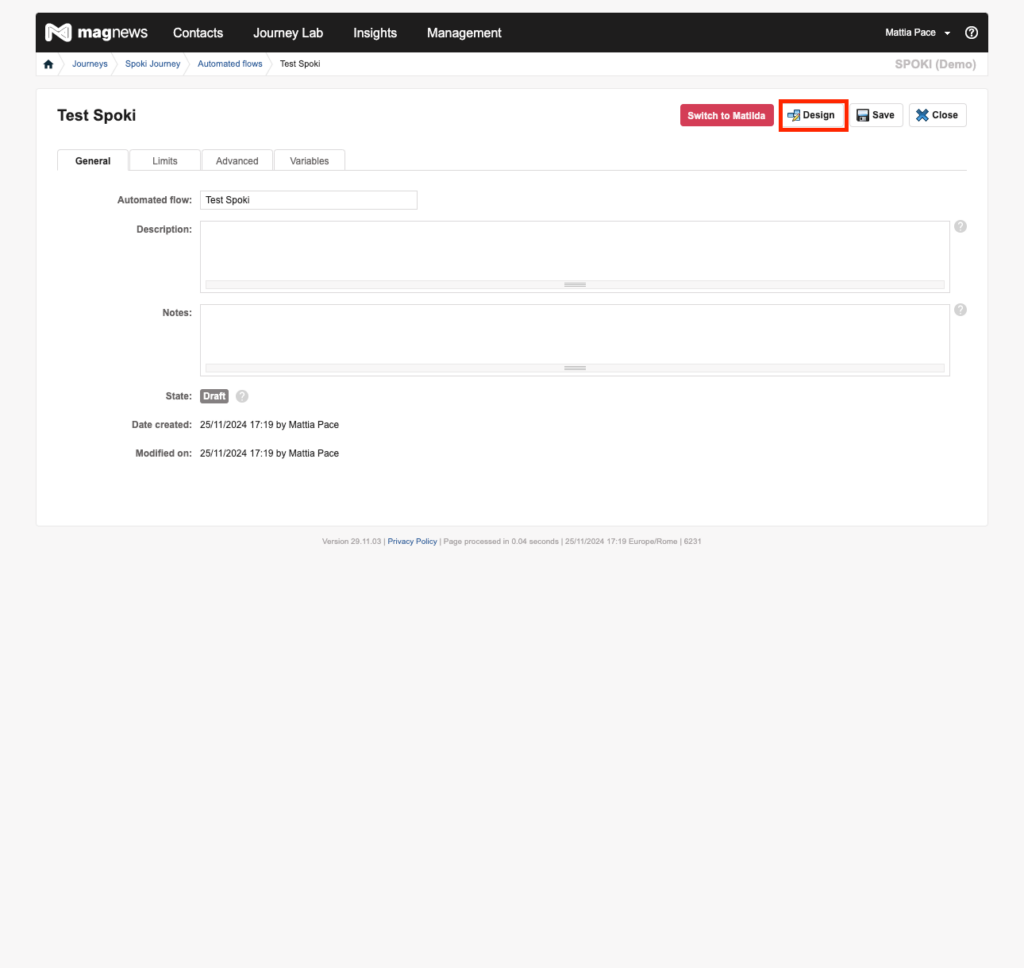
Now click on API Event from the left menu and drag the element into the workspace. Then, go to the Actions section and drag the TKW – REST Call element.
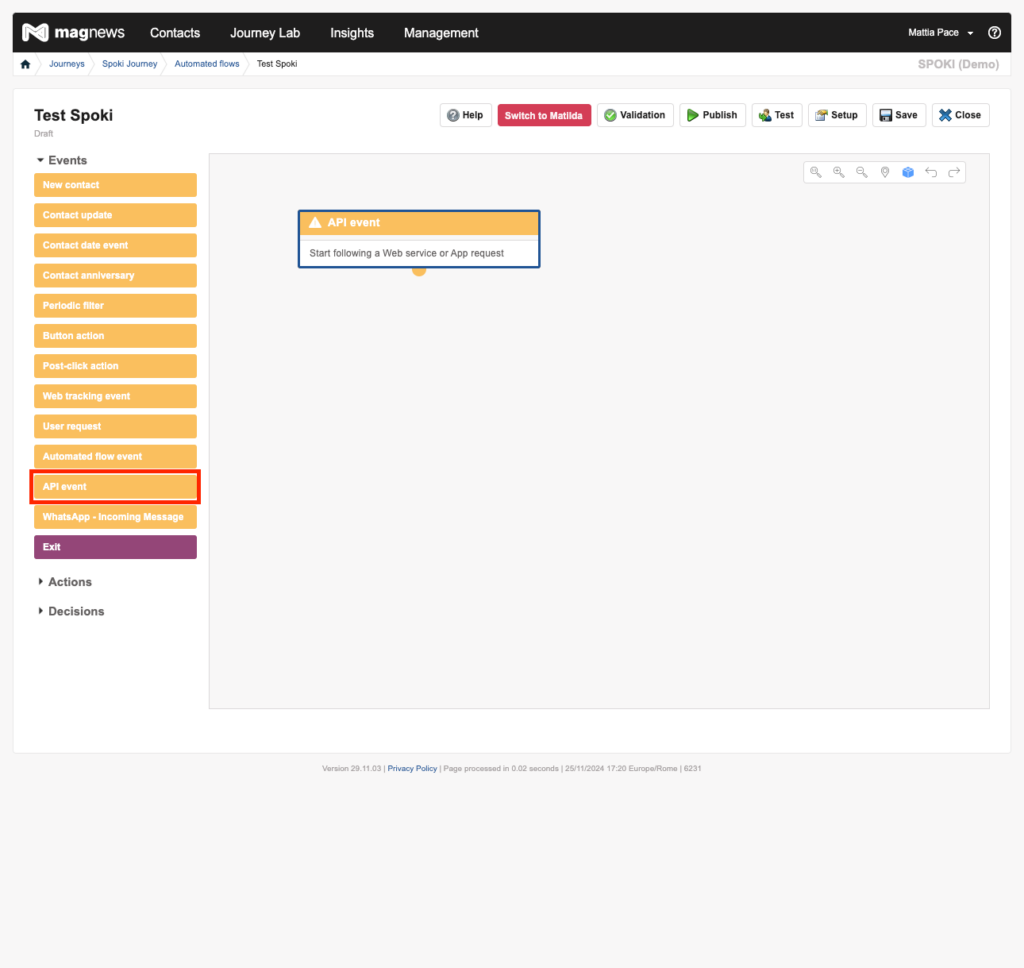
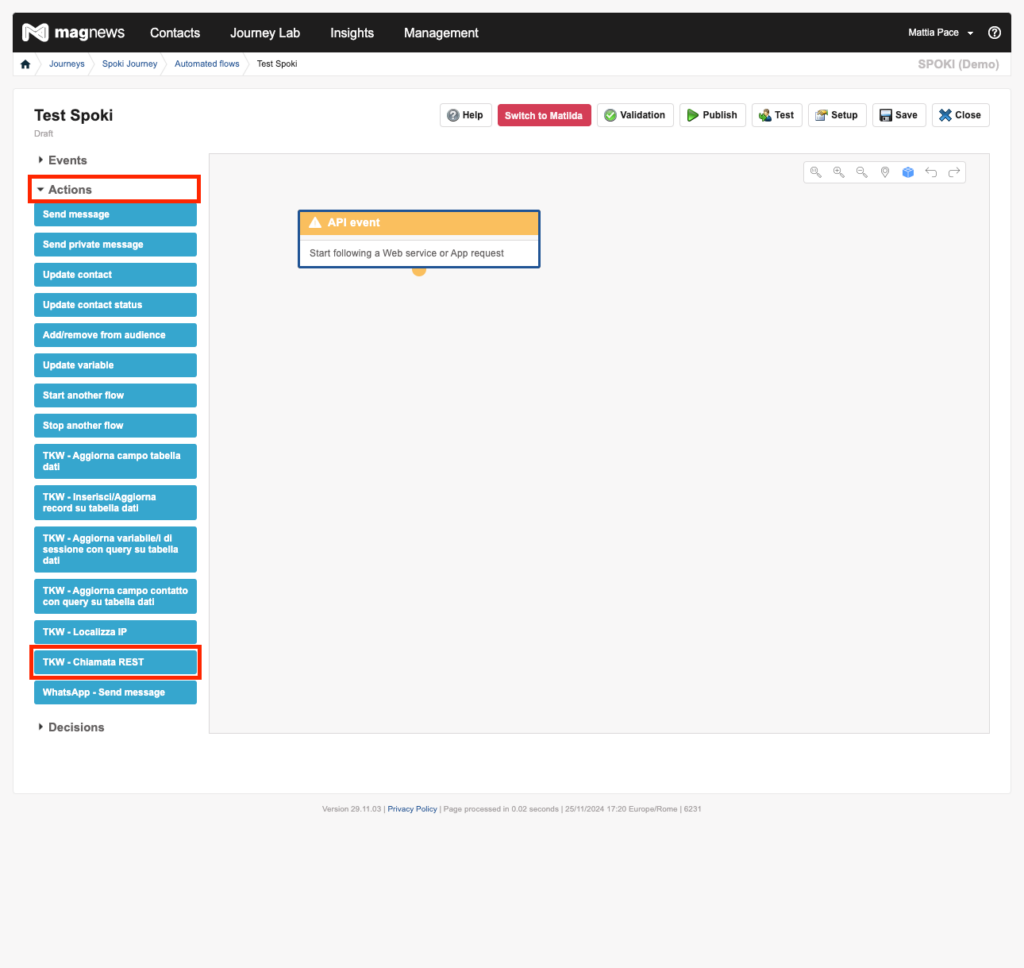
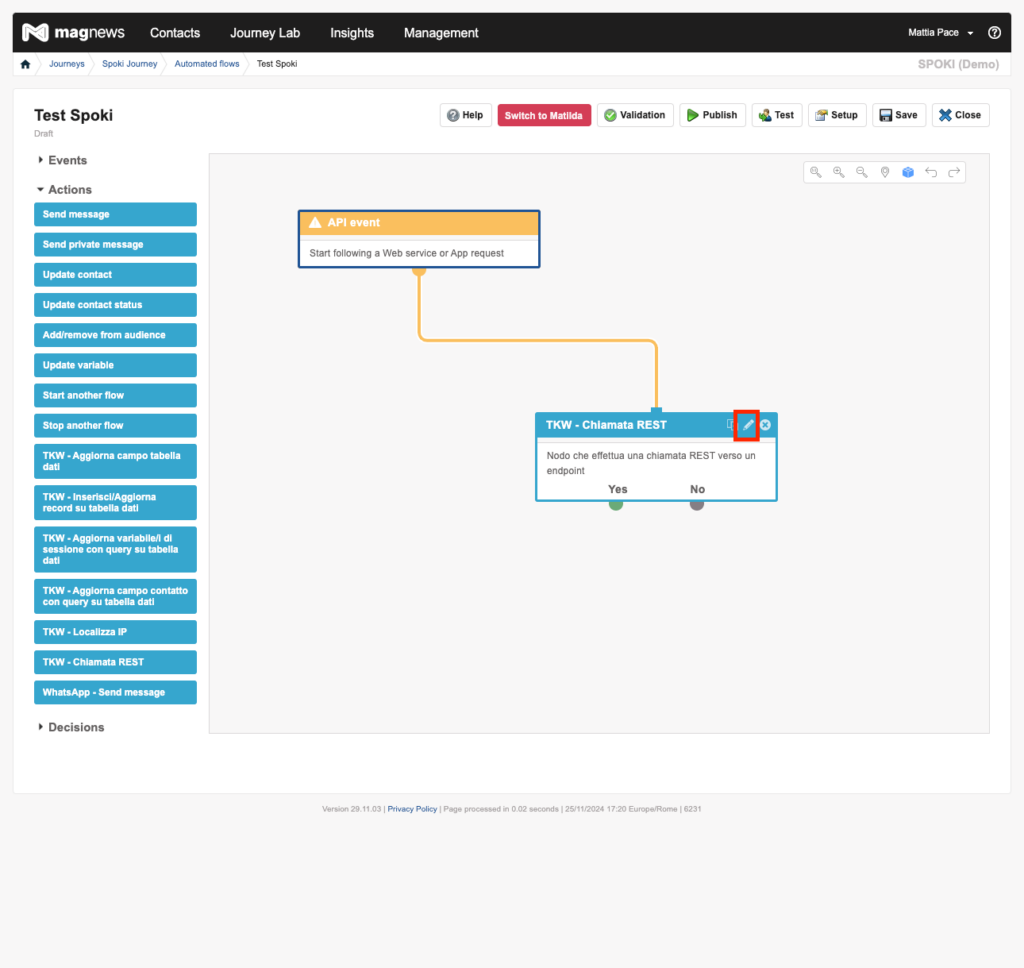
Now click on the pencil icon in the top right corner of the TKW – REST Call element.
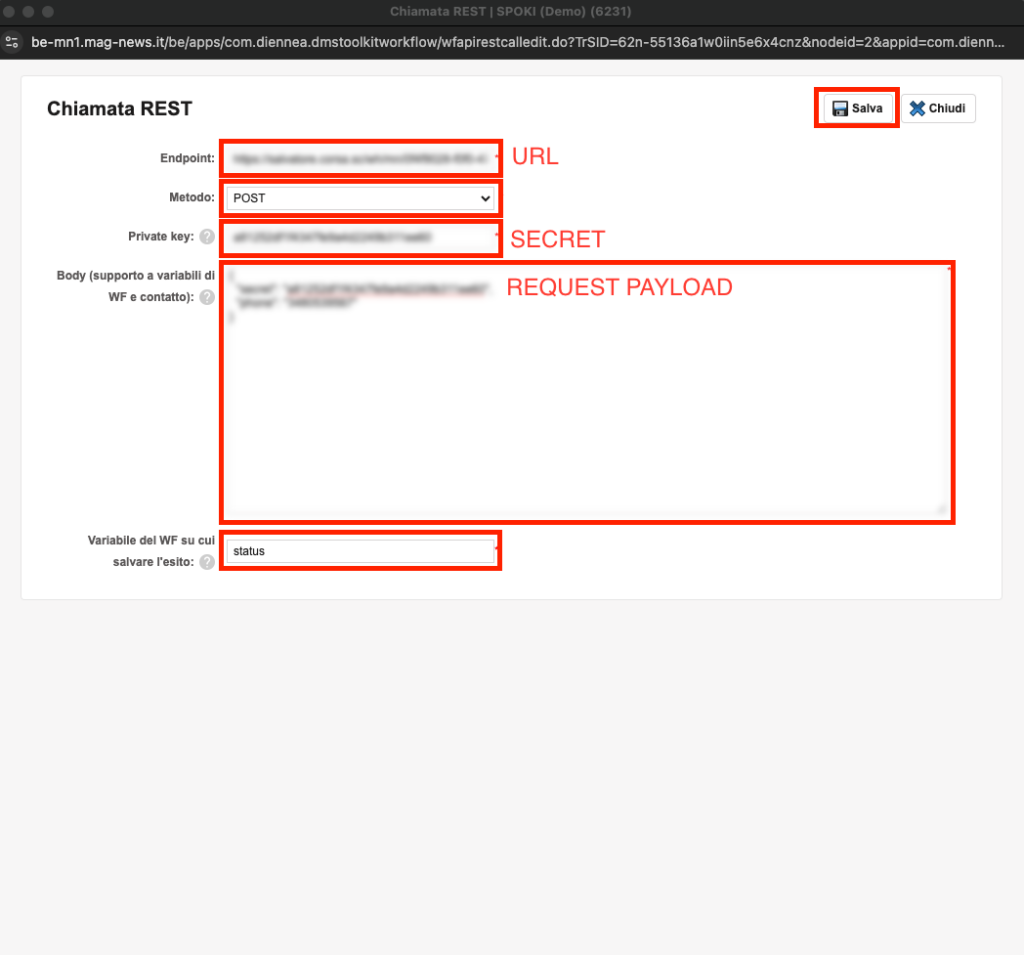
In the screen that appears, fill in the fields by entering the URL, Secret, and Request payload that you obtained from Spoki, then click Save.
Now save the flow, and all that’s left to do is add any other desired steps.




