

Templates are pre-approved messages by WhatsApp, used to send notifications or communications to customers. When initiating a chat with a customer, you can only send template messages.
Each template, once created, must be reviewed and approved by Meta before it can be used. The review is initiated through the Request button and is completed within a maximum of 48 hours, although approval usually occurs in less than an hour. Templates can include text, images, videos or documents and can be enhanced with interactive buttons of three types:
- Quick reply: to allow the customer to select a predefined response
- Link: to redirect to a web page
- Phone: to initiate a call
Creating a New Template #
To request a new template, access the Template section and click on New. You can:
- write a message from scratch
- or use artificial intelligence to generate it automatically

If you choose generation through AI, you will need to indicate the message objective, provide a brief description, and select the tone (persuasive, formal, friendly, etc.).
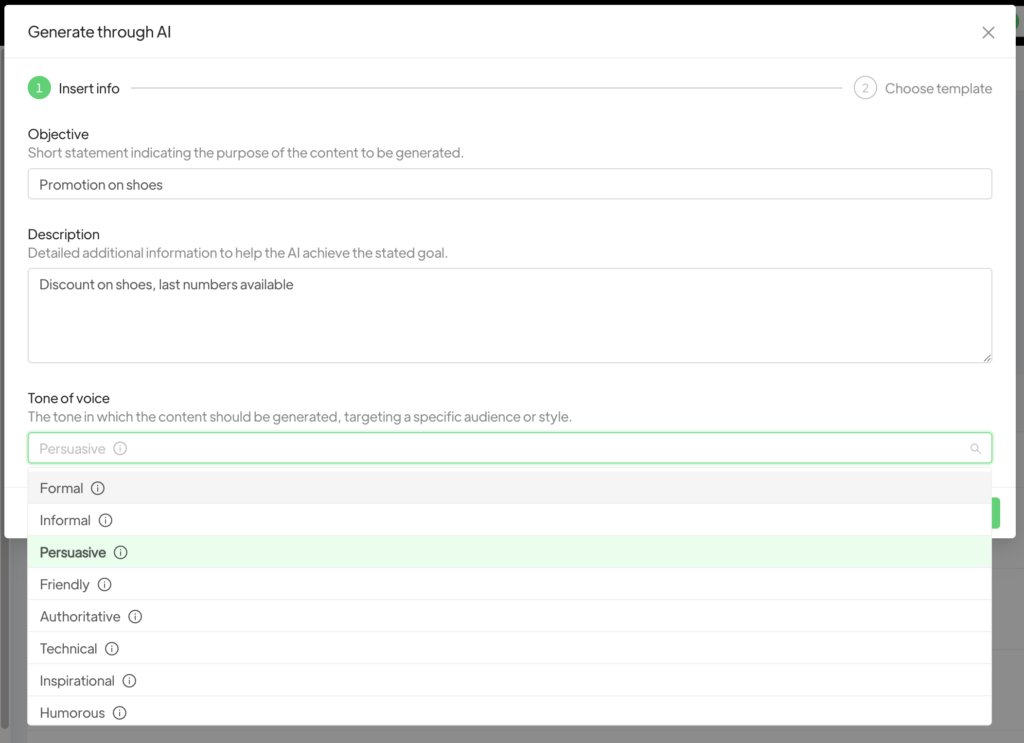
The system will propose three versions to choose from.
After selecting the template you prefer, you will be redirected to the editing panel, where you can customize the content, add buttons and make any changes before proceeding with the approval request. To write a text manually, click on Empty, then select the template category:
- Marketing: promotions, offers, welcome messages, invitations, updates, requests for response or transaction completion
- Utility: communications related to a specific and agreed transaction (if the content combines marketing and utility elements, it must be classified as marketing)
- Authentication (OTP): messages containing one-time access codes for verification or login At the following link you can find examples of message classification: Guidelines for utility, authentication and marketing templates.
Required fields in Template creation #
- Name: internal identifier, not visible to the customer, useful for recognizing the template
- Category: must match the message type to avoid rejections by WhatsApp
- Language: must match the message text; it is possible to add translations to create multilingual templates, useful for international campaigns.
In the Language field you will need to choose the language in which you intend to request the template (if the language does not match the requested text, WhatsApp might reject the template). To add a translation, you will need to select the other Language and write the message text in the correct translation.
By adding translations, you can simultaneously request approval for a multilingual template. This way it will be possible to start a single automation for customer lists belonging to multiple countries. In fact, Spoki will send the specific message with the exact translation based on the international prefix.
In the central box it is necessary to insert the message as you want to send it to the customer:
- Header (optional): text, image, video or PDF
- Text: message body, customizable with formatting (emoji, bold, italic, strikethrough) and dynamic fields (e.g.
FIRST_NAME) - Footer: less visible text, often used to indicate a website, address or brand name
- Buttons: call to action to interact with the message. The types are as follows:
- Link: reference to a link that can contain a website or even an image uploaded on the web. The link inserted in the button can be static (e.g. www.spoki.it) or dynamic, in the latter case the link will contain a dynamic field at the end of the link that varies for each customer.
- Phone number: the CTA is “call me at the following number”.
- Text response: with these buttons you suggest possible responses to the message. Essentially, the customer, by clicking on these buttons, will respond to the message with those exact words, to which it will then be possible to attach another automation and therefore automatically respond to the chat of the customer who interacts. It is suggested not to use text responses that are too simple (e.g. YES/NO) because by setting automations as a trigger the only yes or no response, in case the customer wrote this response outside the automation context, would receive the message linked to that automation. (This example is reported in the Automations section)
It is possible to insert up to 10 text response buttons and 2 call to action (link and phone), with different messages based on the button clicked.
On the right there are the Example values: insert as an example some hypotheses of compilation of the template message as the customer will receive it.
Templates must all be different from each other, WhatsApp does not allow requesting a template identical to one already requested previously, unless the latter is deleted from the template list.
Once the text is defined, it is possible to save as draft, modify, duplicate and request approval from WhatsApp. If the message is modified even by a single comma, the template will need to be approved again by WhatsApp. Therefore, it is necessary to take into account the approval time.
Templates that are exactly a copy in text of others already approved will not be approved (even if the buttons are different from each other). Template requests are unlimited.
Templates will be approved/rejected by WhatsApp within 48 hours of the request (on average though 1 hour is sufficient).
Once the approval request is submitted, the template will be inserted in “queued” status, then it will move to “in review” (when it is being analyzed by WA) and the last step will be “Approved”, and therefore it can be used for sending messages and will be displayed among the messages that can be sent in automations, or “Rejected”. In the latter case it will be necessary to request a new Template, trying to modify and refine the text in order to make it pass WhatsApp’s control again. WhatsApp sales regulations
Templates with images: The recommended proportions for optimal resolution are 1.91:1. If you don’t use this ratio, the WhatsApp template image may show strange cropping or appear zoomed in on WhatsApp. The maximum size for images is 16 MB.
Templates with video: Videos must have a maximum size of 16 MB.
These are the supported MIME types: video/mp4, video/3gpp. There are additional requirements:
*Only H.264 video codec and AAC audio codec are supported.
*Meta supports videos with single audio stream or without audio stream. Furthermore, for multilingual templates it is possible to translate it automatically by clicking on Copy and Translate at the top right.
OTP Template #
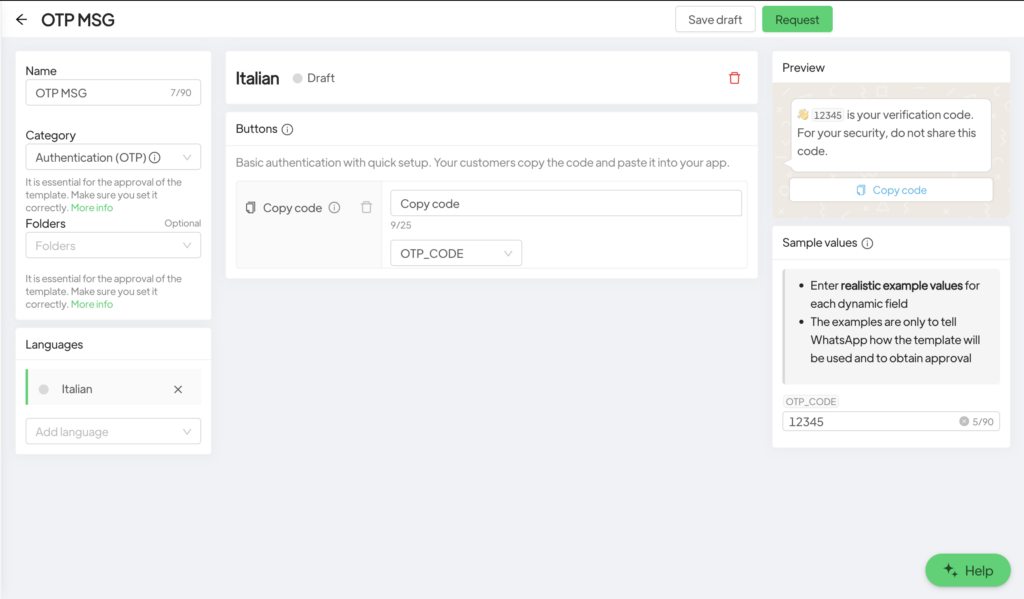
OTP Templates OTP templates are special templates set directly by WhatsApp. As such, they are not customizable except for the dynamic field. To create a template with OTP, go to the Template menu > New.
The compilation of the template request should be done as follows:
Related articles #
Rules to avoid ban from WhatsApp
Recommended proportions for images in Whatsapp messages





