Skip to content
Supporto Spoki

Documentation for Spoki use

  • English
    • Italiano
    • Español
  • English
    • Italiano
    • Español

Integrations

34
  • Integrate WhatsApp with Google Sheets
  • Integrating Spoki with Facebook forms.
  • Integrating Spoki with Brevo (formerly sendinblue)
  • Integrating WhatsApp with Zapier
  • WhatsApp and WooCommerce Integration
  • Integrating WhatsApp with Hubspot
  • Integrating WhatsApp with Qapla’
  • Integrating WhatsApp with ActiveCampaign
  • Klaviyo and Spoki Integration.
  • Integrating WhatsApp with IFTTT
  • Integrate WhatsApp with Zoho
  • Integrate WhatsApp to WPNotif
  • Integrate WhatsApp with Semplisio
  • Integrating Spoki with Webhooks
  • Integrate Prestashop to WhatsApp
  • Integrate Spoki with any management system via API
  • Integrating Calendly with Spoki
  • How to send a Webhook out of Spoki vs. a management system
  • Integrating WhatsApp with Paypal
  • Zadarma
  • Integrate WhatsApp with Google Calendar
  • Embed Spoki on your Software
  • Spoki Integration with Connectif: Automating WhatsApp Messages
  • Integrate WhatsApp with Shopify
  • Insert Chat Button on Shopify
  • Get Started with Spoki MCP
  • Sync Klaviyo Lists and Segments with Spoki
  • Gorgias
  • Make
  • Shopify App
  • Ringover
  • Magnews Flow
  • Salesforce Flow

Platform

16
  • Lists
  • Dynamic fields
  • Import CSV from Lists
  • Apply for OBA (Official Business Account) WhatsApp
  • Ticket
  • How to verify the authenticity of Spoki emails
  • Deals – User Guide
  • Contact
  • Dashboard
  • Chat
  • Campaigns
  • Template messages
  • Chat buttons
  • Tags
  • Integrations
  • Automations

How to

87
  • “Transform Contact Field” step: when and how to use it
  • How to create a simple automation from the Campaigns section
  • Spoki on your Smartphone – Web App and Notifications
  • “Delay” Step: When and How to Use It
  • Quick Action “If/Else”
  • How to Filter Chats by One or More Tags/Agents/Lists/Tickets
  • Marketing Consent on Spoki: Operational Guide
  • Guide to the Branching Option in Automations
  • Introduction to Using the OTP Code
  • Guida allo step “Attendi risposta”
  • How to Upload a Contact List on Spoki: A Step-by-Step Guide
  • Crafting AI Prompts
  • How to send the content of a message to an external webhook
  • Multiple steps in automation
  • HOW TO TRACK CLICKS ON TEMPLATE MESSAGE LINKS: UTM
  • How to write documents for AI
  • Template suggested by Artificial Intelligence (AI)
  • How to create a marketing funnel on Shopify
  • Integrating Spoki with Meta Listings
  • How to build your own AI Agent
  • Restore all blocked contacts
  • Translate messages and replies if the contact has a different language
  • Transcription and translation of audio in chat
  • Permanently delete a contact on Spoki
  • How to export all messages from a chat as CSV
  • How to change media in the Template before sending it in chat
  • How to create a list for contacts in a specific automation step
  • New features of Active Campaign
  • How to populate a dynamic field
  • How to activate catalog display on WhatsApp
  • How to add Tag in automation before inserting it
  • How to generate a list from Campaign Statistics
  • How to segment clients within Automations.
  • How not to let your recharge expire
  • How to automatically manage who replies/does not reply to a message
  • How to terminate automation manually for specific contacts
  • How to terminate automation manually for specific contacts
  • HOW TO CREATE A LIST FOR CONTACTS IN A SPECIFIC AUTOMATION STEP
  • HOW TO GENERATE A LIST FROM CAMPAIGN STATISTICS
  • HOW TO ADD TAG IN AUTOMATION BEFORE INSERTING IT
  • New features of Active Campaign
  • How to change media in Template before sending it to chat
  • How to export all chat messages as CSV
  • Audio transcription and translation in chat
  • Delete contact permanently on Spoki
  • Train artificial intelligence (AI) on Spoki
  • Integrating Spoki with Meta Listings
  • How to set up a CTA with dynamic field
  • How to send the content of a message to an external webhook
  • How to automatically manage who replies/doesn’t reply to a message
  • Free messages with buttons
  • How to get a single contact out of all automations
  • Spoki – first steps
  • How to transfer contacts from your Whatsapp app to Spoki
  • How to handle cases when I have to send a chat reply to a customer after 24 hours?
  • How to withdraw from Spoki service
  • HOW TO LINK SPOKI TO FACEBOOK INTERACTION CAMPAIGNS
  • How to manage booking Calendly + Active Campaign + Spoki
  • How to consult automation reporting
  • How to send multi-language messages
  • How can I identify which user has replied in chat to a message?
  • How to populate a dynamic field via CSV upload and submit a campaign
  • How to enable automation for birthday greeting message
  • How to automatically handle those who do not respond
  • How to activate the Woocommerce plugin associated with Spoki Pro
  • How to enable automation for non-working hours
  • How to link Spoki to Facebook campaigns
  • How to activate an automatic message to run on holidays
  • How to link a Chat Button on the website to an automated response
  • How to insert WhatsApp chat button on WordPress site
  • How to update Spoki’s WhatsApp profile
  • Recommended proportions for images in Whatsapp messages
  • How to create template button response automation
  • How to start an automation with API
  • How to enable notifications on Spoki
  • How to lock/unlock contacts automatically
  • How to create new users and assign different roles
  • How to integrate Spoki for your customers into your software
  • How to recover abandoned shopping carts on Woocommerce
  • How to Automatically Send a Reminder Message Using Spoki
  • How to duplicate automations/ templates
  • Managing Free Messages in the Automation Flow
  • How to attribute or remove tags to contacts in a list
  • How to delete multiple contacts
  • Migration from old Twilio provider
  • View only unread chats
  • How to Use the Return Webhook from Spoki to Zapier

Strategies

13
  • Tips for mass mailings over 10,000 contacts
  • WhatsApp Strategies for Christmas: The Complete Guide to Maximizing Sales and Customer Satisfaction
  • WhatsApp That Sells – Mini Strategic Guide by Sector
  • WhatsApp for E-commerce: How to Turn Conversations into Sales with Spoki
  • Why Spoki AI is Essential in Every Communication and Sales Strategy
  • Reach All Your Contacts Without Exceptions: SMS Integrated into Spoki Automations
  • Practical Guide to Creating, Optimizing, and Approving WhatsApp Templates with Spoki and ChatGPT
  • Practical Guide to Creating, Optimizing, and Approving WhatsApp Templates with Spoki and ChatGPT
  • The 6 Most Effective Automations to Use with Spoki
  • Tips for mass mailings over 10,000 contacts

WhatsApp rules

8
  • “Daily” contact limits
  • Authorization for use
  • Quality of messages sent
  • Types of messages
  • Conversations
  • What to do if your account is in low quality
  • What to do if you have been banned from WhatsApp
  • Rules to avoid ban from WhatsApp

Onboarding

6
  • 2a. Accepting notification from Tyntec
  • Attivazione Spoki – Autorizzazione da Meta BM (numero WhatsApp Business)
  • 2. Verify Meta Business Manager
  • Before activating Spoki: What you need to know about your existing WhatsApp number
  • Plans and prices | Spoki
  • 3. Spoki Training Course

Release Notes

4
  • Carousel Template
  • Report Tickets
  • Commerce Triggers
  • Automation step “Start automation”
  • Home
  • Docs
  • Onboarding
  • Attivazione Spoki – Autorizzazione da Meta BM (numero WhatsApp Business)
View Categories

Attivazione Spoki – Autorizzazione da Meta BM (numero WhatsApp Business)

Cosa ti serve per attivare il numero dal Business Manager di Meta #

Per attivare Spoki usando un numero di telefono legato a un account WhatsApp Business, ti serve quanto segue:

Dati per il Business Manager #

  • Credenziali di accesso con permessi da amministratore al Business Manager della tua azienda
  • L’URL del sito web che indicherai nel Business Manager durante l’attivazione
    • Il tuo sito web deve essere raggiungibile che contiene tutte le informazioni aziendali

Tipo di numero di telefono #

Ricordati di tenere il dispositivo su cui è installata l’app WhatsApp Business vicino perché riceverai una notifica dall’account business di Facebook per continuare la procedura.

Il numero può essere sia quello di una scheda fisica che di una e-sim.

Procedura di attivazione #

Login su Spoki #

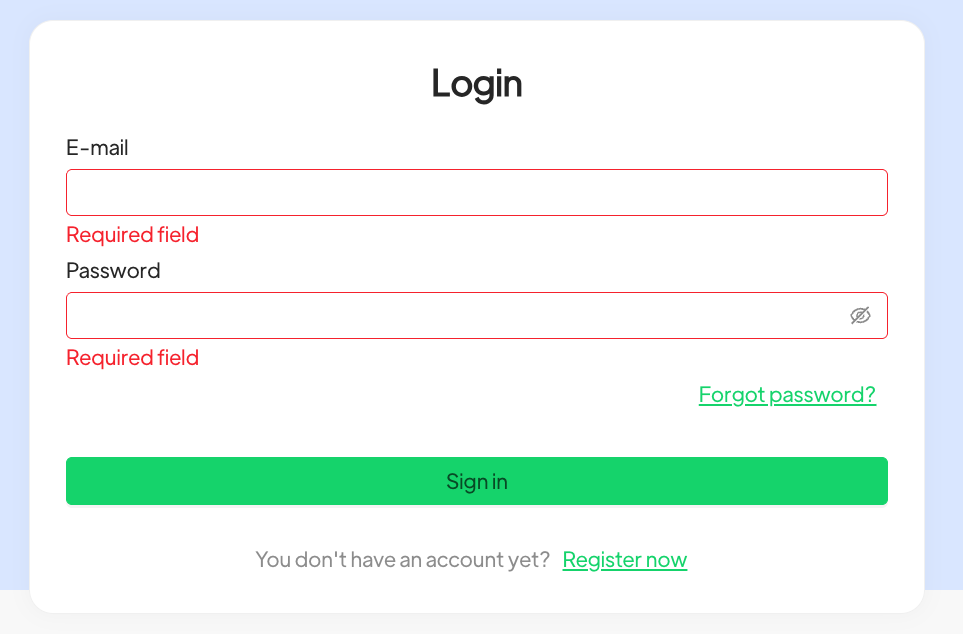
  1. Fai login sulla pagina di Spoki dall’url: https://spoki.app/login 
    • Se non ricordi la tua password puoi richiederne una nuova cliccando sul link Password dimenticata?

2. Clicca sul pulsante Activate Number in alto a sinistra nel menù laterale

Selezione del tipo di numero da collegare #

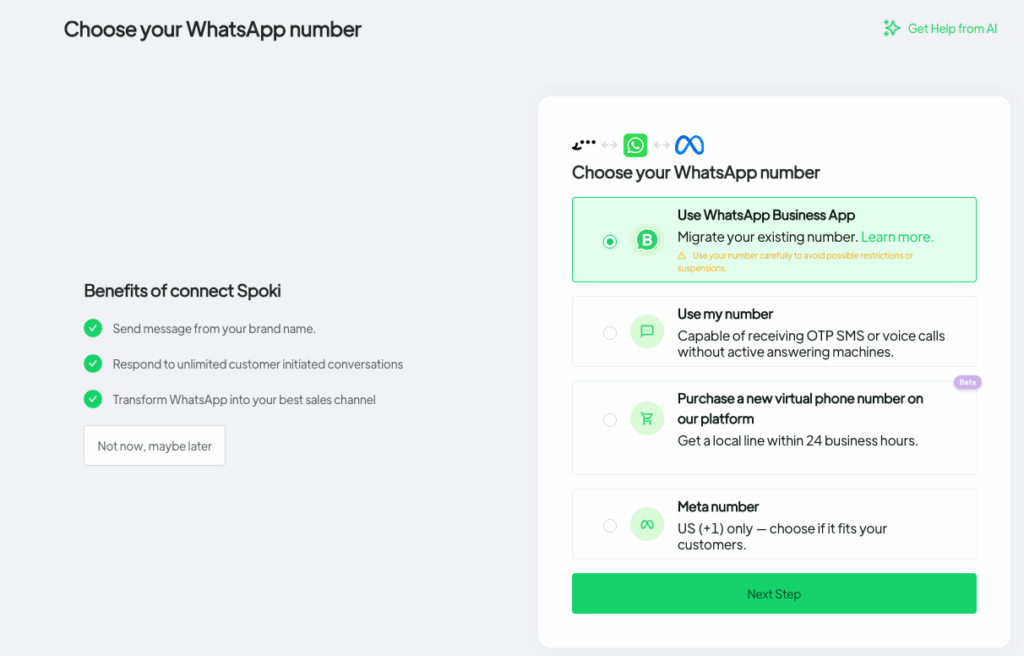
3. Nella schermata di selezione del tipo di numero di telefono da usare, seleziona Use WhatsApp Business App e clicca sul pulsante Next step. 
Questa opzione permette di sincronizzare i contatti e lo storico chat degli ultimi 6 mesi tra l’app di WhatsApp Business e Spoki.

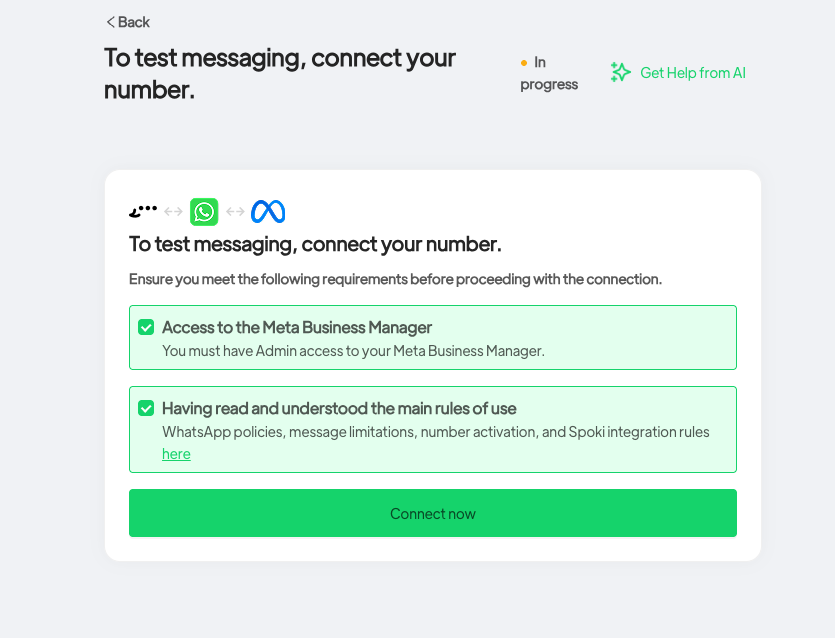
4. Nella schermata successiva, spunta entrambe le caselle di controllo e clicca sul pulsante Connect now

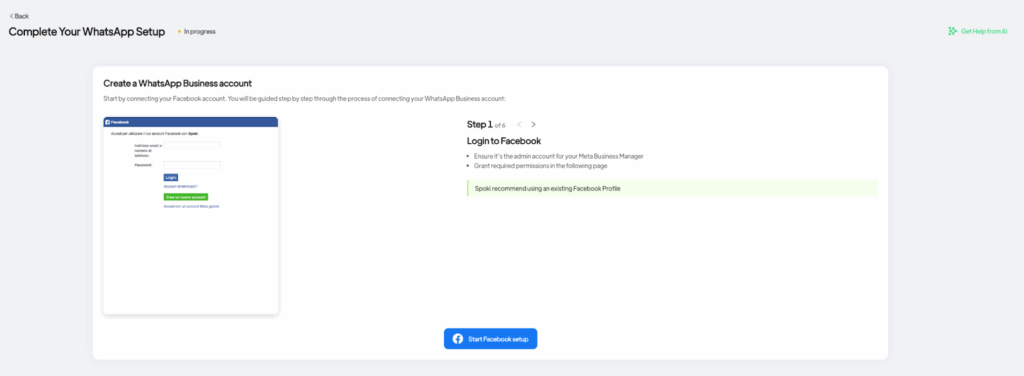
5. Clicca sul pulsante blu Start Facebook setup per procedere al tuo Business Manager

Accesso al Business Manager di Meta #

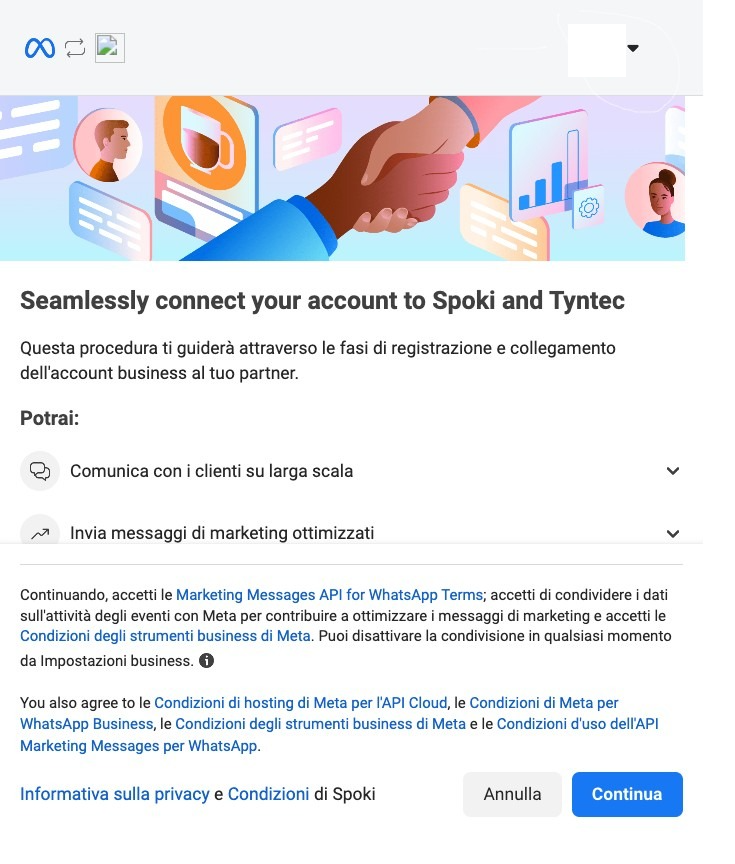
6. Nella scheda che segue, seleziona nel riquadro in alto a destra il profilo legato al portfolio businesss dell’azienda da collegare a Spoki. Se non hai fatto login con il tuo account, puoi cliccare nel menù a tendina l’opzione Add another account per aggiungere manuale il profilo giusto, poi clicca su Continue.

Collegamento account WhatsApp Business al Business Portfolio #

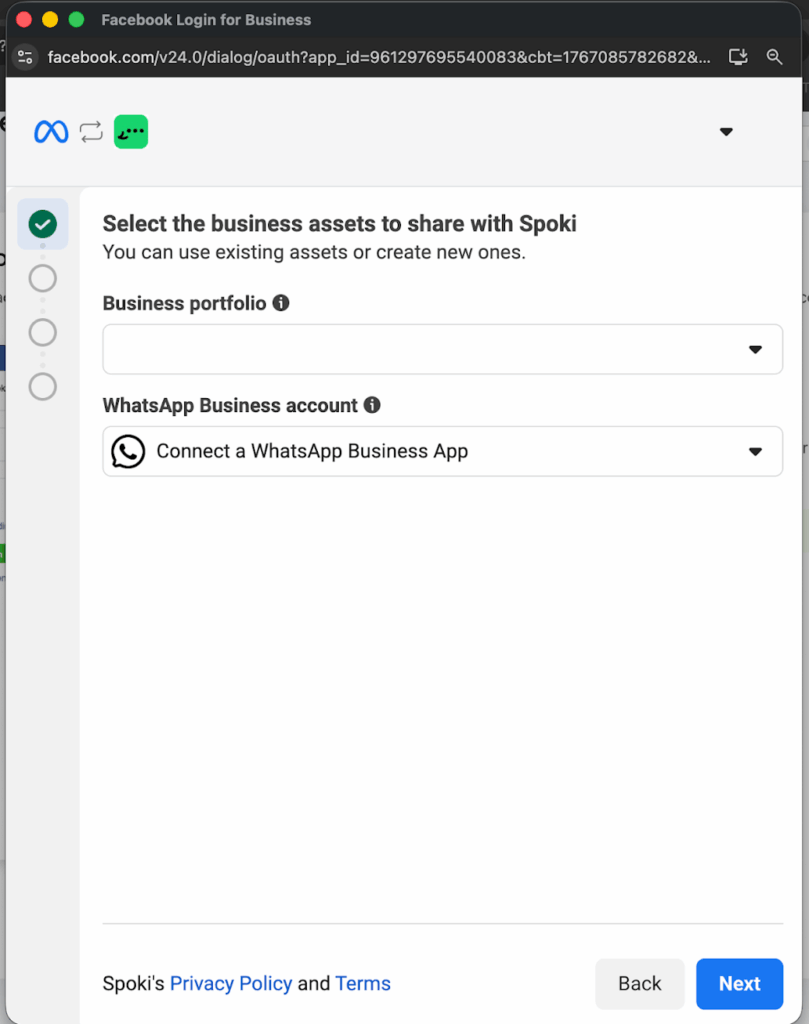
7. Nella sezione che segue seleziona il portfolio business corretto e selezionare l’opzione Connect a WhatsApp Business App per creare un nuovo account da collegare a Spoki nel menù a tendina e premere Next per proseguire.

Inserimento numero di telefono #

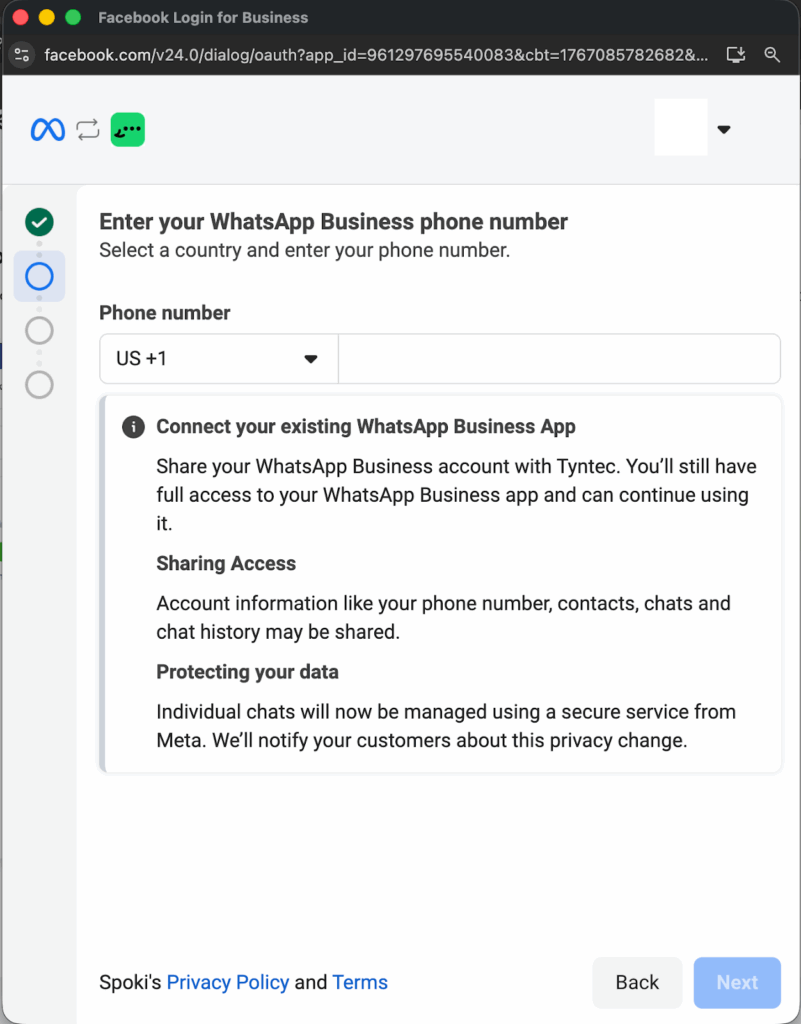
8. Nella schermata successiva dovrai inserire il numero di telefono da collegare alla risorsa che hai appena creato nel Business Manager

Seleziona il prefisso e inserisci il numero di telefono da collegare, poi clicca su Next.
Inserisci il codice di verifica e clicca su Next.

Codice QR per autorizzare l’associazione del numero #

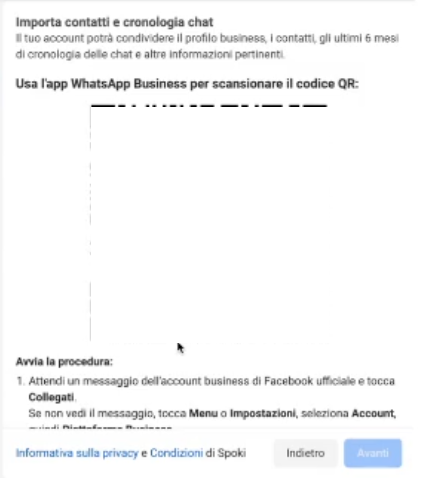
9. Riceverai un messaggio sull’app WhatsApp Business e potrai scansionare il codice QR nella nuova schermata dall’app. Se non ricevi il codice, puoi navigare nel menu impostazioni dell’app WhatsApp Business seguendo le istruzioni.

Ultimi passi #

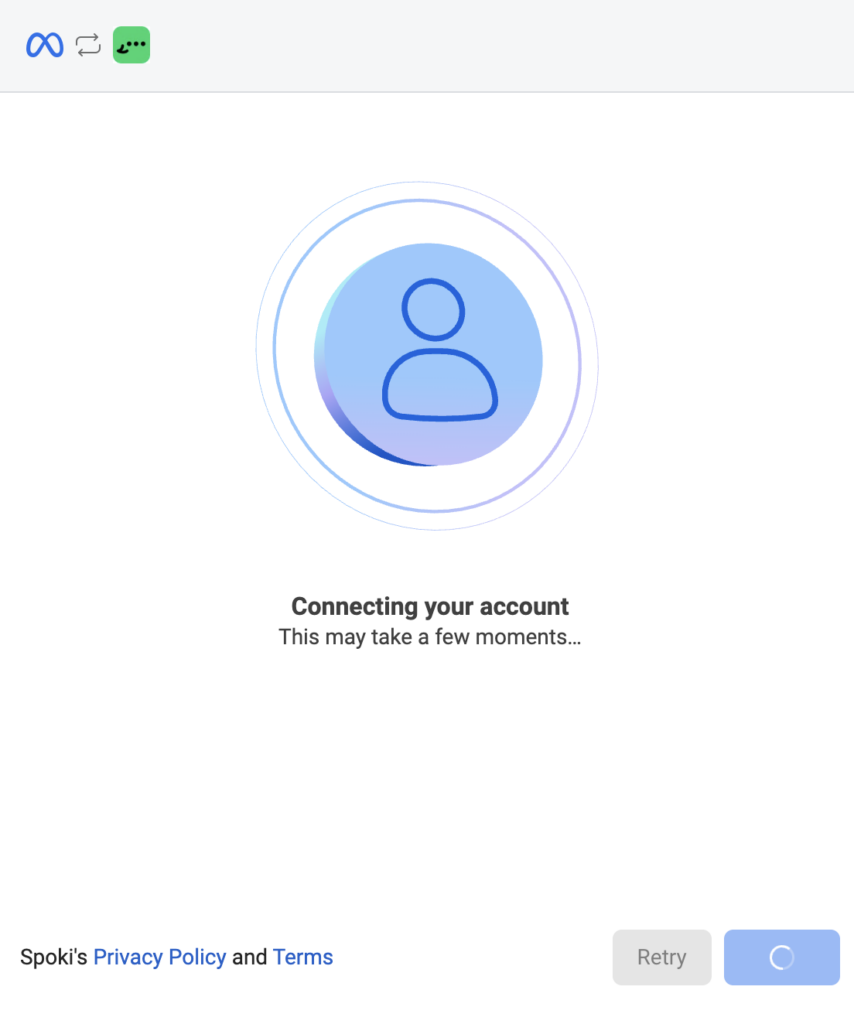
10. Dopo aver inserito scansionato il codice QR comparirà questa schermata di caricamento. Questo è un processo automatico che terminerà da solo.

11. Conferma i dati a cui stai dando accesso a Spoki nell’ultima schermata con il pulsante Conferma.

Congratulazioni, hai terminato il processo di attivazione di Spoki con il tuo numero di telefono! Verrai riportato direttamente alla Dashboard della piattaforma e Meta impiegherà fino a 24 ore per approvare il tuo numero di telefono. 

What are your Feelings

Share This Article :

  • Facebook
  • X
  • LinkedIn
  • Pinterest
Still stuck? How can we help?

How can we help?

Updated on February 5, 2026
Plans and prices | Spoki

Powered by BetterDocs

Table of Contents
  • Cosa ti serve per attivare il numero dal Business Manager di Meta
    • Dati per il Business Manager
    • Tipo di numero di telefono
  • Procedura di attivazione
    • Login su Spoki
    • Selezione del tipo di numero da collegare
    • Accesso al Business Manager di Meta
    • Collegamento account WhatsApp Business al Business Portfolio
    • Inserimento numero di telefono
    • Codice QR per autorizzare l'associazione del numero
    • Ultimi passi
DEVELOP YOUR BUSINESS WITH SPOKI AND WHATSAPP
Try now for free

Contacts

  • info@spoki.it
  • +39 351 5495135
  • Informativa Privacy

Menu

  • Home
  • Prices
  • Functionality
  • Integrations
  • Artificial Intelligence
  • About us

Solutions

  • Marketing
  • Sales
  • Customer Care
  • Developers

Support

  • API Documentation
  • Blog
  • Case Study
  • Learning Center
  • Manual

Spoki.it © All rights reserved NextAI Srl P.IVA IT02717930743 Viale Francia snc, 72019 San Vito Dei Normanni (BR) Italy

Soluzioni

  • Marketing
  • Vendita
  • Assistenza Clienti
  • Developers
  • Italiano (Italian)
  • English
  • Español (Spanish)