
It is possible to create an automation that automatically sends a message to the customer at a specific date and time, based on a dynamic field specifically created within the contact’s profile.
For all businesses that manage appointments, courses, installments or various types of deadlines, this feature allows you to communicate or send a reminder shortly—whether minutes, hours, or days—before the event occurs.
Example: a customer has registered for a webinar.
It is possible to automatically send them a reminder ten minutes before the start, to notify them of the upcoming event and provide the direct access link.
Reminding participants of an imminent event increases attendance rates and, consequently, conversions.
Let’s take a closer look at how to create the automation, using the Date Condition as the trigger.
Step 1 #
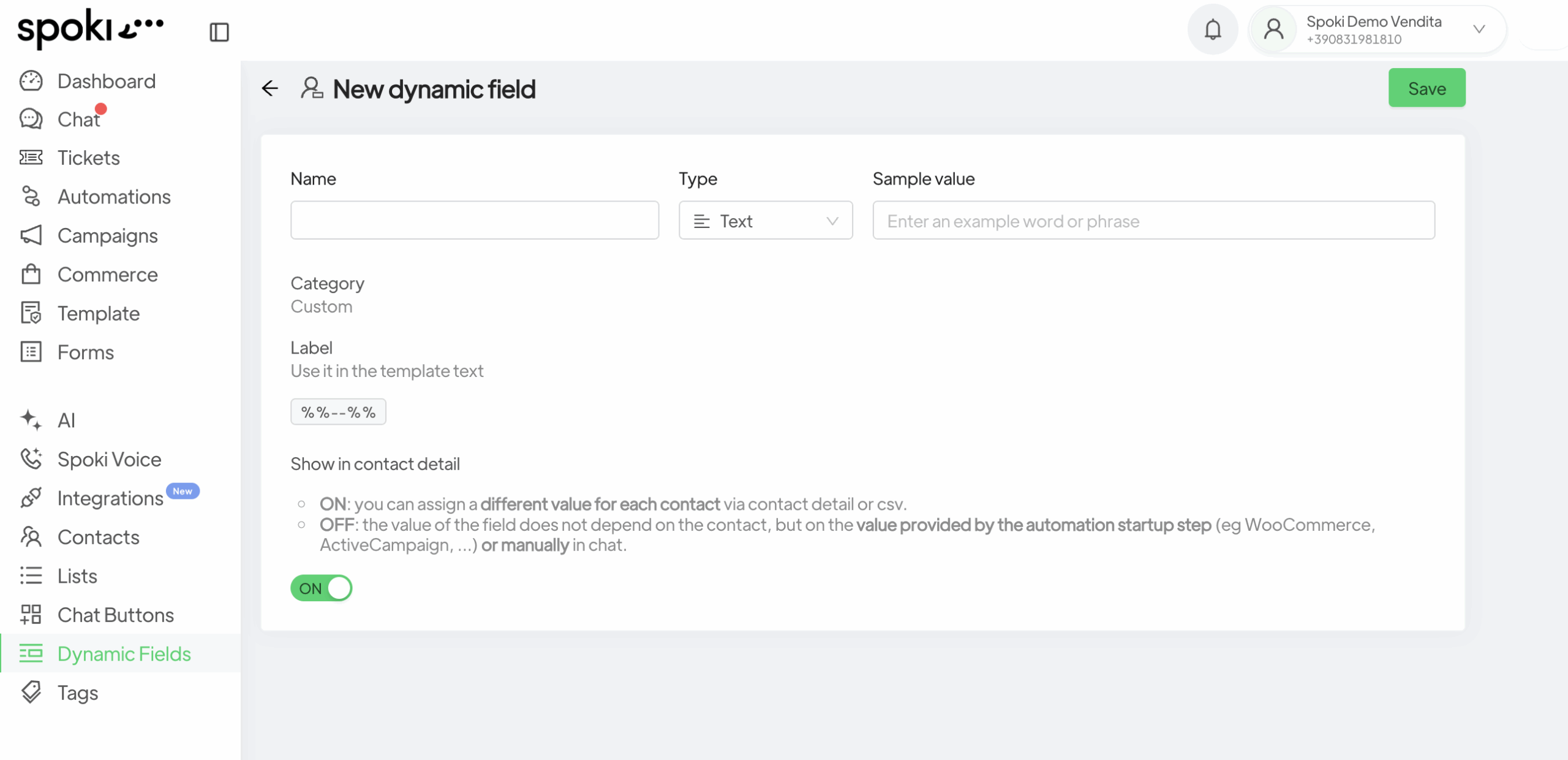
Create the dynamic field: in the Dynamic Fields section, create a new dynamic field by clicking the New button at the top.
Then, enter the name and type of the field, selecting the last option in the dropdown menu: Date and Time.
Finally, provide an example value, such as: 01/01/2026, 10:00 AM.
Switch to ON to show the field in the Contact Details section.
Step 2 #
Create the automation: in the Automations section, click New in the top right corner.
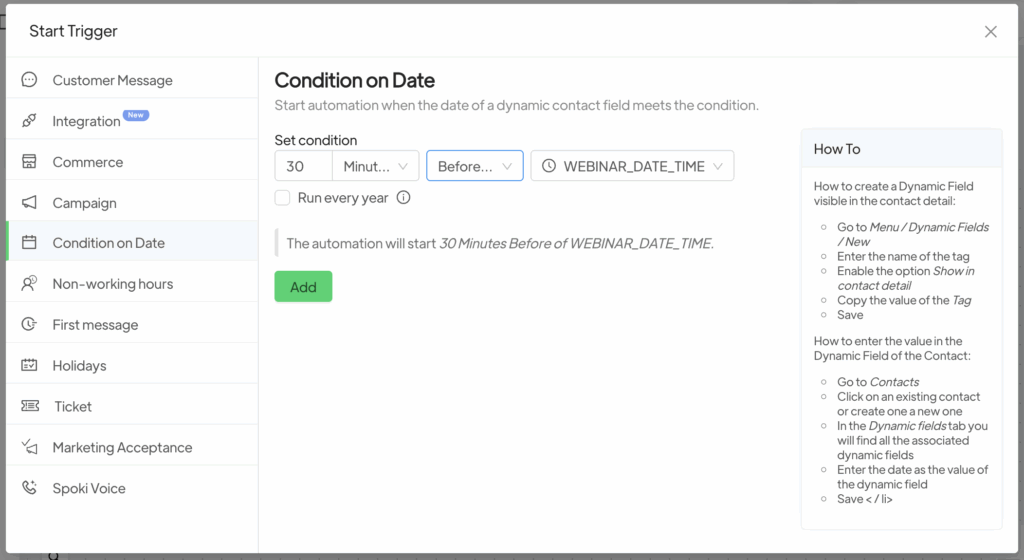
From the Start Trigger options, select Date Condition as the trigger type.
At this point, choose the condition to apply to the dynamic field (Is, Before, After) and select the corresponding dynamic field as the reference.
For example, you can select the dynamic field referring to the webinar start time and then set the condition specifying how long before or after that time the message should be sent to the recipient.
In this case, the reminder message will be sent thirty minutes before the webinar starts, as shown in the following image.
After setting the conditions described above, select or create a template with the chosen message.
It is also possible to add a subsequent template within the same automation that requests feedback on the event or a review.
Related articles #
Integrate WhatsApp with Calendly





