
Connect n8n to Spoki with an API key. Your n8n AI Agent can call Spoki tools through the MCP Client Tool: contacts, lists, tags, automations, campaigns, templates, tickets (if enabled), and more.
Server URL:
https://mcp.spoki.com/v2/mcp
Need a key? Authentication and URL. ← Get Started with Spoki MCP
Steps #
1. Get your API key
- In Spoki, go to app.spoki.it → Integrations → Spoki MCP → Request Api Key.
- Copy the key and keep it private.
2. Start a workflow and add an AI Agent
- Create a new workflow in n8n, or open an existing one.
- Add the AI Agent node (+ icon, search “AI Agent” under AI Nodes).
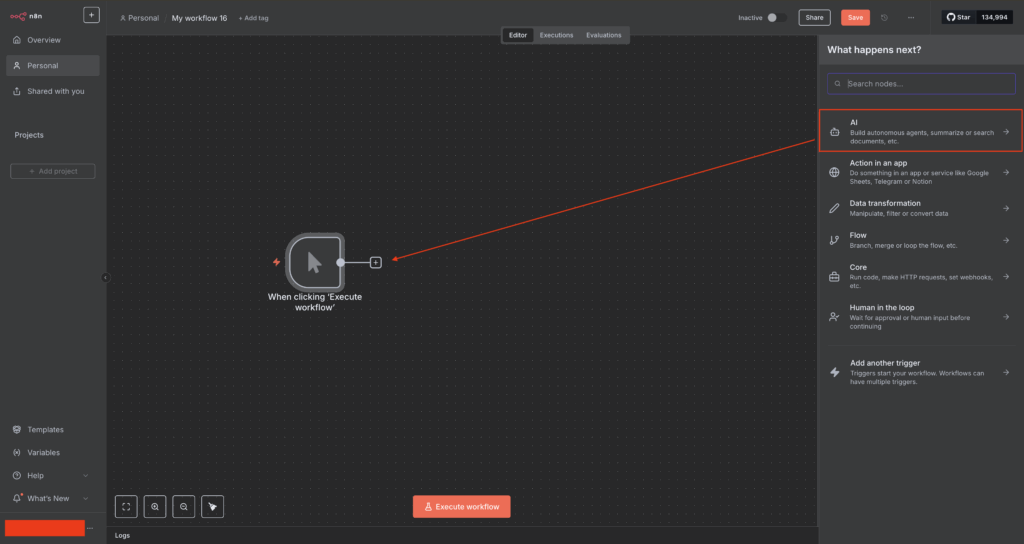
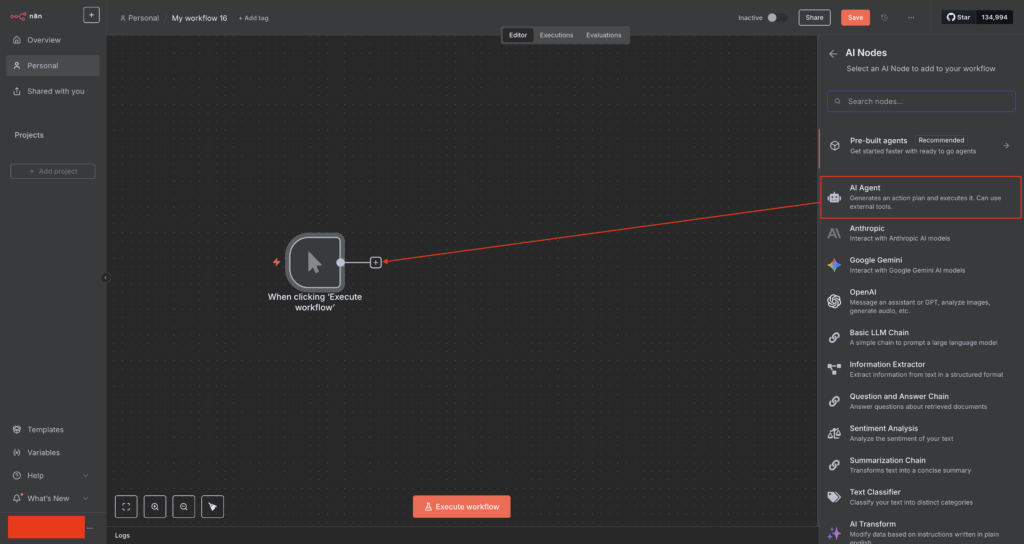
3. Add the MCP Client Tool
- In the AI Agent parameters, click + next to Tool.
- Search for and select MCP Client Tool.
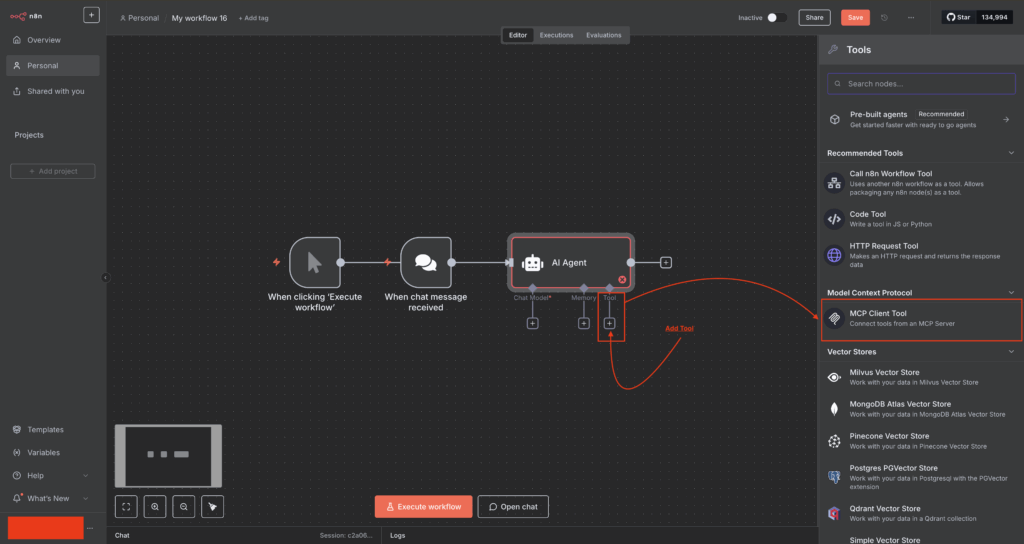
4. Configure the MCP Client Tool
- Open the MCP Client Tool parameters.
- Set Endpoint to
https://mcp.spoki.com/v2/mcp. - Set Server Transport to HTTP Streamable.
- Set Authentication to Header Auth. Under Credential for Header Auth, choose Create New. Name =
X-Spoki-Api-Key, Value = your Spoki API key. Save, then select that credential. - Under Tools to Include, choose All or Selected (for example get_contacts, create_list, trigger_automation). The list reflects tools available to your account.
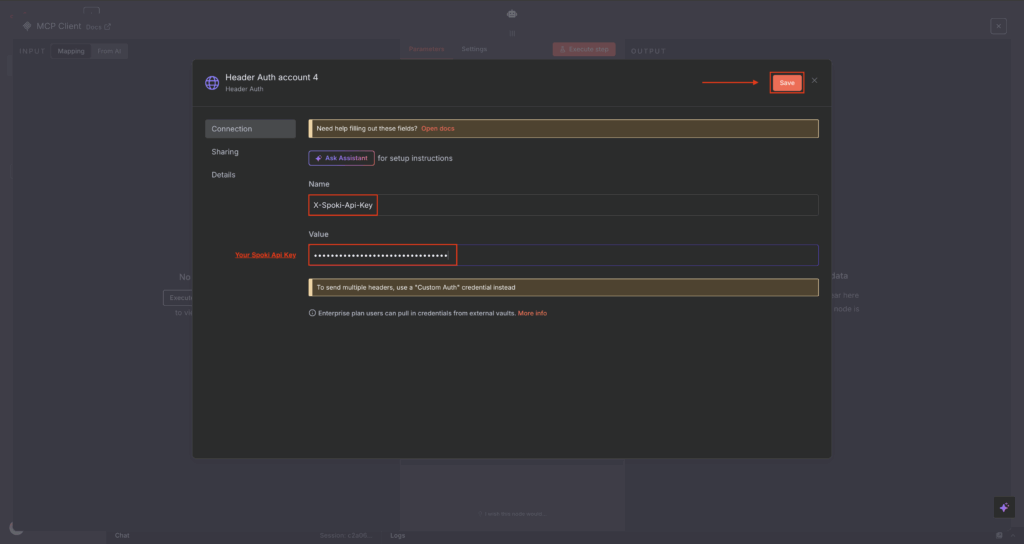
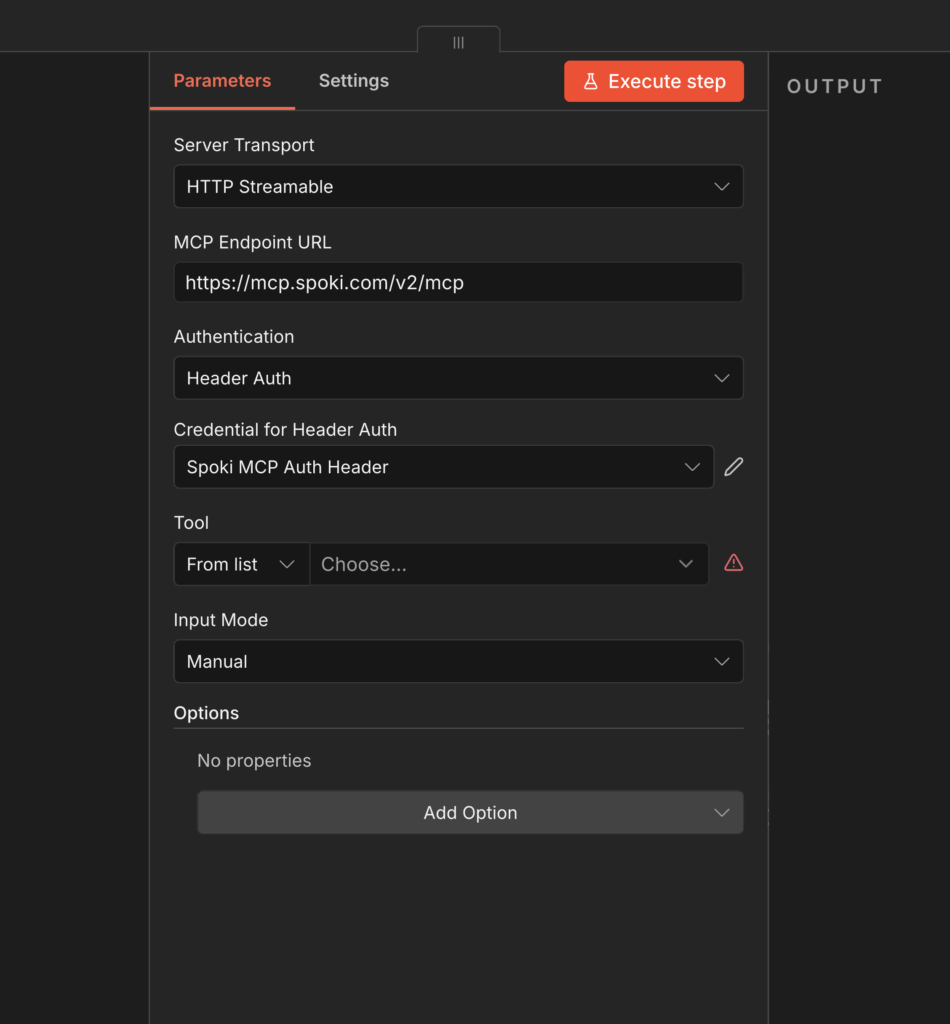
5. Test
- Run the workflow (or chat with the agent) and ask something simple, for example: “What tags do I have in Spoki?”
You’re done when… #
- The MCP Client Tool is connected with Header Auth and your Spoki credential selected.
- The agent can list or use Spoki tools (for example tags or contacts).
Common problems #
- invalid_api_key / auth fails: Create a new key in Spoki Integrations → Spoki MCP and paste it into the Header Auth Value with no spaces. Header Name must be exactly
X-Spoki-Api-Key. - Wrong transport or URL: Use HTTP Streamable and exactly
https://mcp.spoki.com/v2/mcp(not staging hosts or older/mcppaths). - Empty tools list: Finish saving the credential, set Tools to Include to All (or pick tools), then re-open the MCP Client Tool so it refreshes the catalogue.
Need help? support@spoki.com.