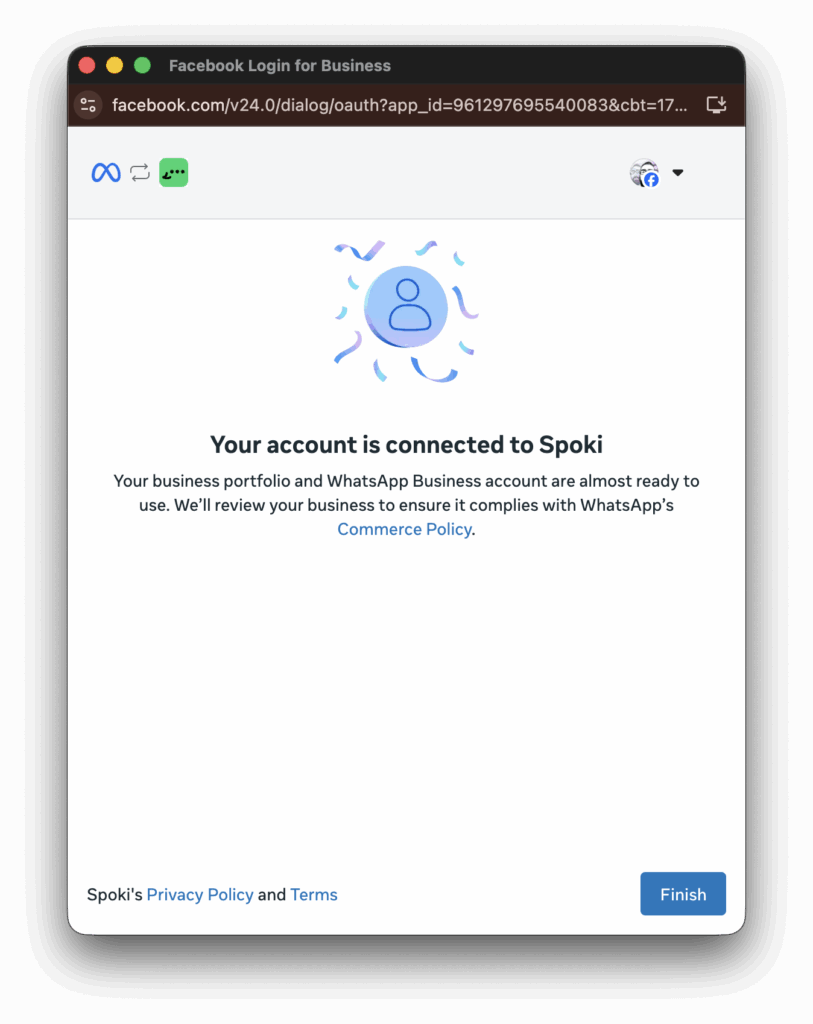
⚠️ Please note that, in this case, it is not a migration but the activation of a new number. To ensure it connects correctly, it is essential to strictly follow every single step indicated in the guide: any deviation from the procedure could compromise its success.
To proceed, you will need to make sure that the Business Manager is verified.
Once verified, you can proceed by repeating the activation.
There are two ways to do this:
- From the Channels section
Go to Channels >> WhatsApp Chat >> Reconnect WhatsApp with Meta, then choose Free Meta Number

2. From the platform notification
Access directly from the modal that appears in the platform >> Reconnect WhatsApp with Meta
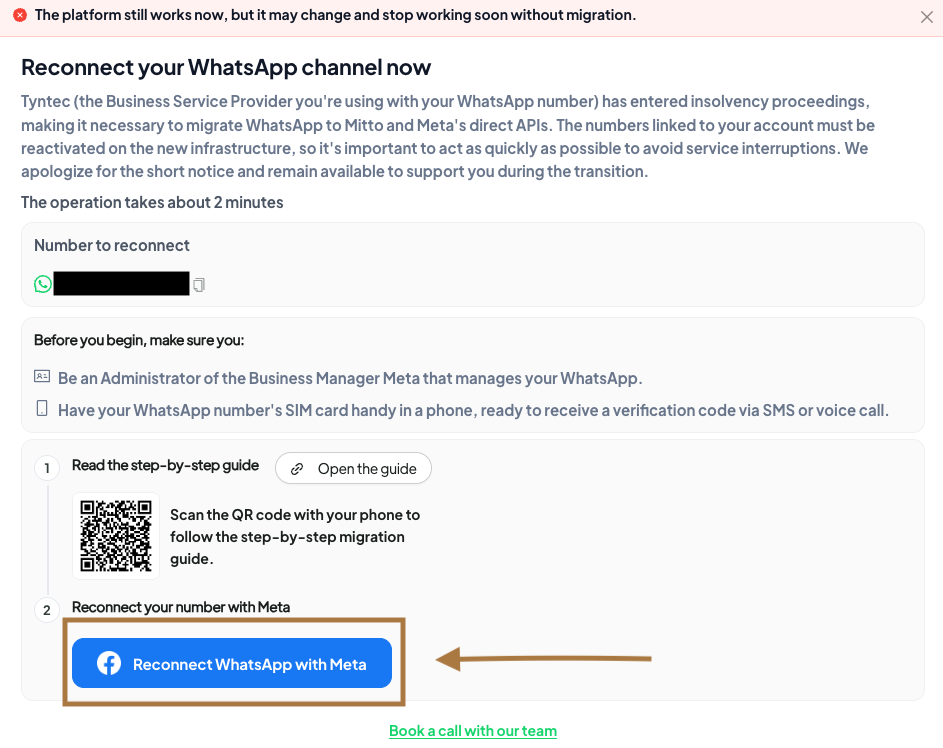
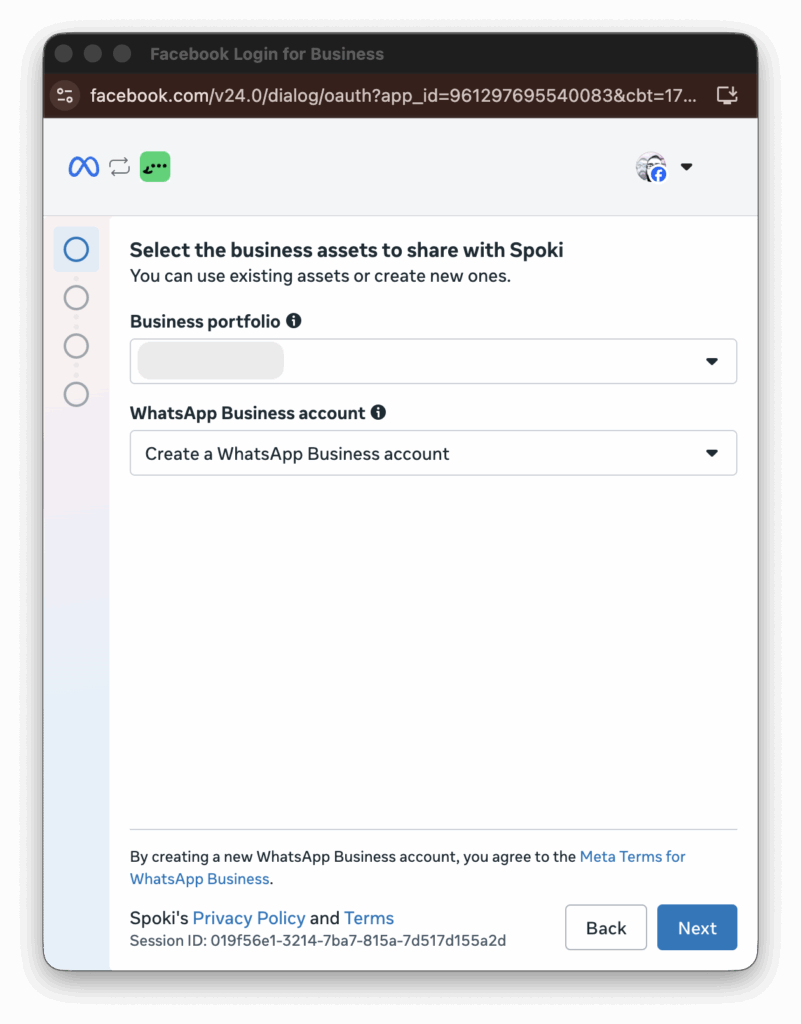
Then continue by following these steps:
- Enter the name of your business portfolio and, under “WhatsApp Business Account”, select “Create a WhatsApp Business Account” — even if an existing account already appears among the options in the dropdown menu.
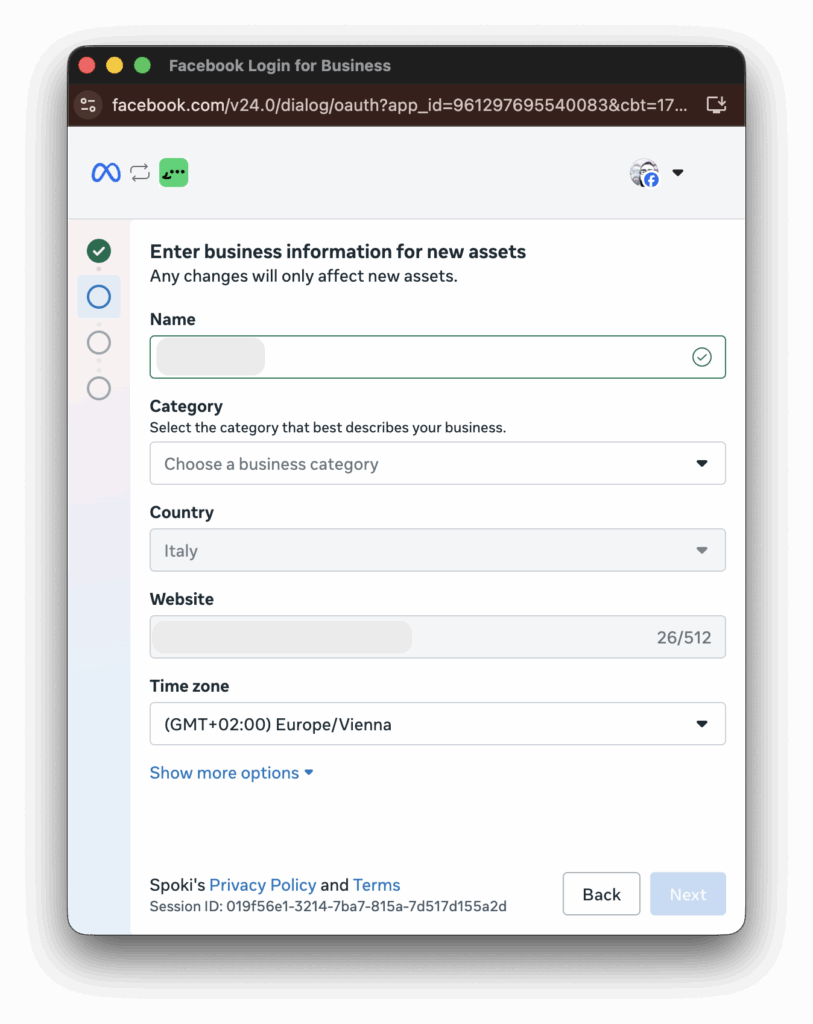
2. Enter the same name as the business portfolio, select the category that best suits your business and the company website, setting the time zone (“Time zone”) to Rome.
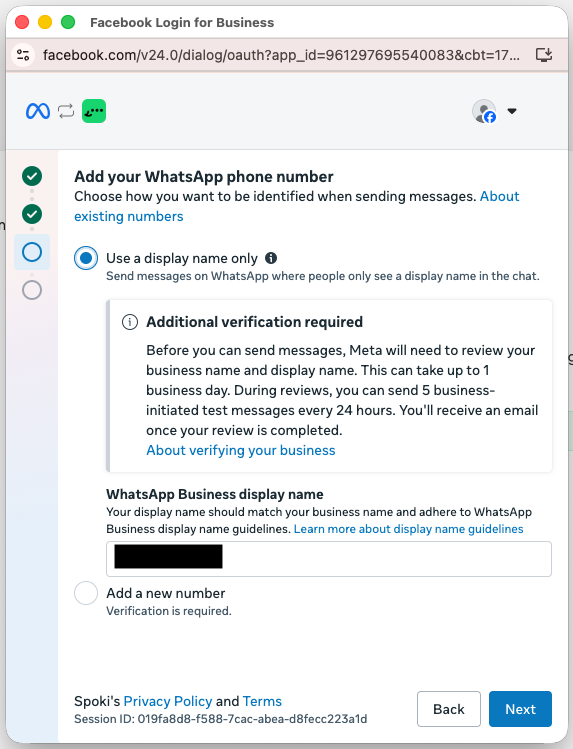
3. Select “Use a display name only”, verify the display name, and click “Next”.
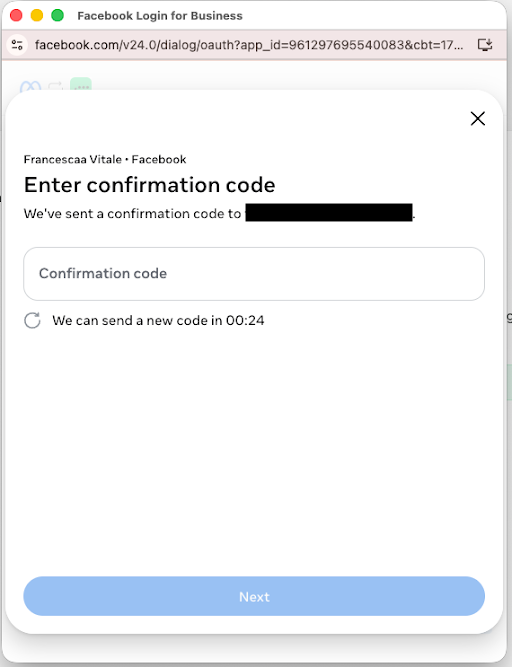
4. Meta may require a code received via email or SMS: enter it in the “Confirmation code” field and click “Next”.
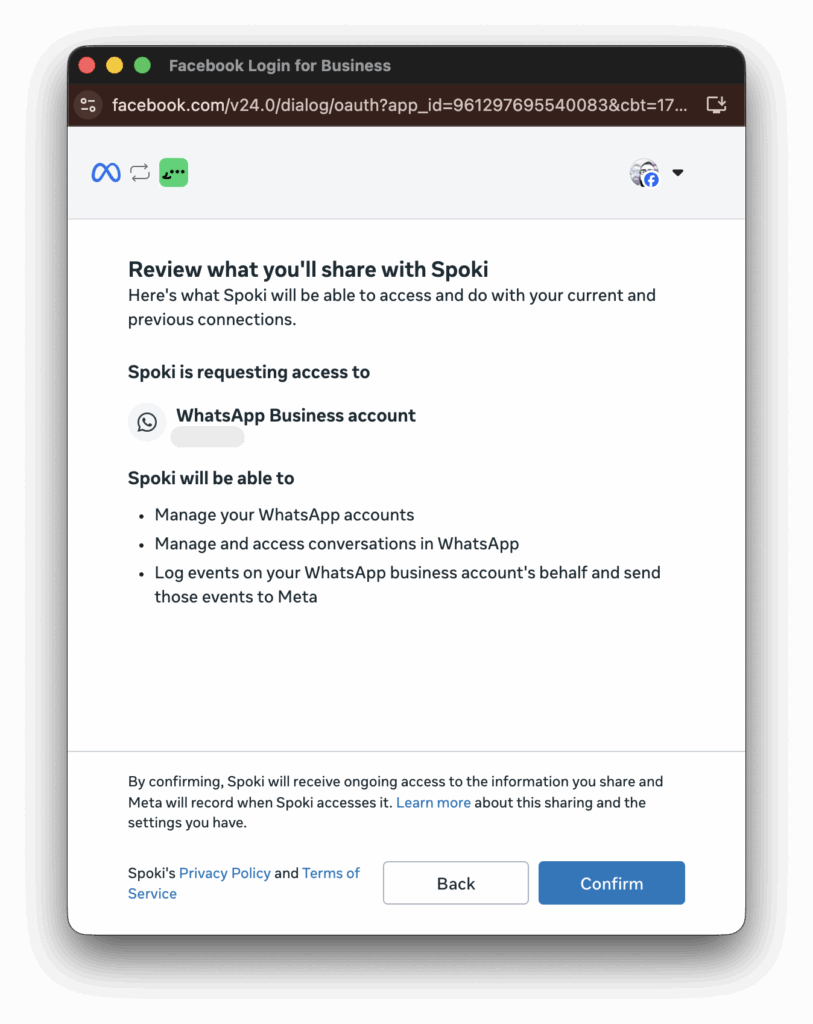
5. Check the information you are about to share and confirm to proceed.
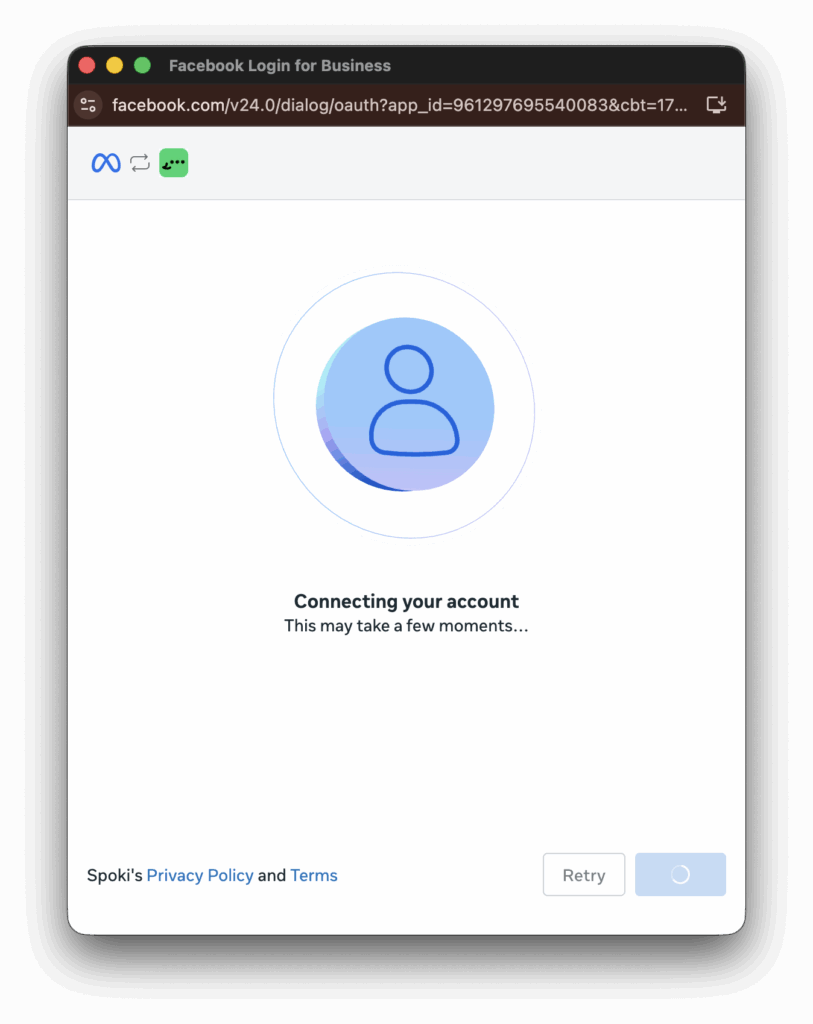
6. Wait a few moments until the process is completed.
7. The onboarding was successful: you can return to the platform and monitor the connection status from the “Channels” section.