
This guide explains how to connect a free number provided by Meta to Spoki.
What you need before starting
To complete the activation correctly, make sure you have available:
- login credentials for the Meta Business Manager with administrator permissions
- the URL of your company’s website, to be entered during the process
- an active and reachable website containing the main company information
Activation procedure
1. Log in to Spoki
Log in to the Spoki platform.
If you don’t remember your password, you can reset it using the “Forgot password?” link.nticata?”.
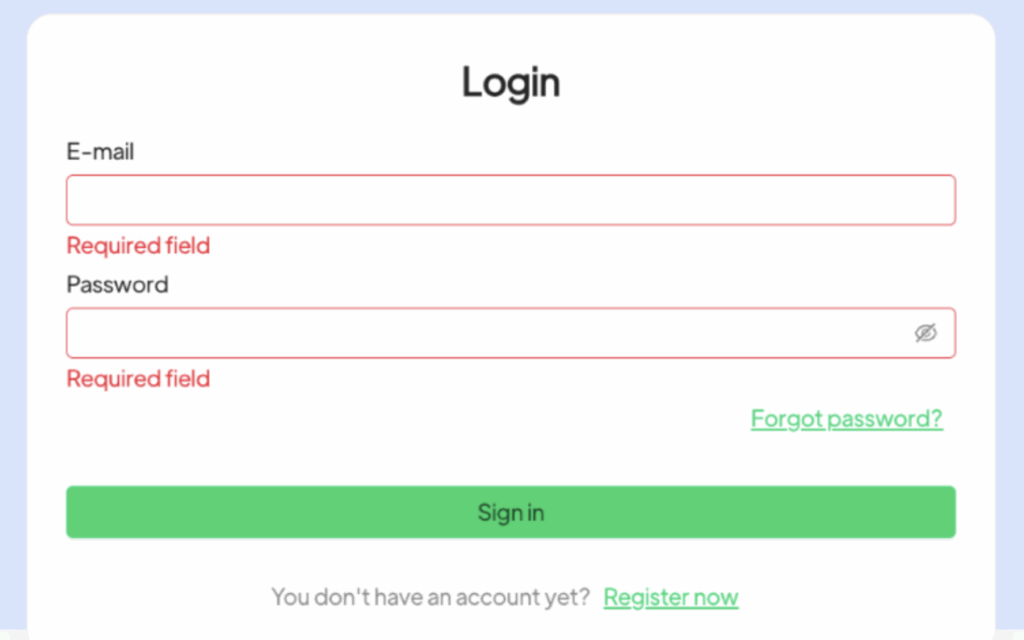
Once logged in, click the Activate Number button located at the top left of the side menu.
2. Select the number type
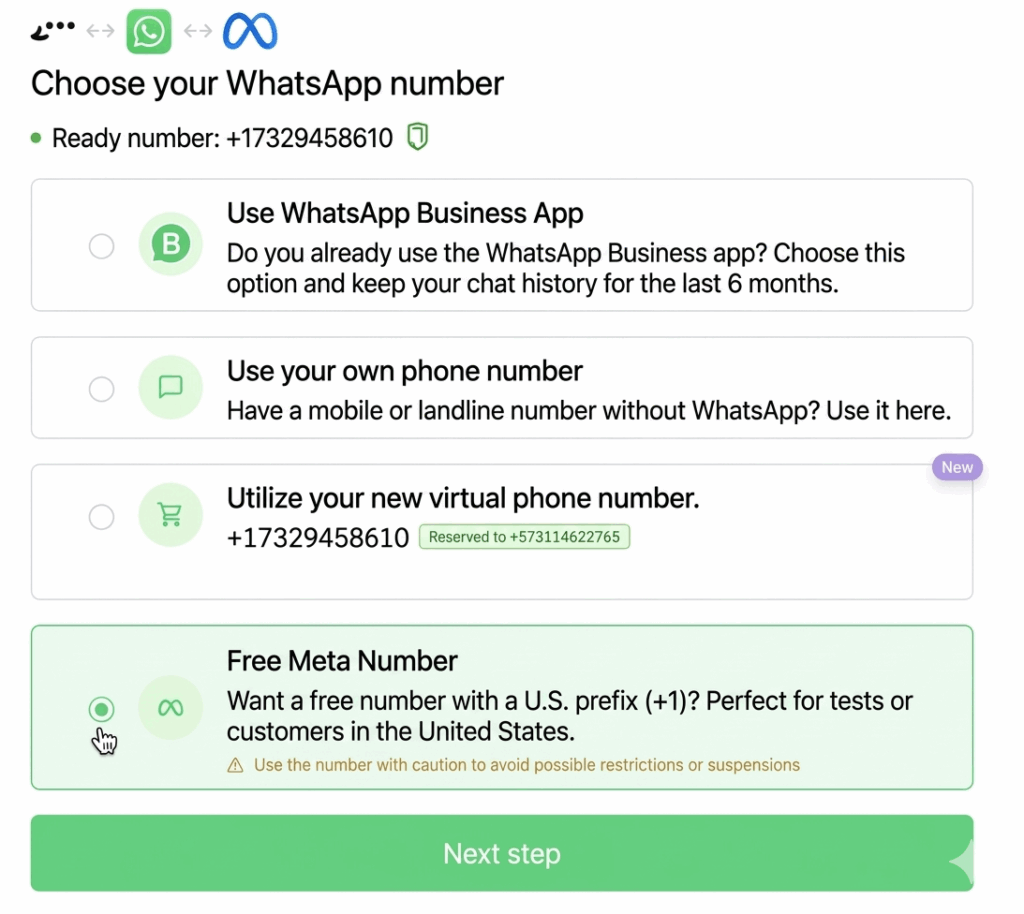
On the screen dedicated to choosing the number to connect:
- select Free Meta Number
- click Next Step
On the next screen:
- select both checkboxes
- click Connect now
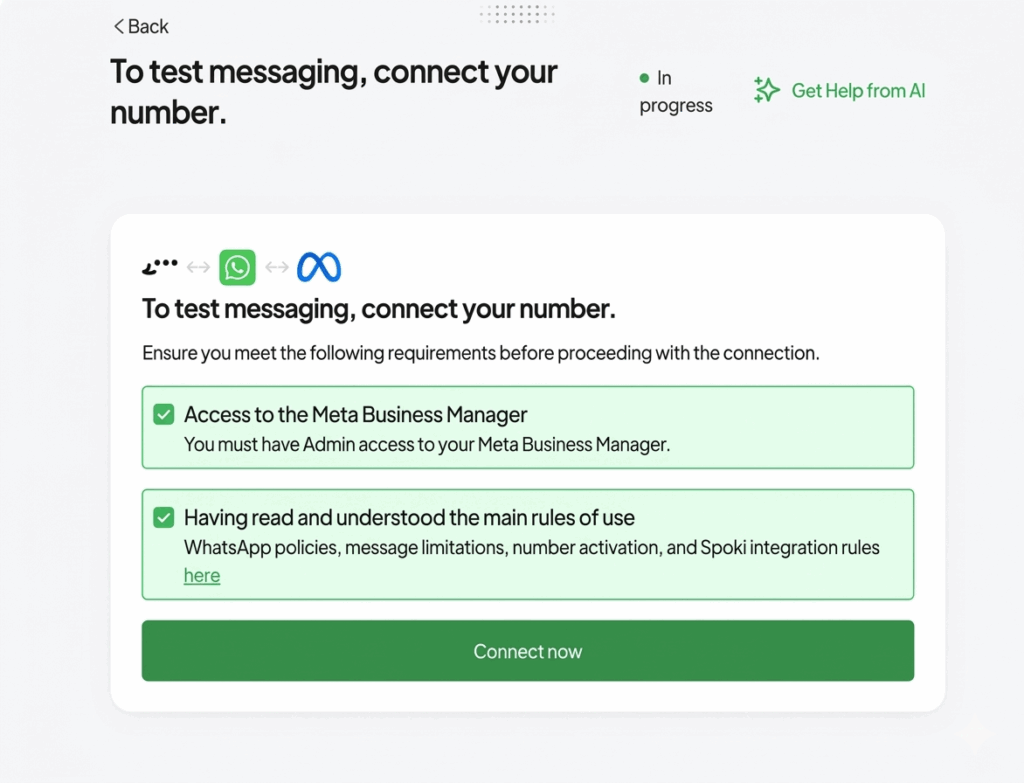
Then press the blue Start Facebook setup button to continue in the Meta Business Manager.
3. Log in to Meta Business Manager
On the page that opens:
- at the top right, select the profile linked to the Business Portfolio of the company you want to connect to Spoki
- if you haven’t logged in with the correct account, use the drop-down menu and click Add another account to add it
- then click Continue
4. Select the correct business portfolio
On the next screen:
(It looks like the rest of this section got cut off — feel free to paste the remaining text and I’ll continue the translation.)
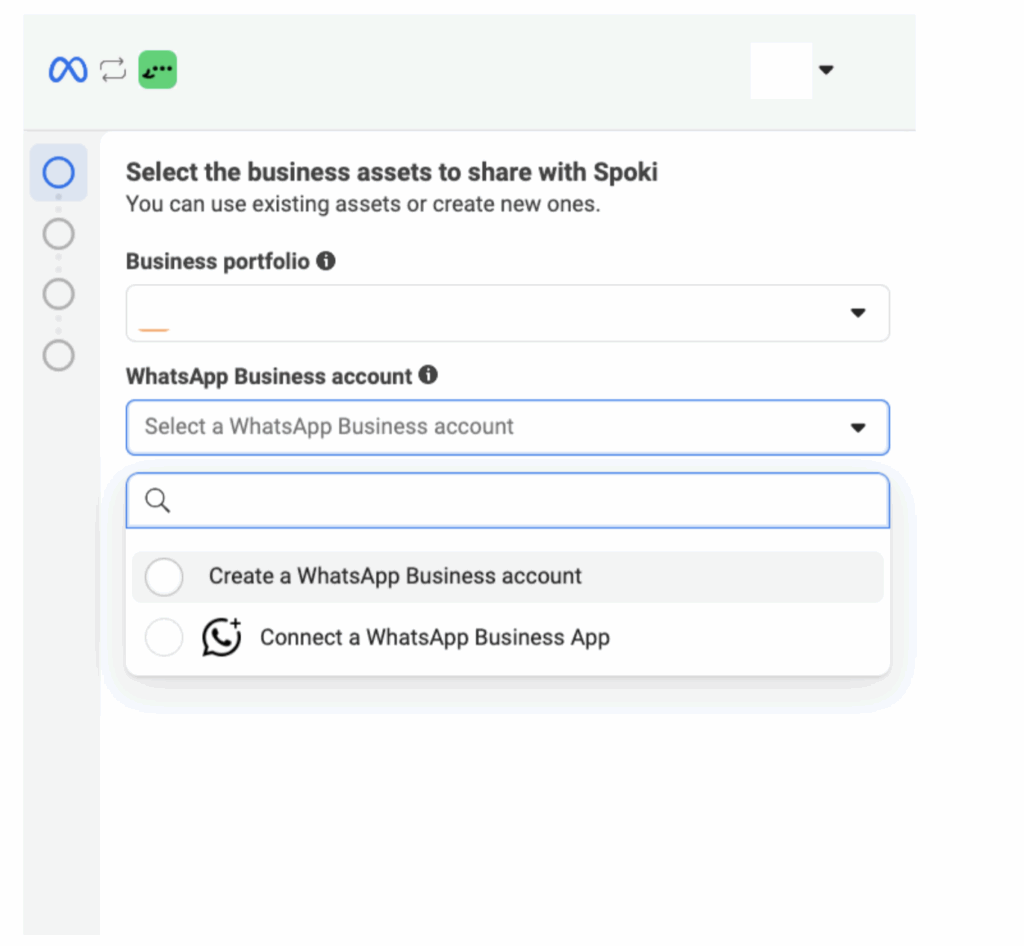
- choose the correct Business Portfolio
- from the drop-down menu, select the Create WhatsApp Business account option, in order to create a new account to connect to Spoki
- click Next to proceed
5. Create the new WhatsApp Business account
Fill in the required fields with this information:
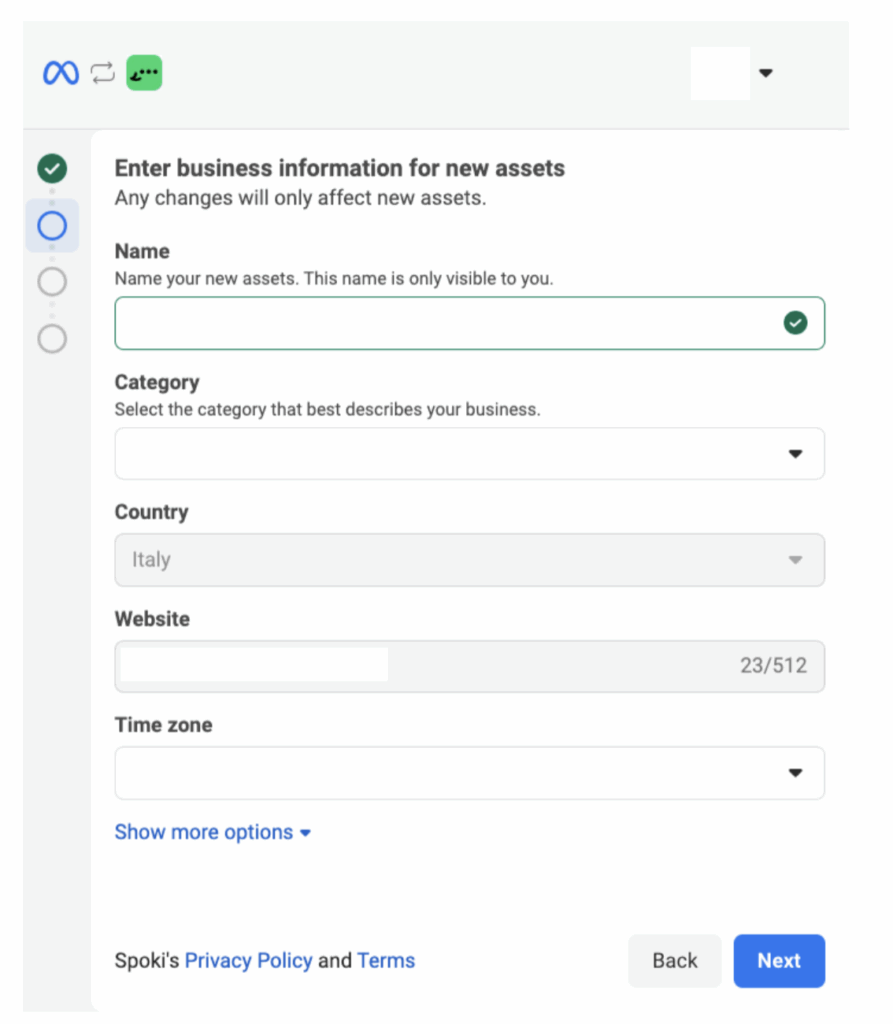
- WhatsApp Business account name This name will only be visible to you within the Business Manager.
- Company category If you can’t find a suitable category, you can select Other at the bottom of the list.
- Company website URL
- Time zone
Once you have filled in all the fields, click Next.
6. Choose the free Meta number
On the next screen, select the step where the following option appears: Use display name only
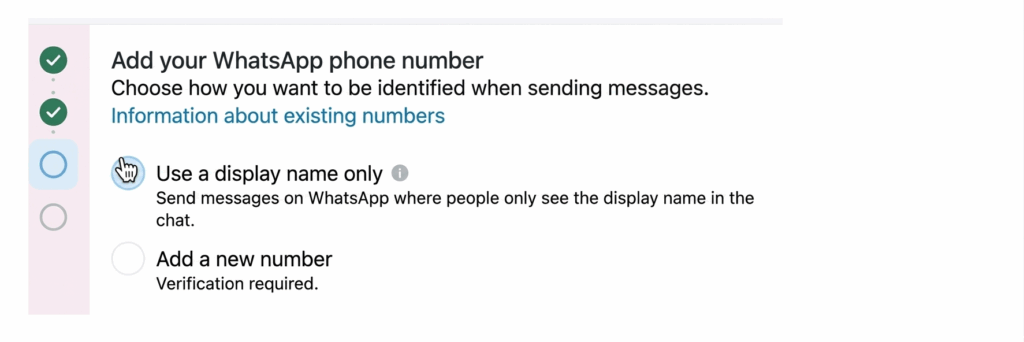
Continue by following the instructions shown on screen.
7. Complete the activation
After entering the required code, a loading screen will appear.
During this phase, the new WhatsApp Business account will be associated with the selected Business Portfolio.
Once the process is complete, you will automatically be returned to the Spoki dashboard.
Activation completed
Congratulations, you have completed the setup of Spoki with a free Meta number.
Please note that Meta may take up to 24 hours to complete the approval of the number.