
Master data completion
At this point verify that the master data in Business Manager is filled out and complete.
Go to Business settings > Business information > Business details. Direct link: Meta Business info settings
The registry must show the active and up-to-date website related to the business for which the WhatsApp account needs to be activated.
PLEASE NOTE: The Business Manager business account name must match the company name. If these do not match it is possible alternatively:
Change the name of the Business Manager and align it with the name that of the company you want to display on WhatsApp. Once the Business Manager is verified it will then be possible to reset the original name. Ensure that the website listed in the master data is that of the company name you want to activate. Make sure that there is a reference within the website listed in the master data to the company name you intend to activate and that at the same time the relationship to the company listed in the Business Manager is clear in the website of the company you intend to activate.
Ex. Goofy Group Ltd. and company name to be activated Donald Duck.
Business Manager in the name of Goofy Group Ltd. with website www.gruppopipposrl.com within the website must indicate that Donald Duck is one of Goofy Group Ltd.’s projects. At the same time in the site www.paperino.com must be written, even in the footer, reference to the company Goofy Group Ltd. and VAT number.
Accepting Tyntec notification – requests section of the Meta Business Manager.
The next step for platform activation is to accept the notification received on your Meta Business Manager to provide WhatsApp with permission to set up your WhatsApp Business account.
Tyntec is the WhatsApp vendor partner that will perform this configuration.
Some simple steps need to be taken:
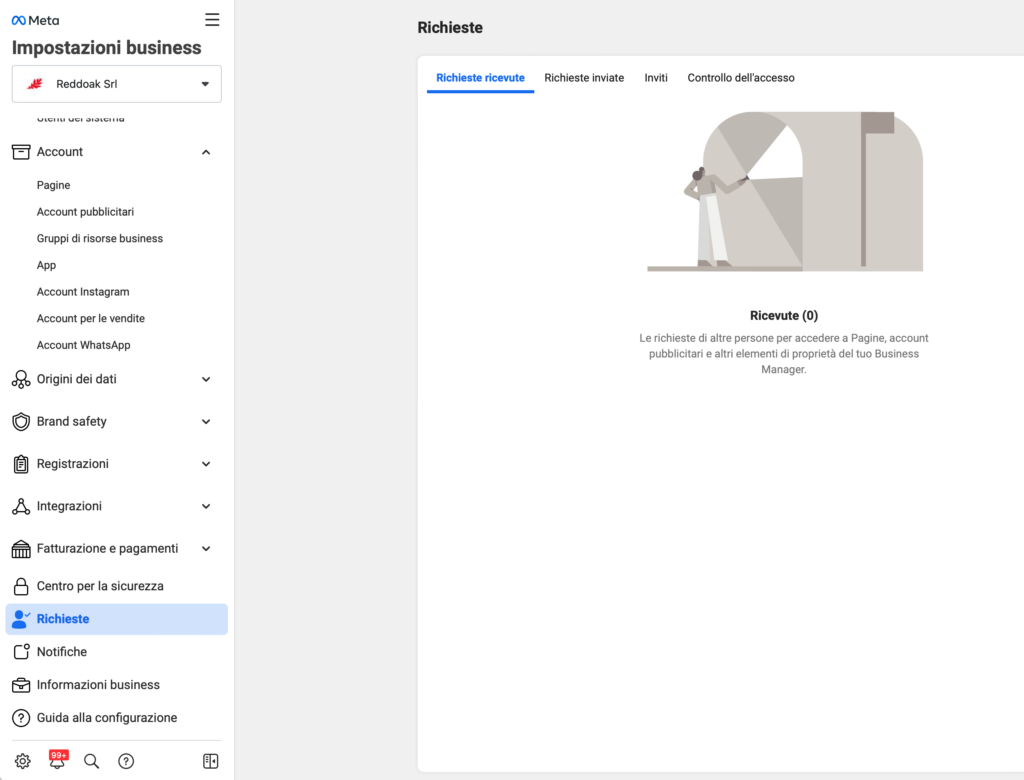
- Go to Business Settings > Requests > Requests Received (as shown in the image below). Direct link: https://business.facebook.com/settings/requests
- Approve request received from Tyntec – This is to provide permission to set up your WhatsApp Business account.
As soon as you have accepted the request and completed the registry continue here https://support.spoki.com/docs/onboarding/verifica-meta-business-manager/ if you would like to initiate company verification in the Meta business manager to increase daily contact limits