
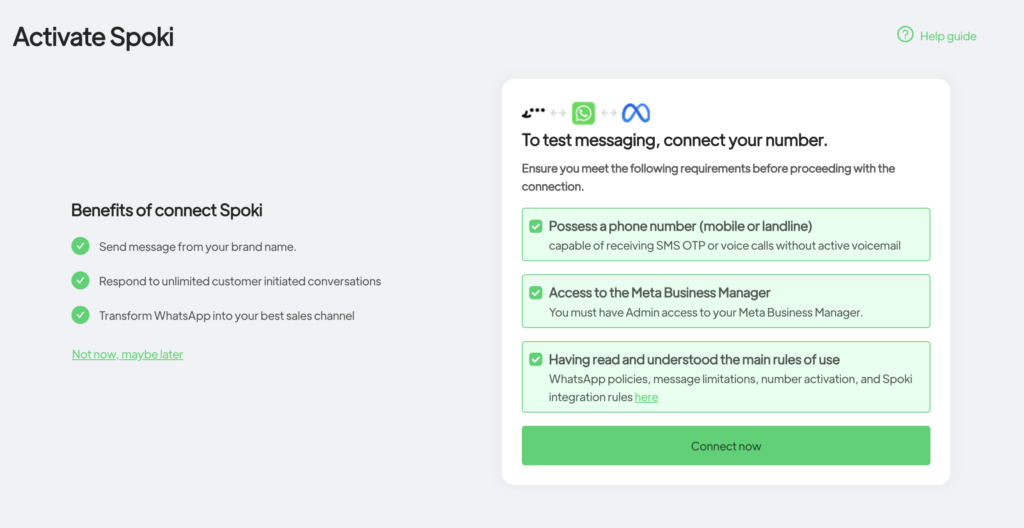
To ensure the success of the activation procedure, ensure you have all necessary items before proceeding.
The 2 fundamental elements to proceed with Spoki activation: #
1. Meta Business Manager
- Access credentials to the company’s Business Manager
- Make sure you have access with the Administrator role of the Business Manager
2. Phone number
- Mobile number with the SIM inserted (you can also use a virtual SIM)
- Landline phone without active automatic answering services
⚠️ If you are activating a number on which a SWITCHBOARD is active, you must deactivate it before starting the procedure, or you will not receive the verification code
3. Make sure the number is NOT connected to any WhatsApp account
⚠️ If your number is already active on a traditional WhatsApp App, it is necessary to permanently delete the WhatsApp account: Settings > Account > Delete account. Simply deleting the app from the phone is not enough.
Activation Procedure #
Now, access the Spoki platform and follow the procedure by clicking on “Activate number“!
Follow these steps:
Make sure you have all the necessary elements!
- Check the checkboxes on the right > Connect now
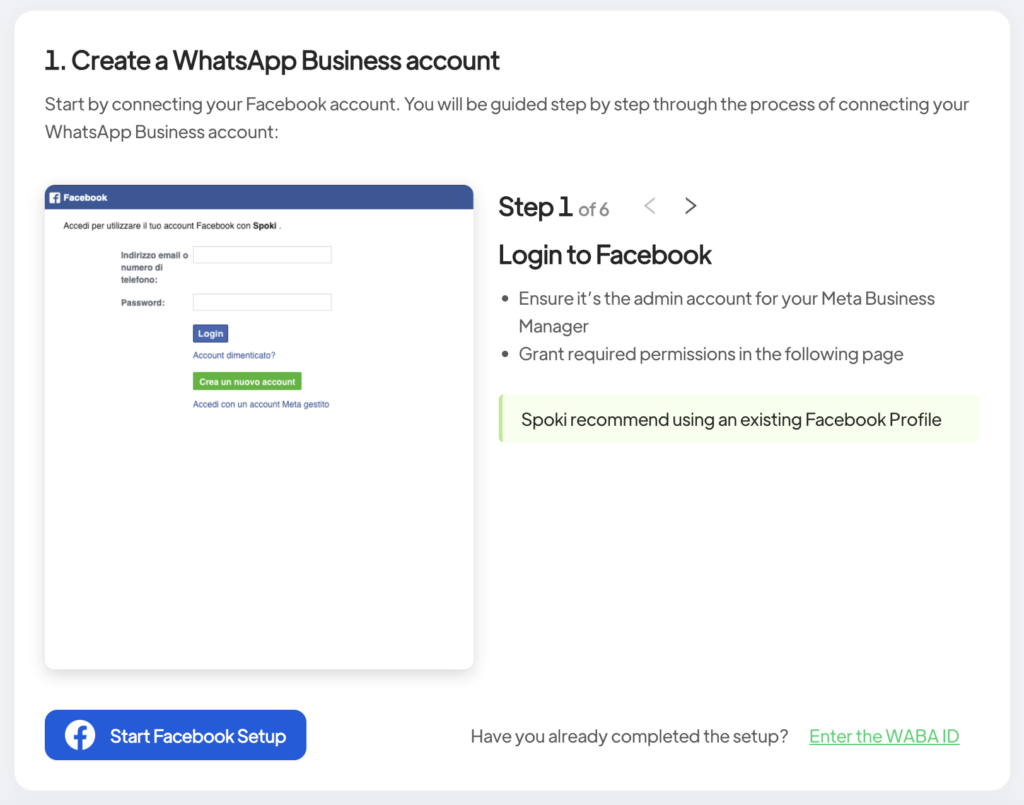
2. Start the connection with Facebook > click on Start Facebook setup
3. Log in with your administrator profile > click on your admin profile
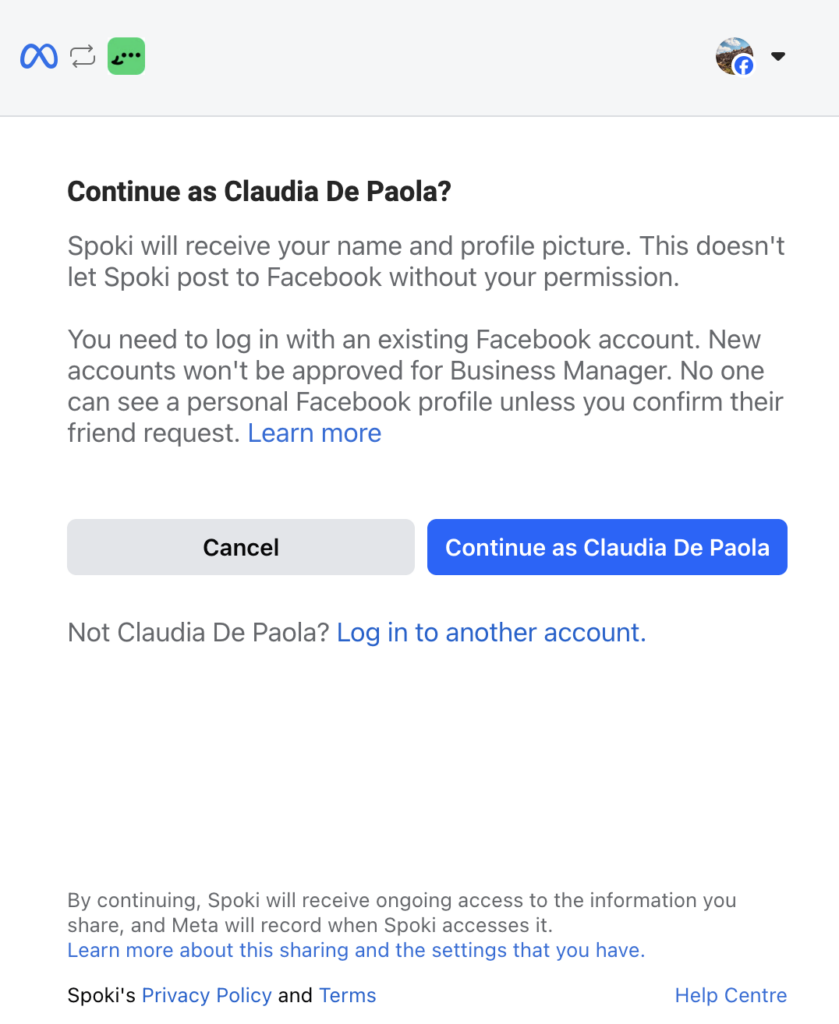
4. Click on Continue
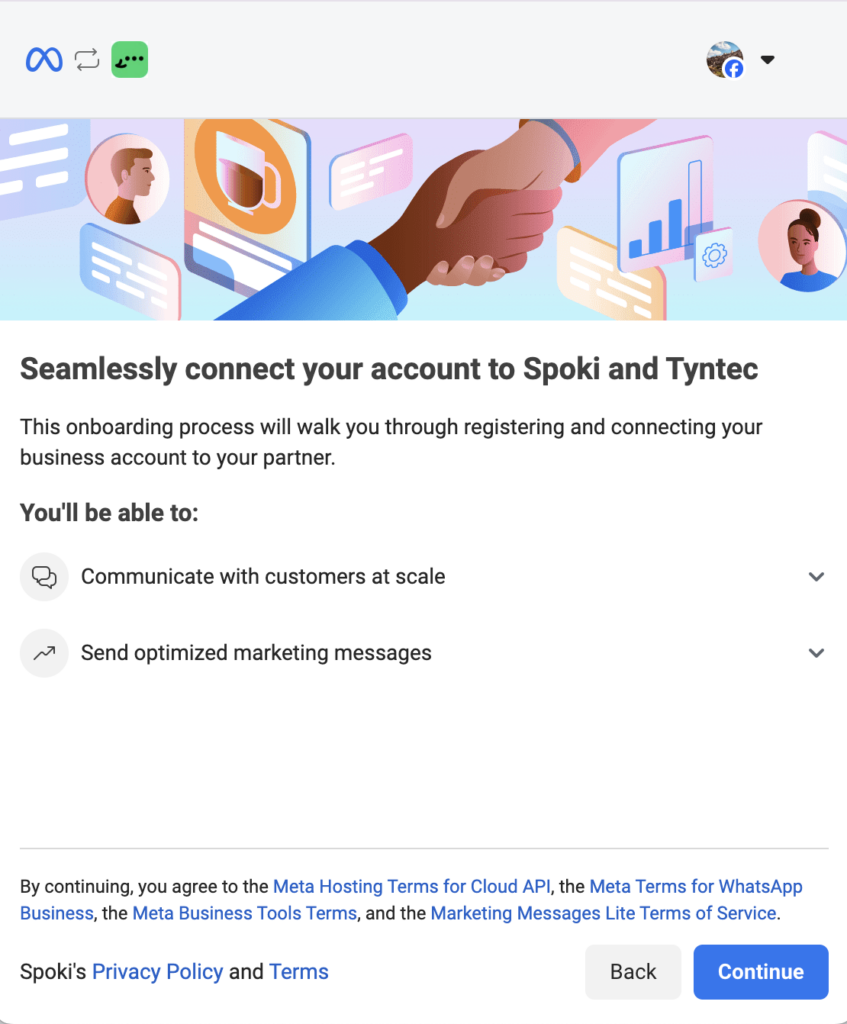
Note: regarding the “Invoice Management” point, you will not be charged anything directly on your Facebook Business Manager, but only and exclusively on the Spoki account, where you will make top-ups. This point is only an authorization that allows Meta to activate the WhatsApp API account.
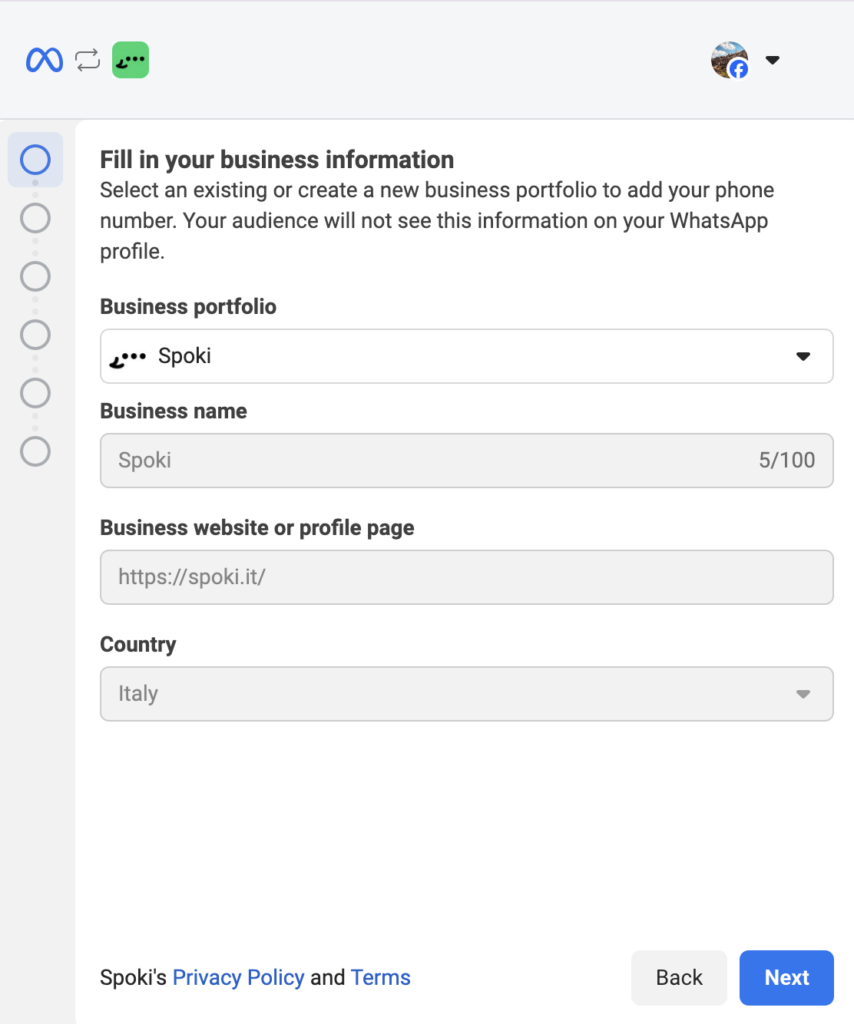
- Fill in the fields with the requested information
Select or create a new business portfolio
If they are already contained in the Business Manager, they will be inserted automatically
Click on Next
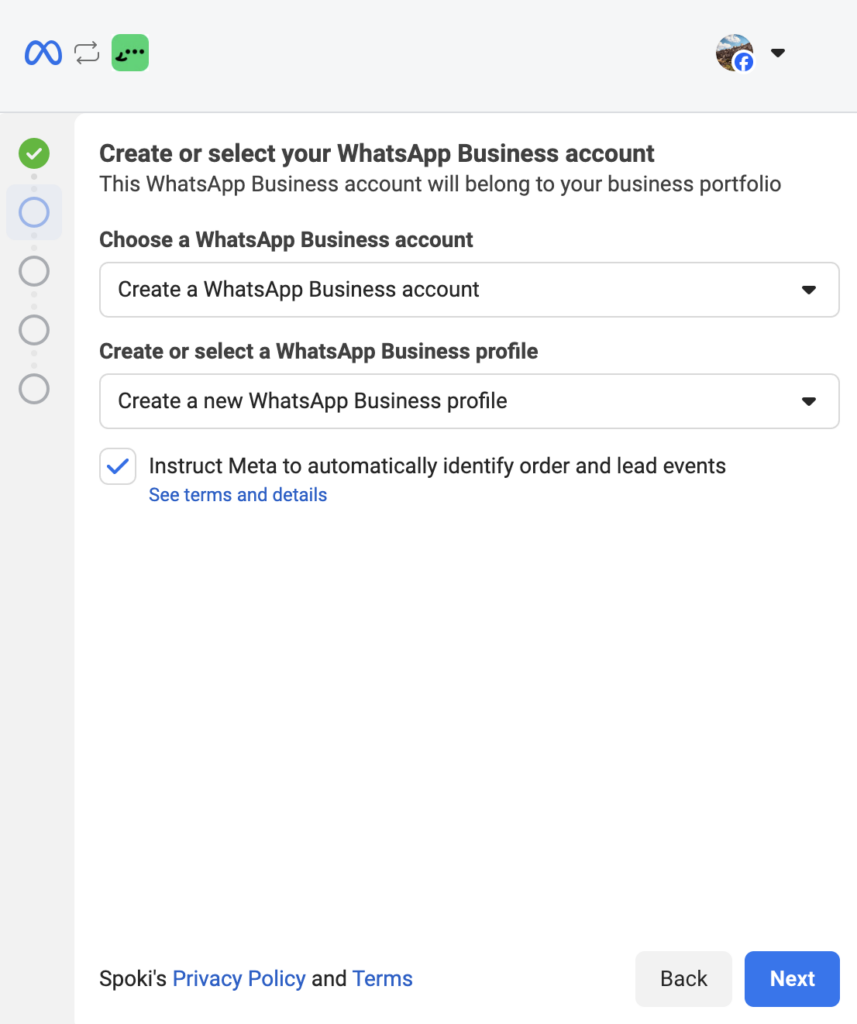
6. Select “create a new WhatsApp account”
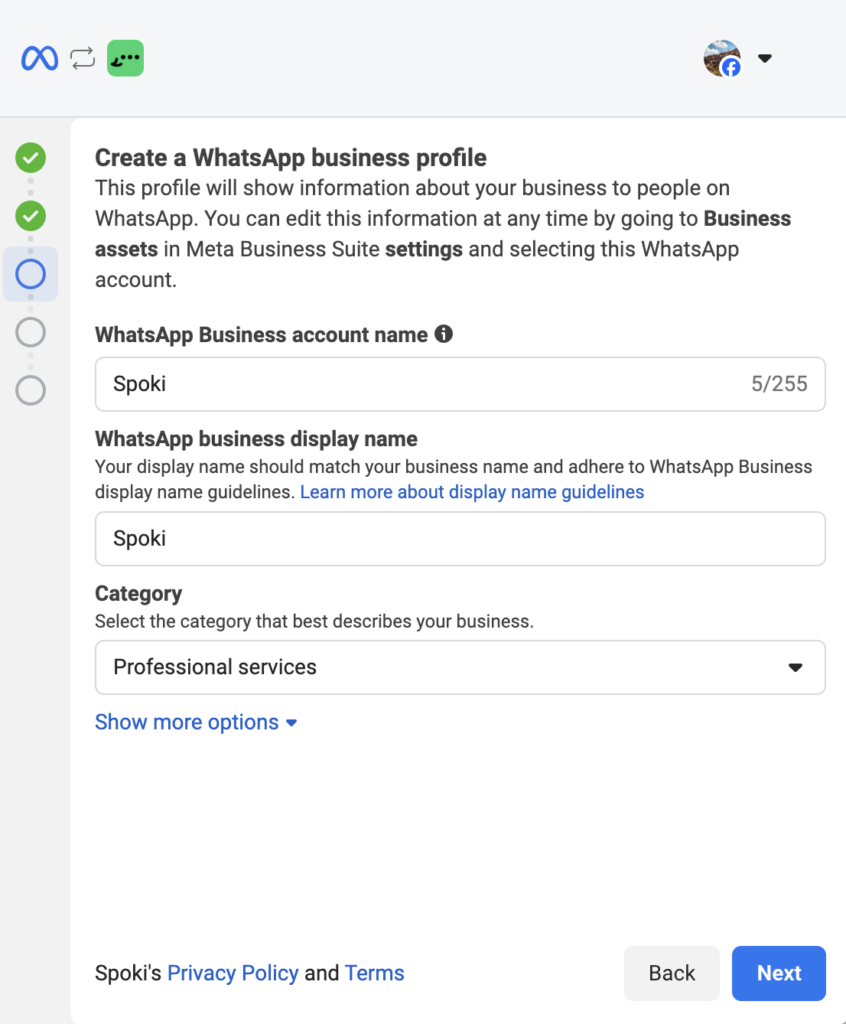
7. Enter the name displayed to the customer on WhatsApp
8. In the next screen, you’ll need to enter the phone number to connect
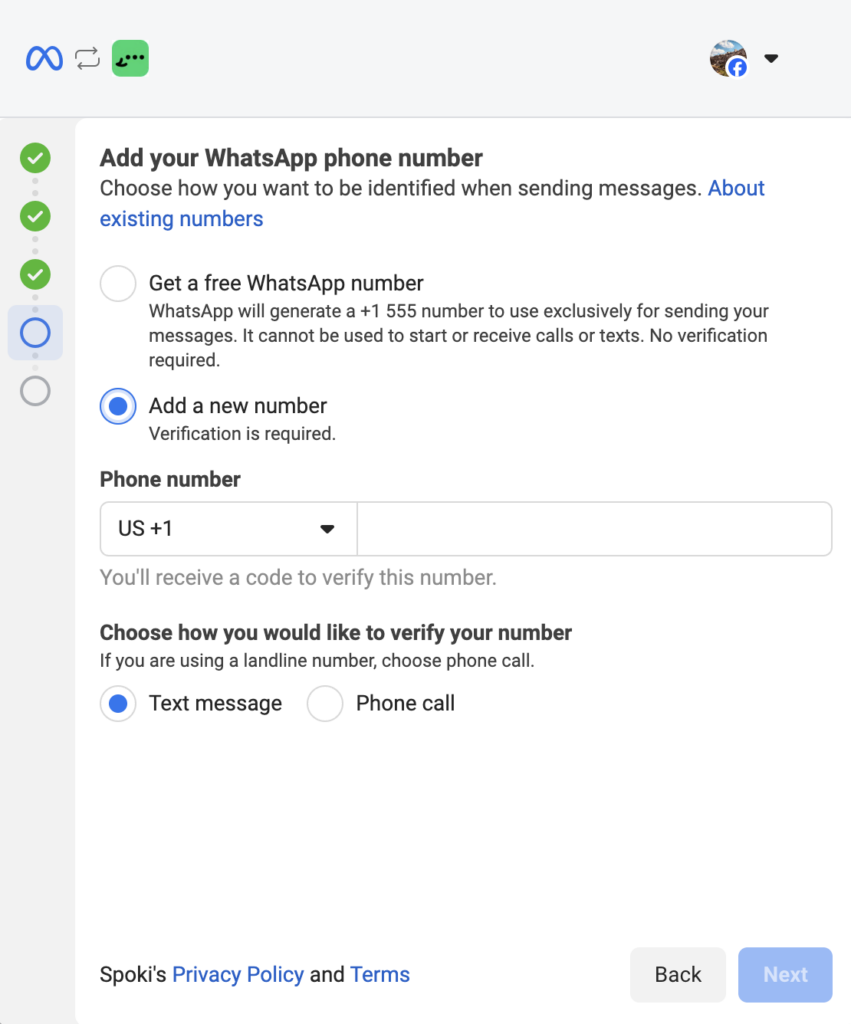
Make sure you have the phone with the number to activate near you, as clicking “next,” you will receive the SMS or call based on what you chose.
Then enter the code you received and click “next.”
9. You have reached the final steps.
Click on Continue
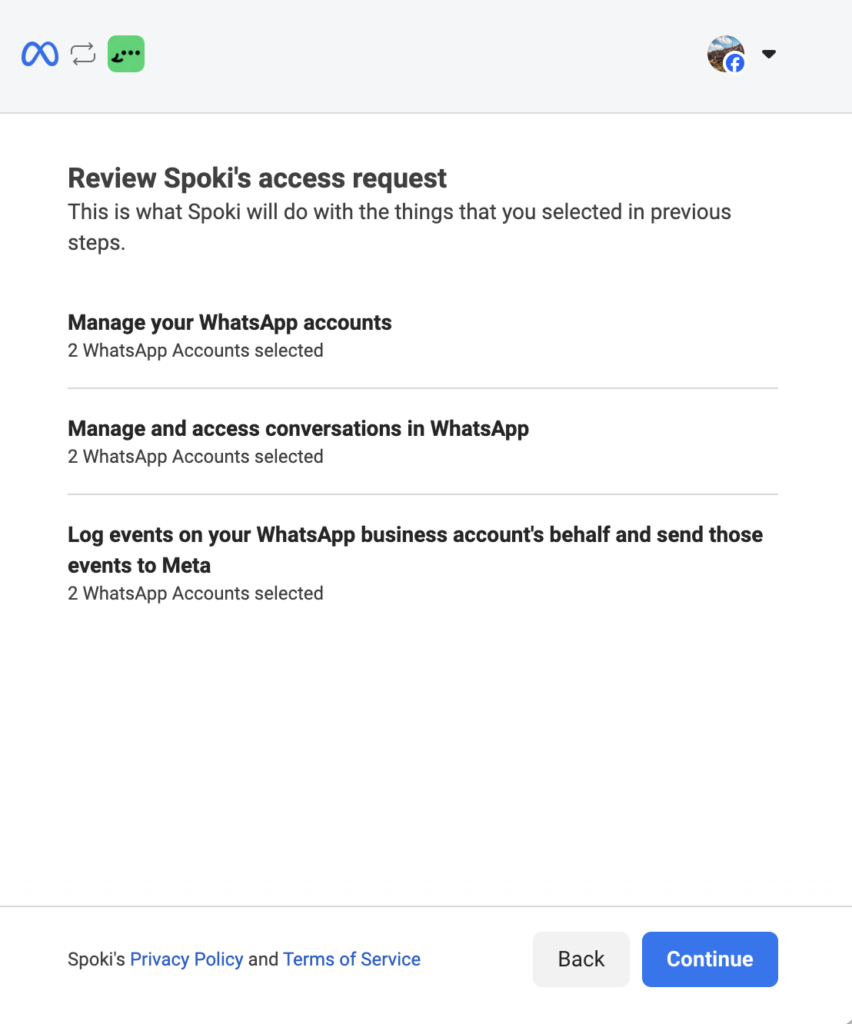
Click on finish
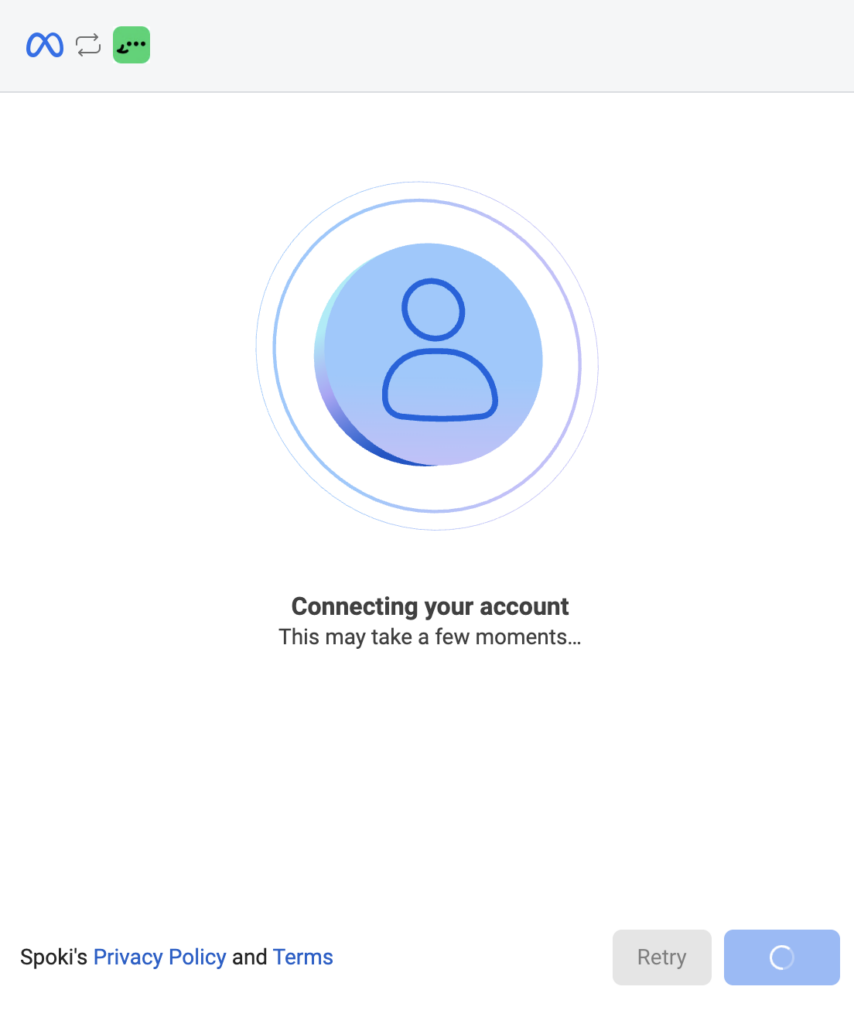
Final Step before completing the process: WABA ID!
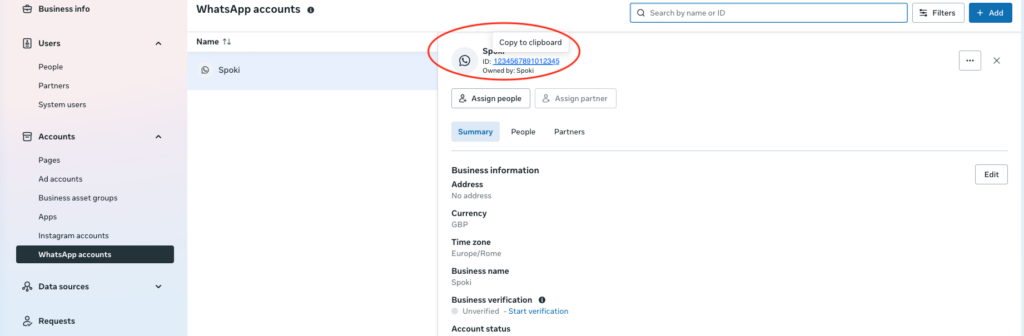
Follow these instructions to find the ID of your new WhatsApp account:
- Access your Business Manager
- Access Business Manager
- Go to “Settings” (bottom left)
- Click on ACCOUNTS > WhatsApp Accounts
- Select the correct account – select the account of interest. If you don’t immediately see the newly created account, refresh the page. How to identify the correct account? Make sure that the account’s payment method shows “tyntec limited” and that Spoki and Tyntec appear as partners (these changes may need a few minutes, don’t worry! The WABA ID will remain the same!)
- Copy the WABA ID: you’ll find it below the business name
Return to Spoki, on the main activation page, and paste the WABA ID in the space on the right
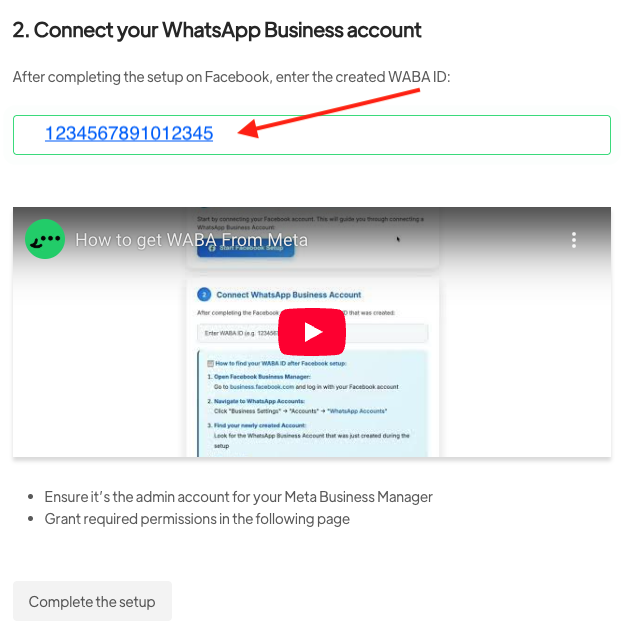
- Complete the setup
The connection to Meta can take up to 24 hours!




