Questo manuale spiega come configurare le chiamate vocali basate sull’IA, testarne la qualità e integrarle nei percorsi cliente automatizzati.
1. Creazione del tuo primo Voice Agent
Il Voice Agent è il “cervello” della tua chiamata telefonica. Utilizza la tecnologia IA per conversare in modo naturale con i clienti.
Configurazione passo dopo passo:
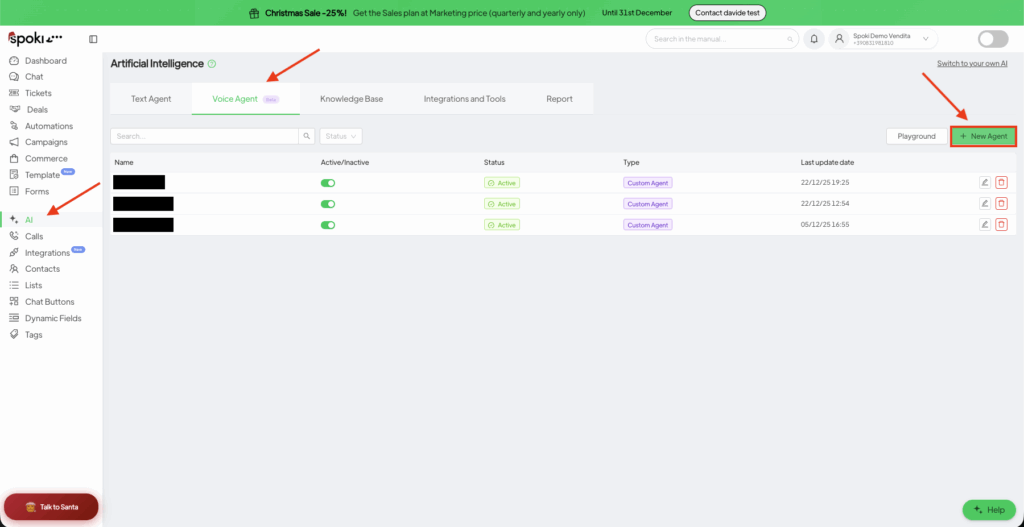
Accedi al pannello AI: Apri la tua Dashboard Spoki e clicca su Intelligenza Artificiale (AI) nella barra laterale sinistra.
Avvia un nuovo agente: Clicca sulla scheda Voice Agent e poi sul pulsante verde + Nuovo. Scegli Custom Agent.
Impostazioni principali:
Nome: Identifica l’agente internamente (es. “Bot di conferma appuntamenti”).
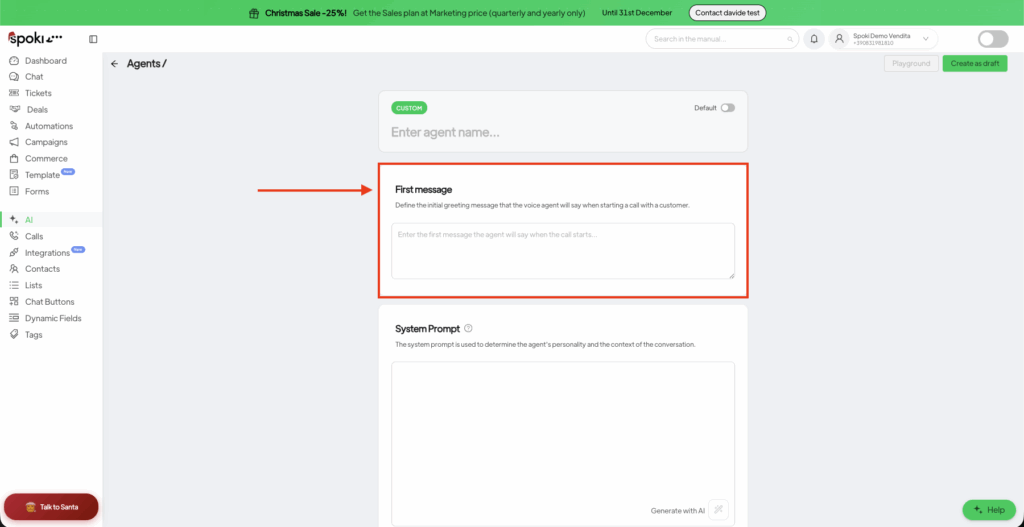
Primo messaggio: Questa è la primissima cosa che l’IA dice. Obbligo legale: ai sensi dell’Articolo 50 dell’AI Act dell’UE (applicabile dal 2 agosto 2026), la persona che riceve la chiamata deve essere chiaramente informata, fin dall’inizio della conversazione, che sta parlando con un sistema di intelligenza artificiale. Includi sempre questa dichiarazione nel Primo Messaggio.
Esempio: “Salve! Sono l’assistente virtuale di Spoki — un agente IA che chiama per conto di [Nome Azienda] per confermare la sua demo di domani. È un buon momento per parlare?”
⚠️ Non configurare l’agente in modo che neghi di essere un’IA o che si finga umano, anche se richiesto. Ciò viola l’AI Act dell’UE e il tuo contratto con Spoki.
System Prompt: Questa è la parte più importante. Definisce le “Regole di Ingaggio.”
Chi è l’IA? (es. “Sei un assistente commerciale disponibile”).
Qual è l’obiettivo? (es. “Confermare data e ora dell’appuntamento”).
Tono: (es. “Professionale ma cordiale”).
Conformità: istruisci l’agente a confermare di essere un’IA se richiesto, a non raccogliere mai più dati personali del necessario per l’obiettivo della chiamata, e a terminare la chiamata cortesemente se la persona chiede di non essere più contattata (registrando l’opt-out).
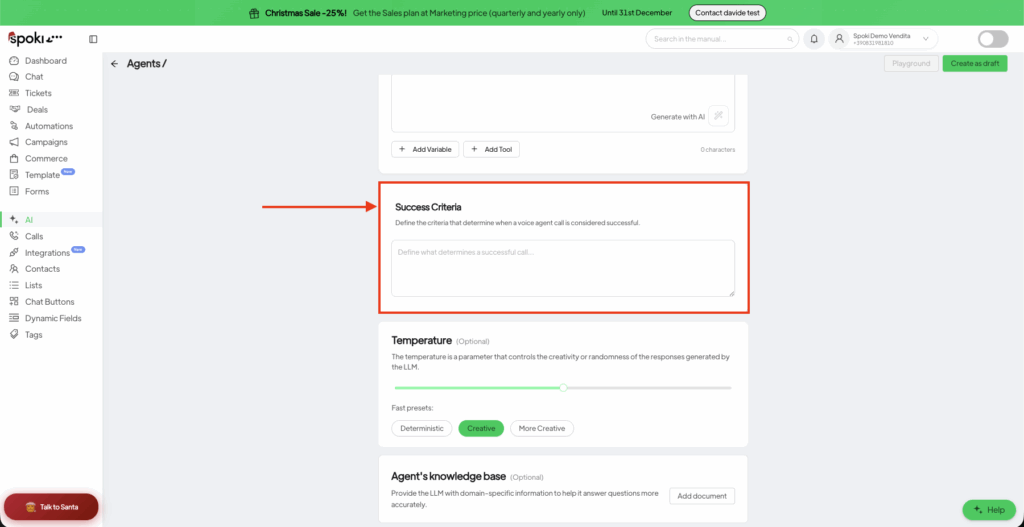
Criteri di successo: Definisci come appare una “vittoria” (Win). L’IA analizzerà la chiamata per verificare se questo obiettivo è stato raggiunto.
AI page
First Message
Success Criteria
2. Perfezionamento di voce e tono
Una voce naturale è fondamentale per la fidelizzazione dei clienti.
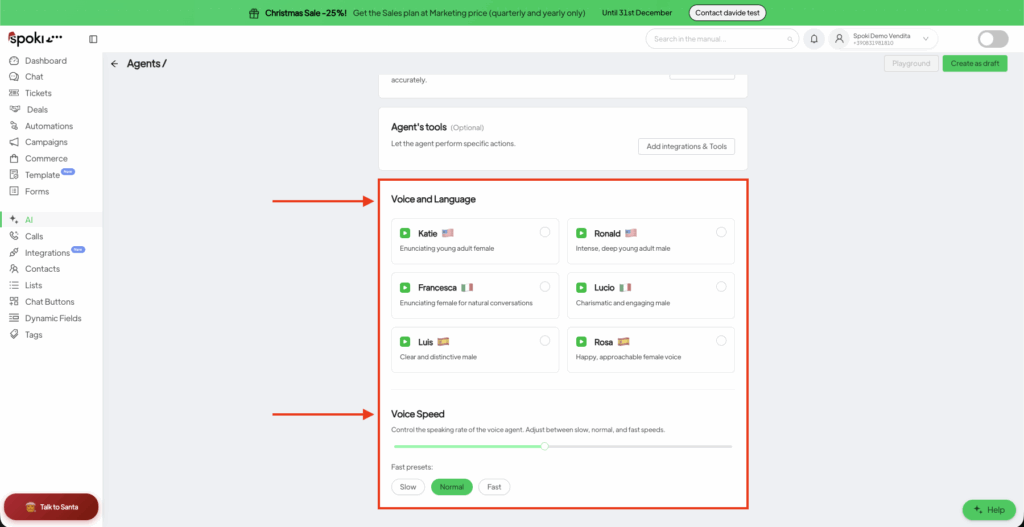
Selezione della voce: Scegli tra vari profili (es. Katie, Ronald, Francesca). Abbina la voce all’identità del tuo brand.
Temperatura:
Bassa (0.1 – 0.3): Più focalizzata e ripetitiva. Adatta a settori fortemente regolamentati.
Alta (0.7 – 1.0): Più creativa e simile all’umano. Adatta a vendite e supporto generale.
Velocità della voce: Consigliamo un’impostazione tra 0.9x e 1.1x. Valori superiori risultano “robotici”, mentre valori inferiori risultano lenti/poco reattivi.
Non avviare mai un’automazione senza prima testarne la logica.
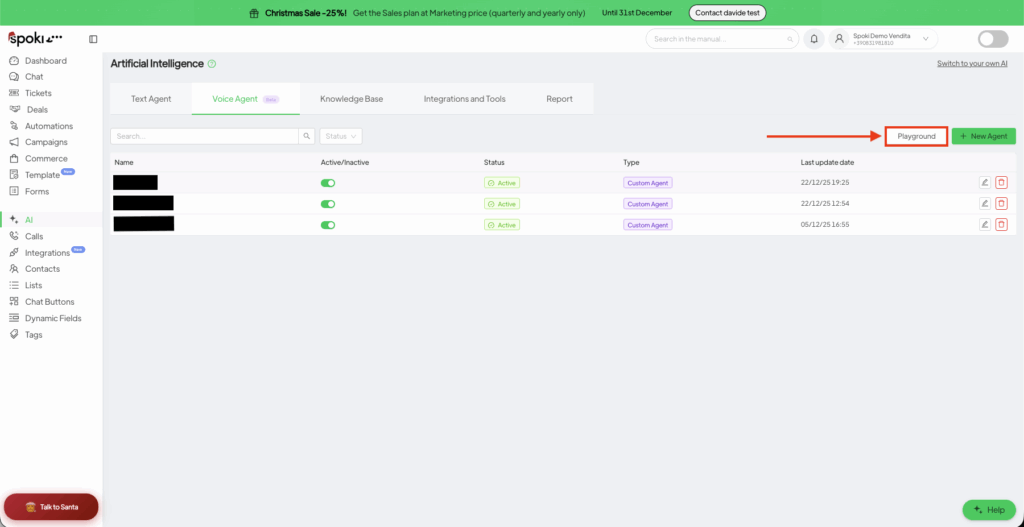
Clicca sul pulsante Playground in alto a destra.
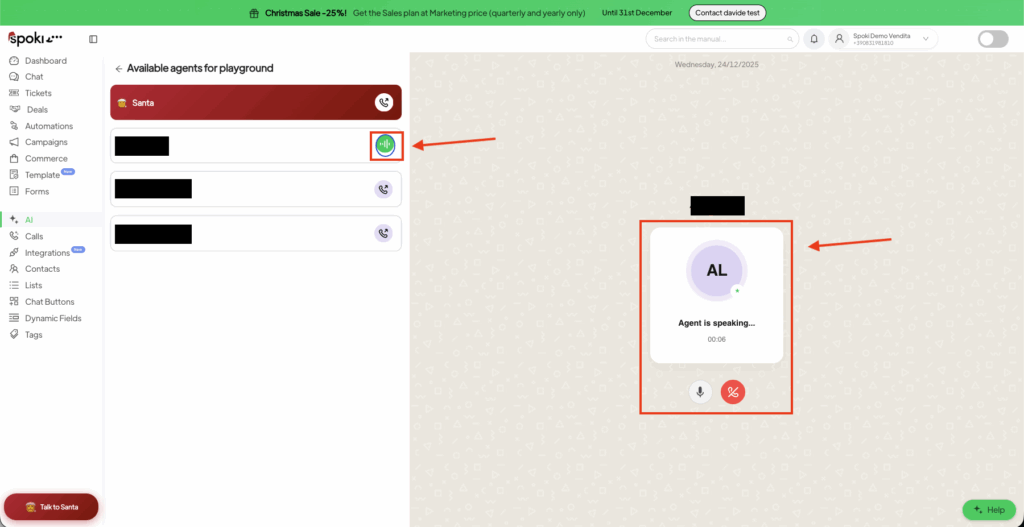
Seleziona il tuo Agente e clicca su Start Call.
Interazione dal vivo: Parla con l’agente come se fossi un cliente. Prova a “metterlo in difficoltà” o a fare domande fuori tema per vedere come reagisce.
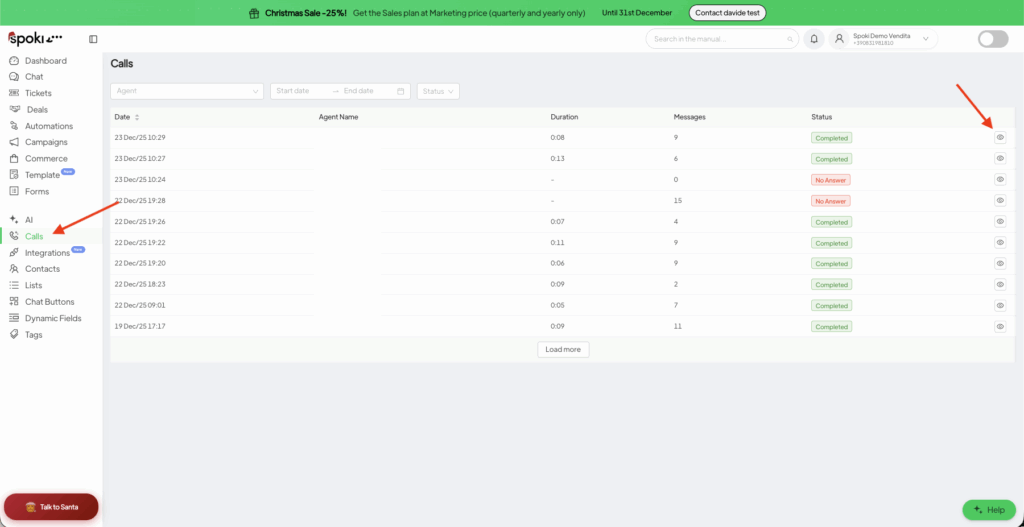
Analizza i risultati: Vai al menu Calls nella barra laterale. Qui puoi:
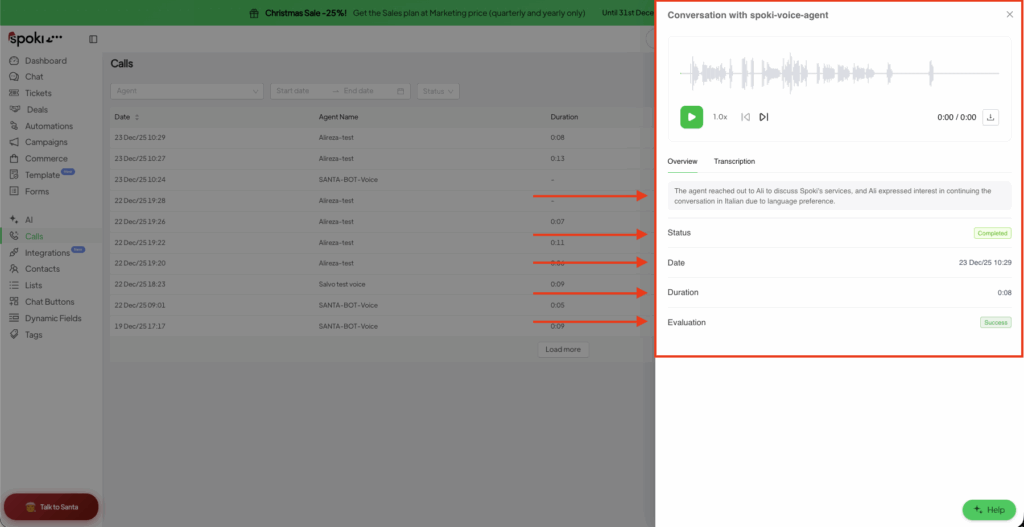
Ascoltare la registrazione audio.
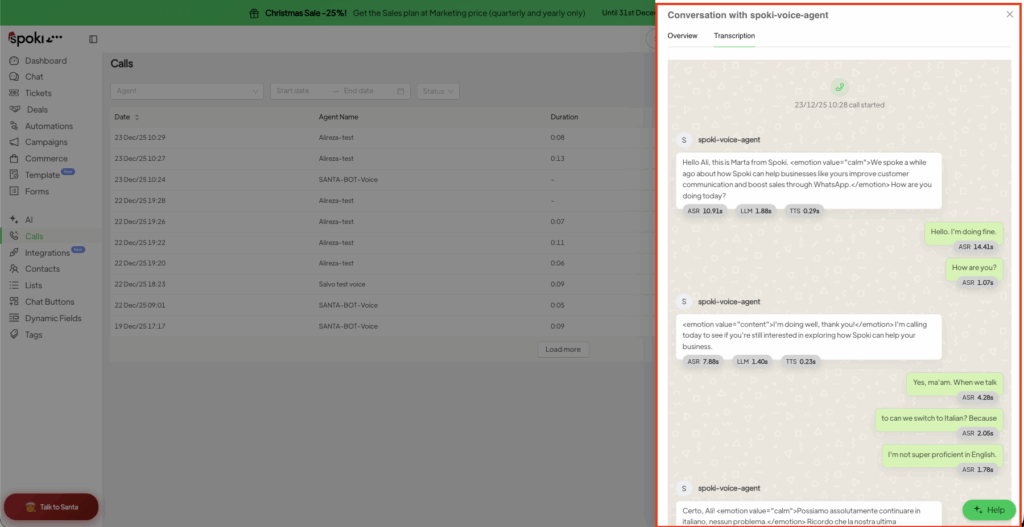
Leggere la Trascrizione completa.
Vedere il Riepilogo generato dall’IA.
Nota sulle registrazioni: le registrazioni delle chiamate, le trascrizioni e i riepiloghi generati dall’IA contengono dati personali. Accedivi solo in base alla necessità di conoscerli (need-to-know), definisci un periodo di conservazione coerente con la tua informativa sulla privacy, ed elimina le chiamate di test contenenti dati personali reali quando non sono più necessarie.
Playground
Click on Agent to Start the live call
Check the details
Call Overview
Call Transcription
4. Requisiti legali
Requisiti legali prima di avviare chiamate vocali IA
Le chiamate vocali basate sull’IA sono soggette a normative specifiche dell’UE e italiane. In qualità di titolare del trattamento e deployer del Voice Agent, sei responsabile di quanto segue (vedi il tuo Contratto Spoki e il Data Processing Agreement):
Informa le persone che stanno parlando con un’IA (AI Act UE, Art. 50). Dal 2 agosto 2026, ogni chiamata vocale IA deve dichiarare, alla prima interazione, che l’interlocutore è un sistema di intelligenza artificiale. La piattaforma Spoki supporta questo obbligo tramite il Primo Messaggio — non rimuovere mai questa dichiarazione. Le sanzioni possono arrivare a 15 milioni di euro o al 3% del fatturato mondiale annuo.
Chiama solo contatti con consenso valido (Art. 130 del Codice della Privacy italiano). Le chiamate automatizzate senza operatore umano richiedono il consenso preventivo, specifico e documentato del contatto per le comunicazioni automatizzate. L’iscrizione al Registro Pubblico delle Opposizioni prevale sui consensi precedentemente rilasciati — controlla le tue liste prima di ogni campagna. Possono applicarsi ulteriori restrizioni settoriali (ad es., dal 19 giugno 2026 è vietato il telemarketing non sollecitato di contratti di energia elettrica e gas).
Informa sulla registrazione e trascrizione (GDPR, Artt. 13-14). Le chiamate effettuate tramite Spoki Voice vengono registrate, trascritte e riassunte dall’IA. La tua informativa sulla privacy deve coprire questo trattamento, e l’agente dovrebbe menzionare la registrazione all’inizio della chiamata con un link/riferimento all’informativa completa. Conserva le registrazioni solo per il tempo necessario e limita l’accesso al personale autorizzato.
Utilizza un numero di telefono reale e richiamabile (Delibera AGCOM 106/25/CONS). Le chiamate devono presentare un Caller ID reale che il destinatario possa richiamare. I numeri contraffatti o non identificabili vengono bloccati dagli operatori italiani.
Valuta il rischio prima di un utilizzo su larga scala. Se utilizzi il Voice Agent in modo sistematico o su ampie liste di contatti, effettua una Valutazione d’Impatto sulla Protezione dei Dati (DPIA) con il tuo DPO o consulente privacy.
Spoki (NextAI S.r.l.) agisce come responsabile del trattamento dei dati per queste chiamate e si avvale di Fornitori di Servizi IA selezionati alle condizioni previste dal tuo Contratto e DPA. Un uso improprio del Voice Agent in violazione di queste regole può comportare la sospensione del Servizio ai sensi del Contratto.
Questa sezione è fornita a scopo informativo e non sostituisce una consulenza legale.
5. Automatizzare il flusso della chiamata
Una volta che l’agente è pronto, puoi renderlo parte di un flusso di lavoro più ampio (es. chiamare un lead 5 minuti dopo la compilazione di un modulo).
⚠️ Verifica del consenso: assicurati che il tuo modulo raccolga un consenso opt-in specifico e liberamente espresso per le chiamate vocali automatizzate (separato dal consenso generale per il marketing) prima di attivare l’azione Voice. Conserva la prova del consenso.
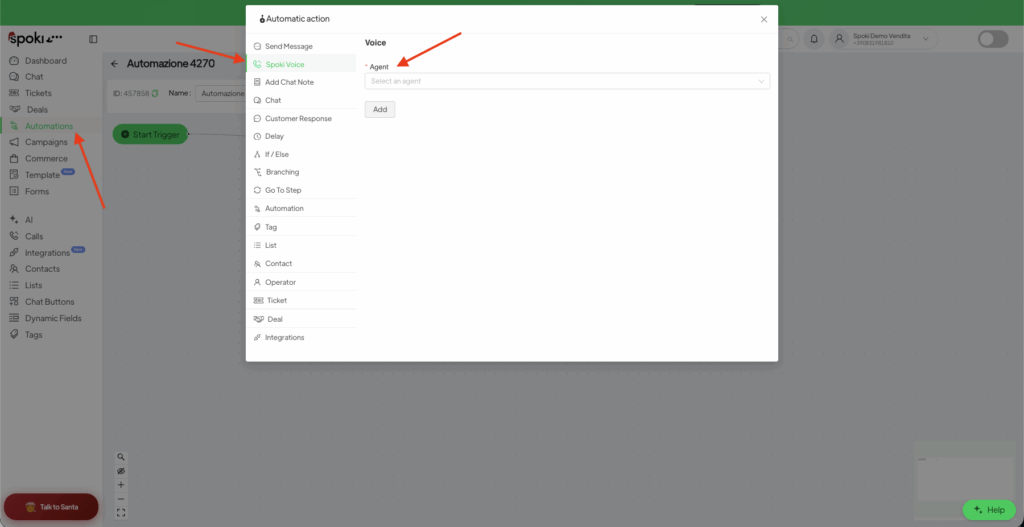
Vai su Automazioni e clicca su + Nuovo.
Aggiungi un’Azione e seleziona Spoki Voice.
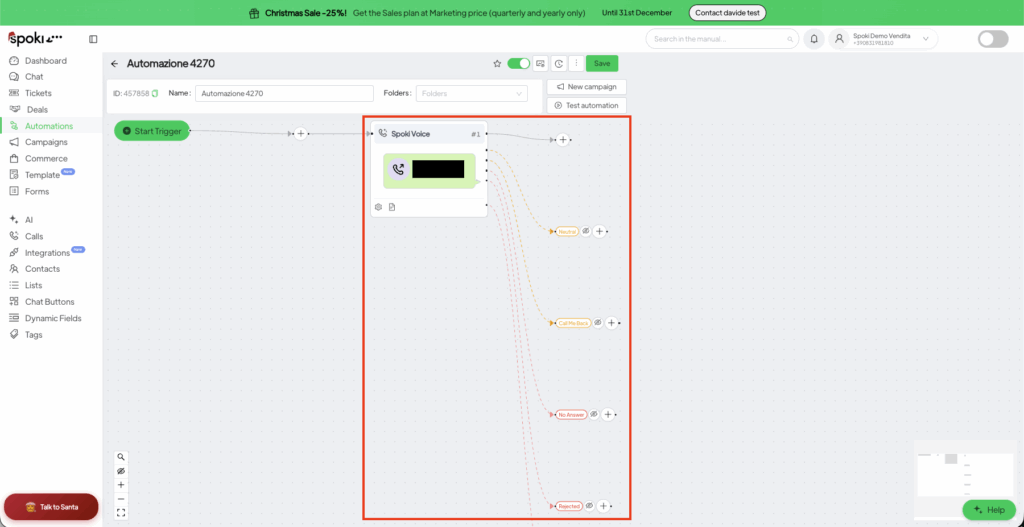
Ramificazione intelligente: Dopo aver aggiunto l’azione voice, Spoki crea dei rami in base a ciò che è accaduto durante la chiamata:
Success (Successo): L’obiettivo è stato raggiunto (es. Appuntamento confermato).
Neutral (Neutro): La conversazione è avvenuta ma non è stato raggiunto un esito specifico.
Call Me Back (Richiamami): Il cliente ha chiesto di essere ricontattato in seguito.
No Answer/Rejected (Nessuna risposta/Rifiutata): Usa questo ramo per inviare automaticamente un messaggio WhatsApp di follow-up.
Poiché un Voice Agent registra, trascrive ed elabora la voce delle persone che chiama, tu — in quanto titolare dell’account — sei il titolare del trattamento e sei responsabile del suo utilizzo lecito. Gran parte della conformità quotidiana è integrata direttamente nel tuo prompt.
Nel Primo Messaggio, dichiara sempre, prima di ogni altra cosa, (1) che l’interlocutore è un’IA, (2) chi sta chiamando e perché, e (3) che la chiamata viene registrata. Esempio:
“Ciao, sono un assistente virtuale di [Azienda]. Ti chiamo per [motivo]. Questa chiamata è registrata e trascritta per finalità di [gestione appuntamenti / assistenza]. Va bene se continuiamo?”
Nel System Prompt, aggiungi regole esplicite affinché l’agente rimanga conforme, ad esempio:
Raccogli solo i dati strettamente necessari per l’obiettivo dichiarato.
Se il cliente si oppone alla registrazione, prendine atto cortesemente, non insistere e termina la chiamata.
Non richiedere né registrare dati appartenenti a categorie particolari (salute, religione, opinioni politiche, ecc.). Se il cliente li fornisce spontaneamente, non ripeterli.