
What you need to activate the number from Meta Business Manager #
To activate Spoki using a dedicated phone number, you need the following:
Information for Business Manager #
- Login credentials with administrator permissions for your company’s Business Manager
- The website URL you will indicate in the Business Manager during activation
- Your website must be accessible and contain all company information
Type of phone number #
- A phone to receive the code you will get during the activation process. In both cases, keep the device with you because you will receive a code from Meta:
- Landline: make sure to disable any type of automatic answering service if you want to use a landline number
- Mobile number: physical SIM or e-SIM
- ⚠️If your mobile number is already linked with WhatsApp you must first delete that specific account from the app: Settings > Account > Delete account
Activation procedure #
Login to Spoki #
- Log in to the Spoki page at: the Spoki dashboard
- If you don’t remember your password, you can request a new one by clicking the Forgot password? link
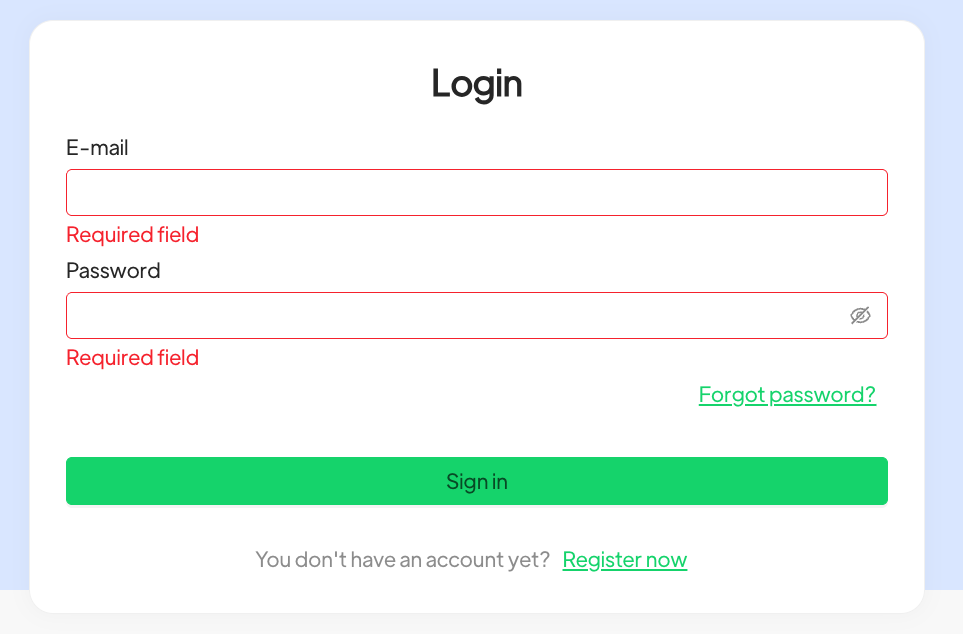
2. Click the Activate Number button at the top left of the side menu
Select the type of number to connect #
3. On the screen for selecting the type of phone number to use, select Use my number and click the Next step button
4. On the next screen, check both checkboxes and click the Connect now button
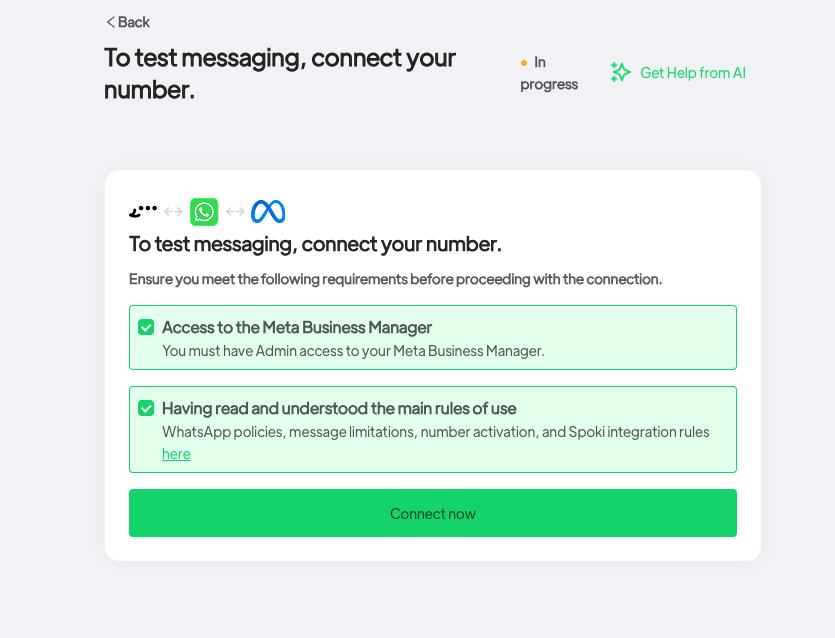
5. Click the blue Start Facebook setup button to proceed to your Business Manager
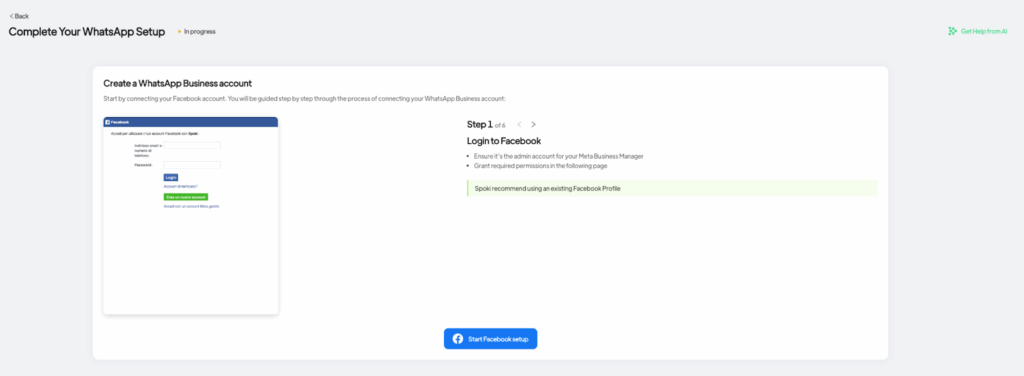
Access Meta Business Manager #
6. On the next tab, select in the top right box the profile linked to the business portfolio of the company to connect to Spoki. If you are not logged in with your account, you can click the dropdown menu and select Add another account to manually add the correct profile, then click Continue.
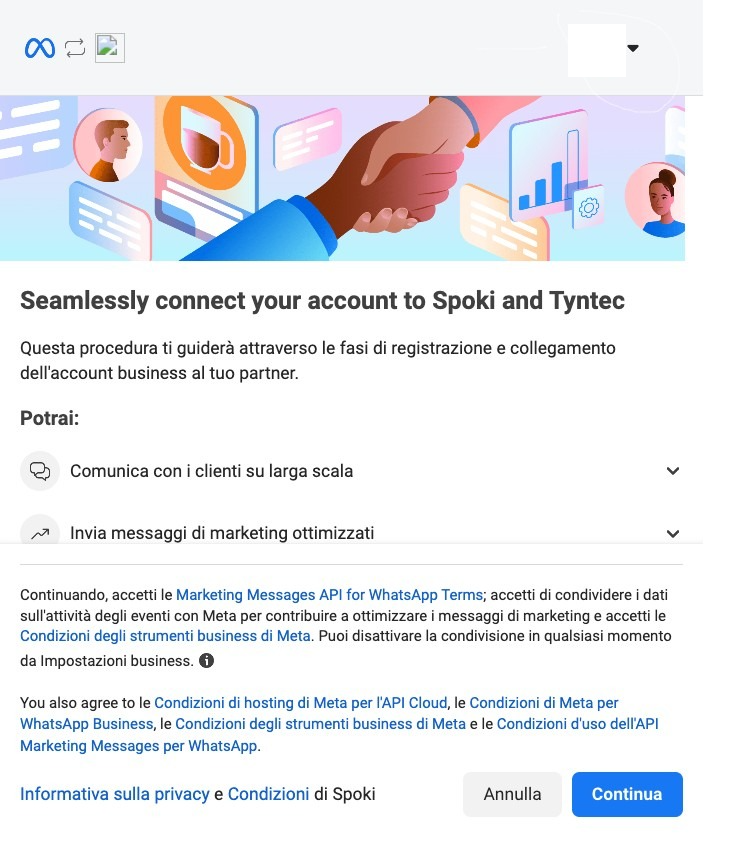
7. In the following section, select the correct business portfolio and select the option Create WhatsApp Business account to create a new account to link to Spoki from the dropdown menu and press Next to continue.
Create a new WhatsApp Business account in the Business Portfolio #
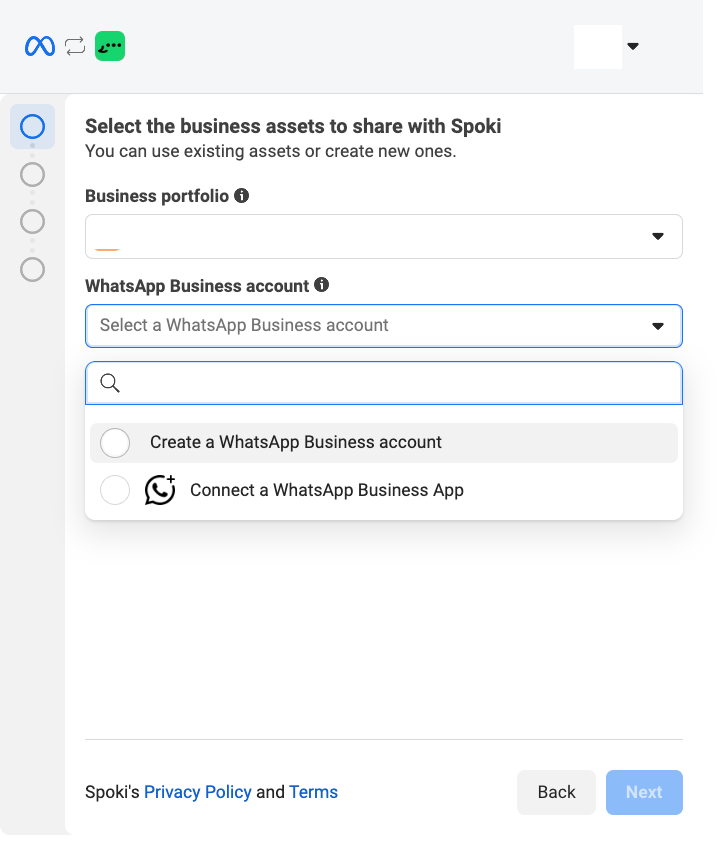
Enter company information #
8. On the next screen, fill in the following fields:
- Name of the WhatsApp Business account to add to the business portfolio (only visible to you)
- Your company’s category (if it does not fit into the available categories, you can select Other at the bottom of the dropdown menu)
- Your company’s website URL
- Time zone
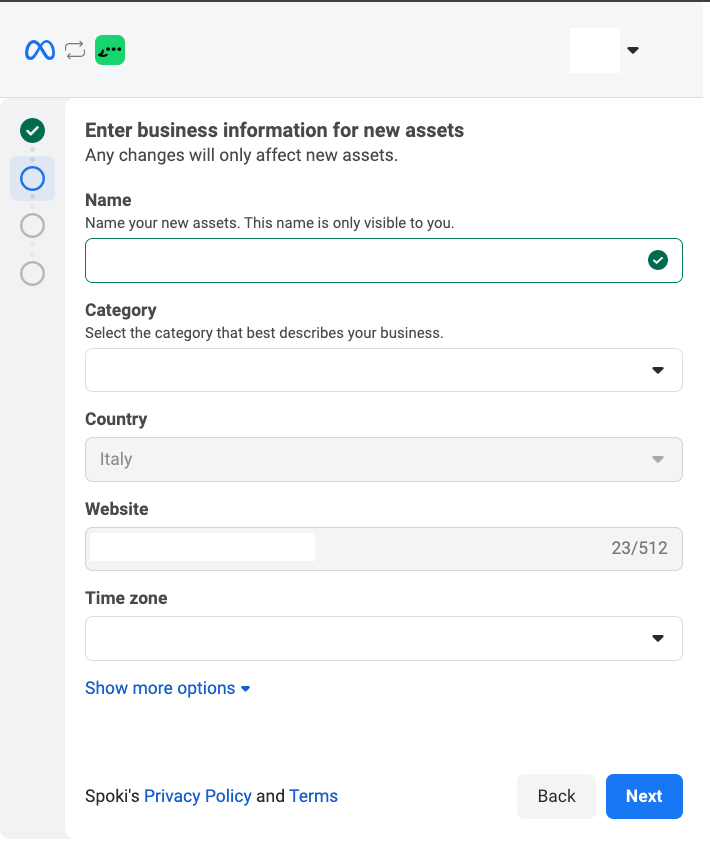
To proceed, click Next.
Enter phone number and OTP code #
9. On the next screen, you will need to enter the phone number to link to the resource you just created in Business Manager
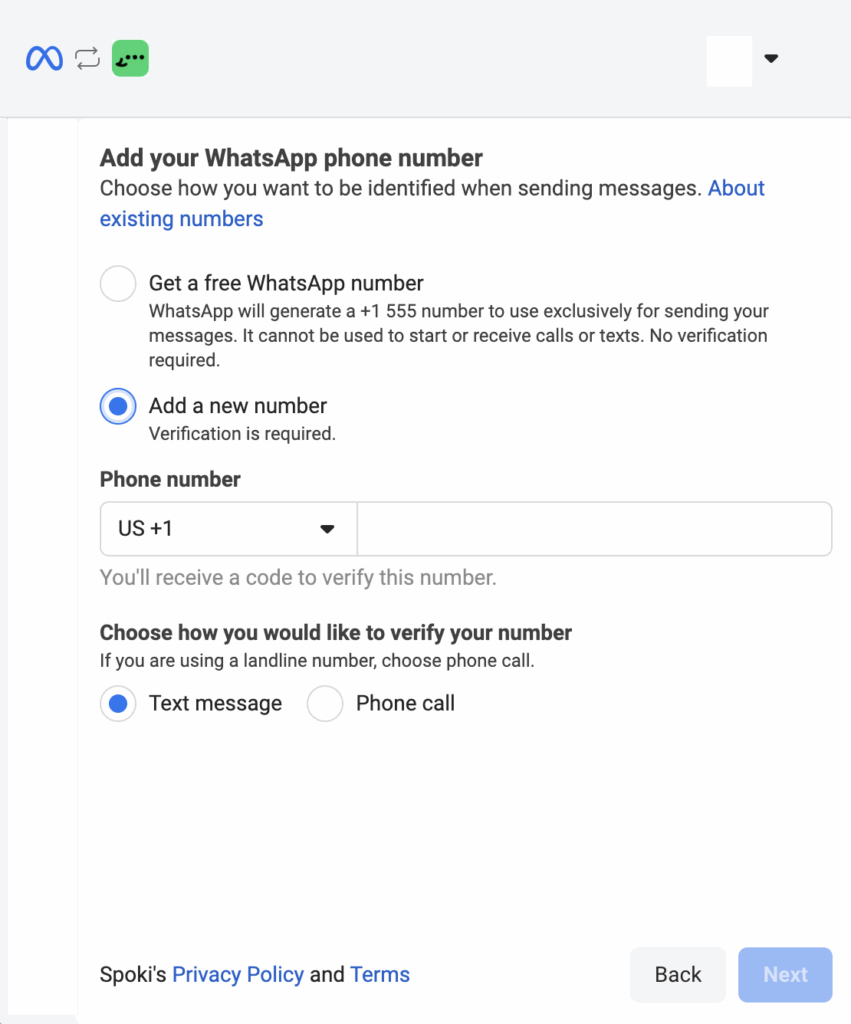
You will receive a verification code via SMS or call, so make sure you have the phone close to you.
Select the country code and enter the phone number to link, then click Next.
11. Enter the verification code and click Next.
Final steps #
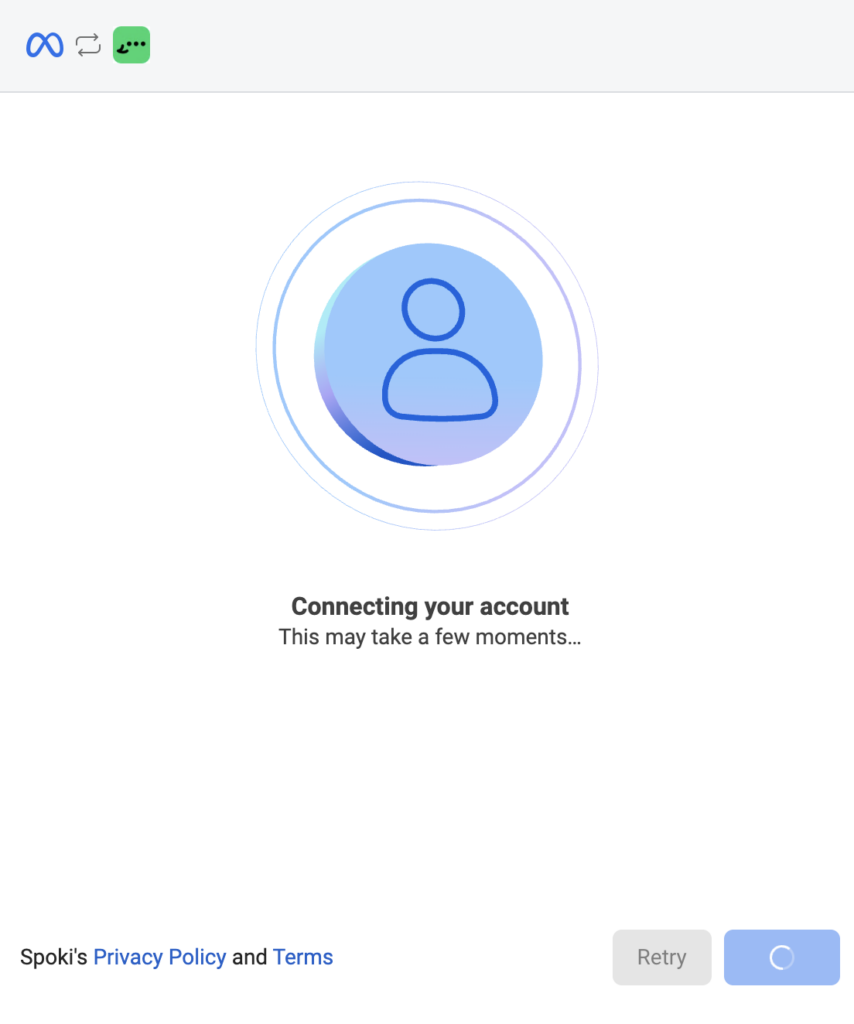
12. After entering the code, a loading screen will appear as shown in the screenshot, where your newly created WhatsApp Business account will be added to the selected business portfolio.
Congratulations, you have completed the Spoki activation process with your phone number! You will be taken directly to the platform Dashboard and Meta will take up to 24 hours to approve your phone number.