From the Channels section
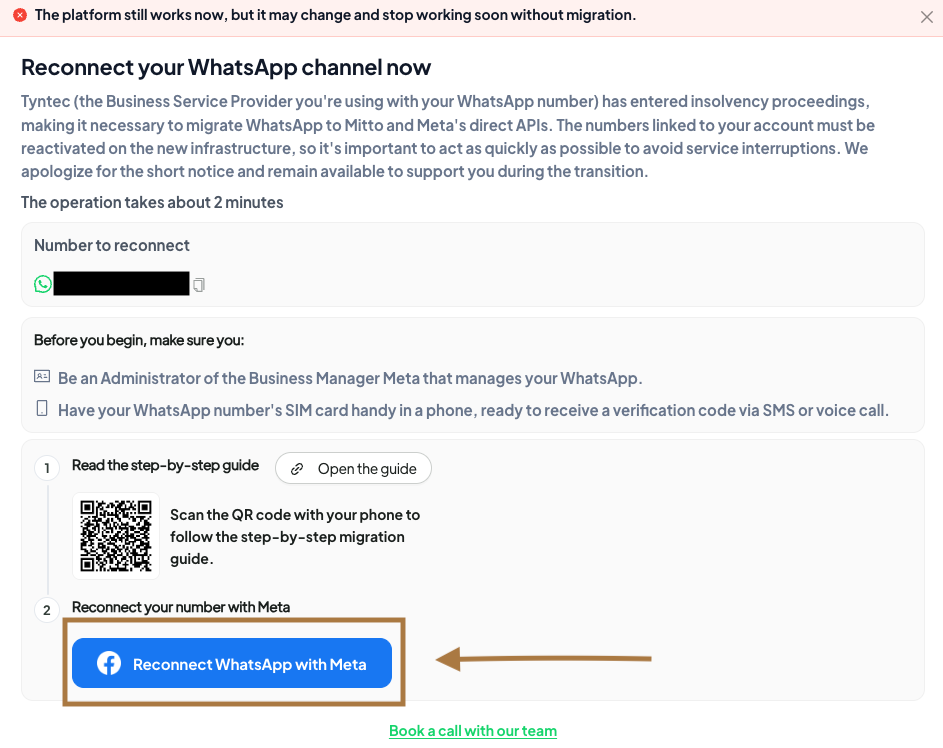
Go to Channels >> WhatsApp Chat >> Reconnect WhatsApp with Meta, then choose Use WhatsApp Business App.

From the platform notification
Access directly from the modal that appears in the platform >> Reconnect WhatsApp with Meta, then choose Use WhatsApp Business App.
To start the migration process with WhatsApp Business, follow these simple steps before repeating the activation:
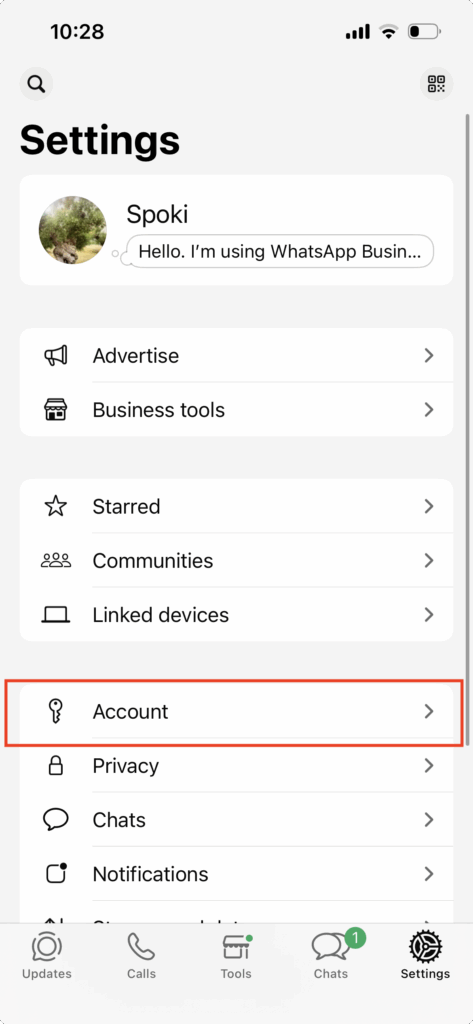
- Open your WhatsApp Business app, tap “Settings” and then “Account”.
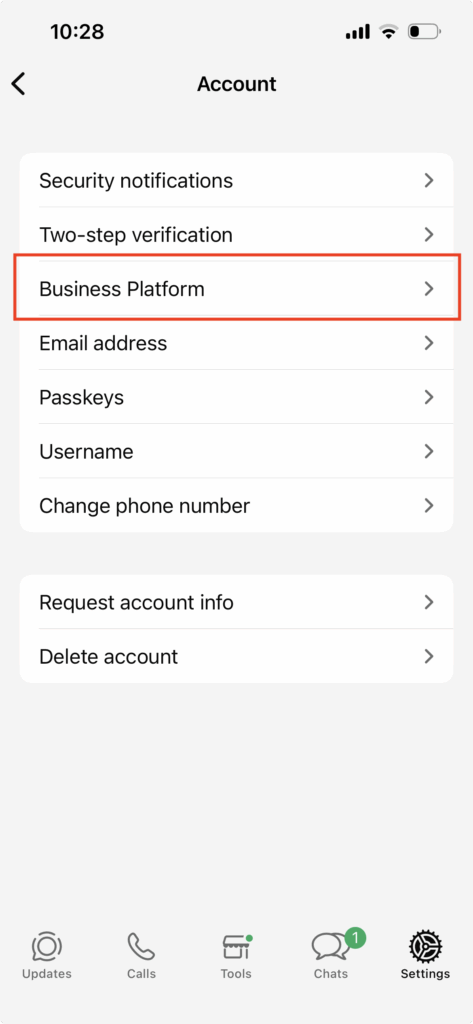
2. Find the “Business Platform” option and select it.
3. Select the already connected business platform.
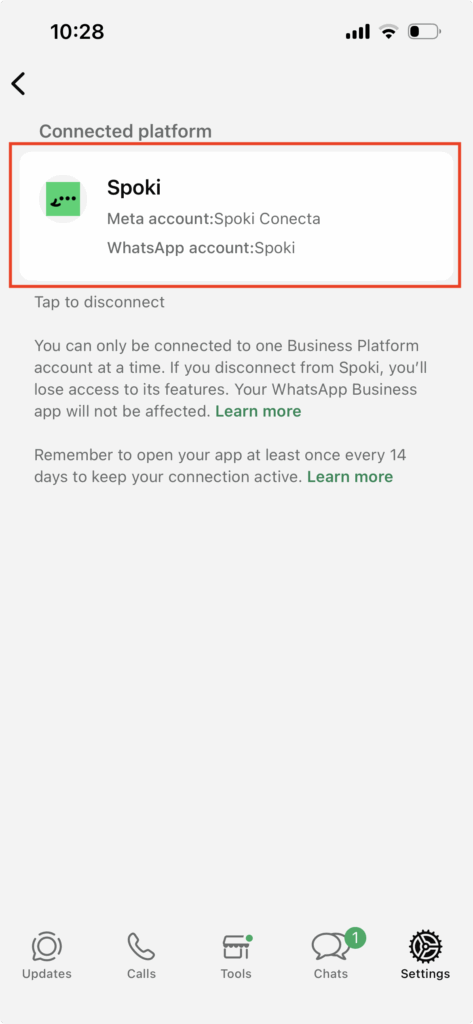
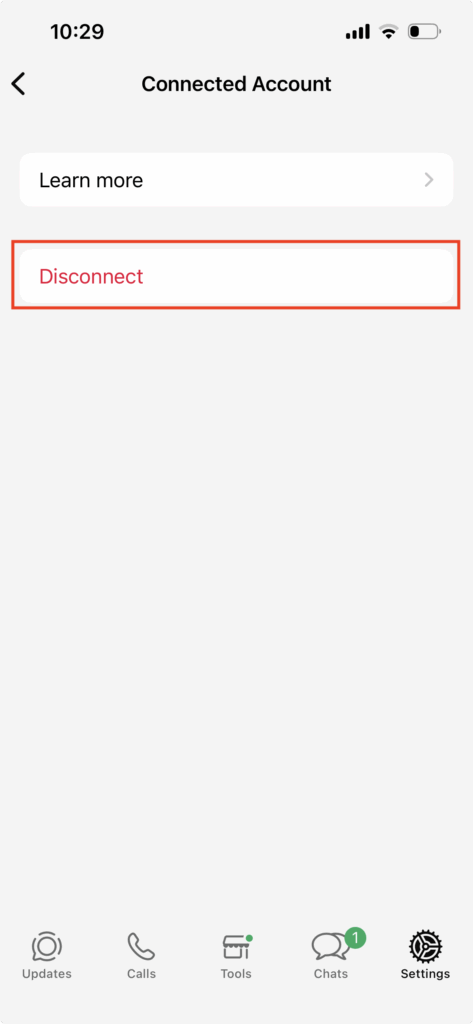
4. Tap “Disconnect” to complete the disconnection process of the WA Business account.
Configuration of WhatsApp and switching to WhatsApp Business #
⚠️Once you have logged out of your account, you will need to install the WhatsApp app (classic version) and register your number within it to continue.
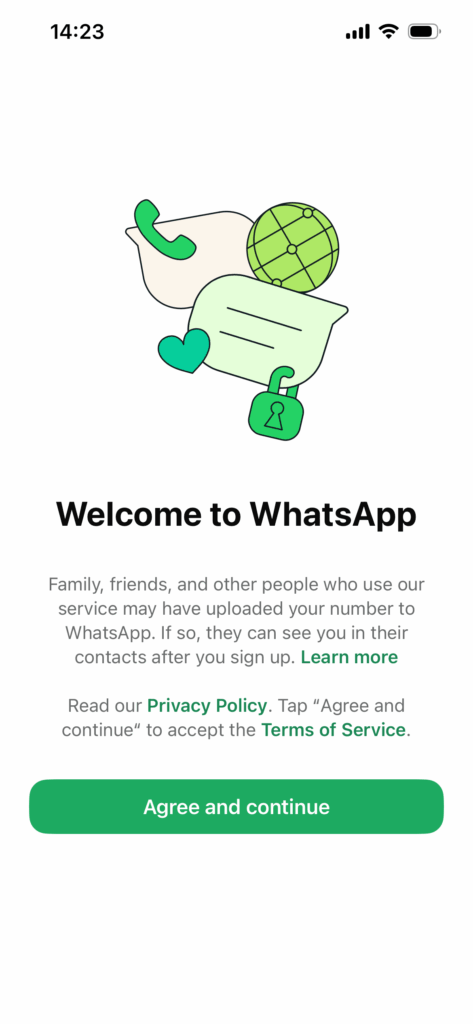
Welcome to WhatsApp
The WhatsApp Messenger app opens. Read the informational text about privacy and contacts, then tap “Agree and continue”.
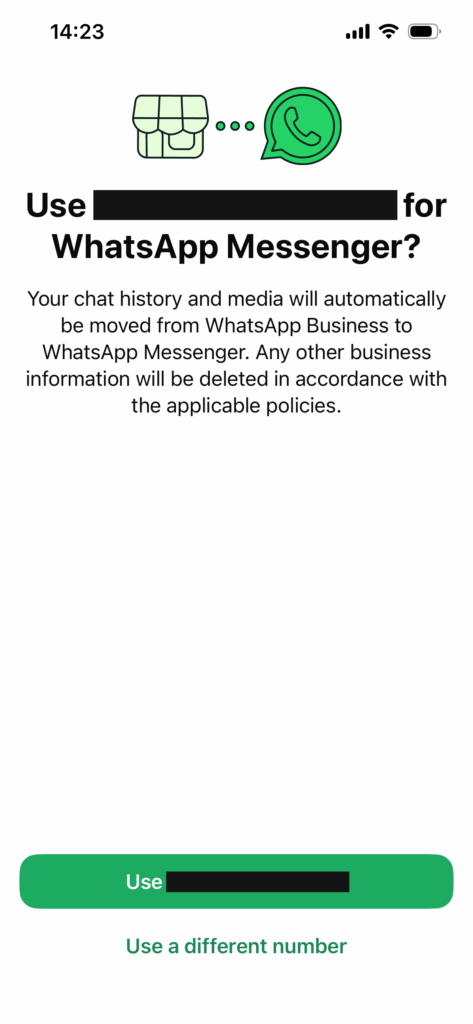
2. Confirm switch to WhatsApp Messenger
A prompt appears asking to use your number for WhatsApp Messenger. Tap the green “Use [number]” button.
3. Confirmation with warning
A popup appears with a warning about what happens to the business profile, labels, and products. Tap “Continue” to confirm the use of your regular number.
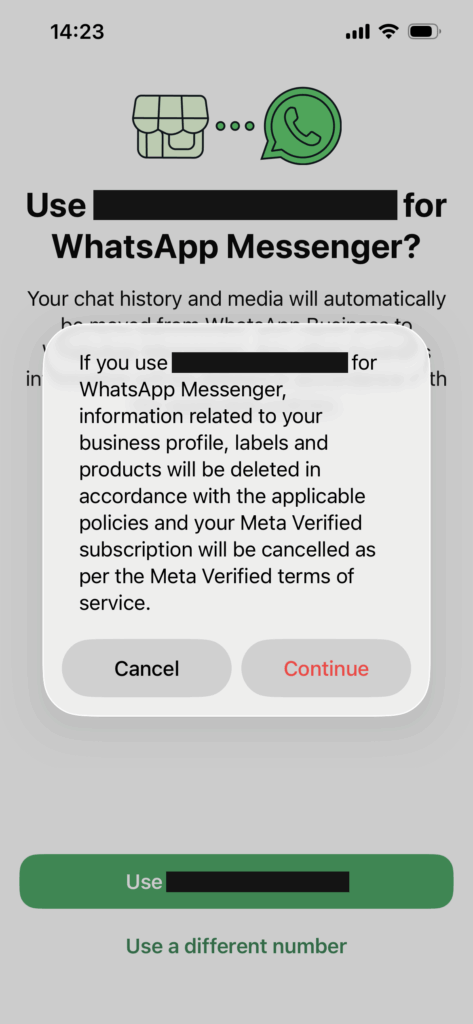
4. Connection
The app shows the “Connecting…” loading screen while it verifies the number.

5. Edit profile
On the “Edit profile” screen, enter your name and optionally a profile photo, then tap “Done”.
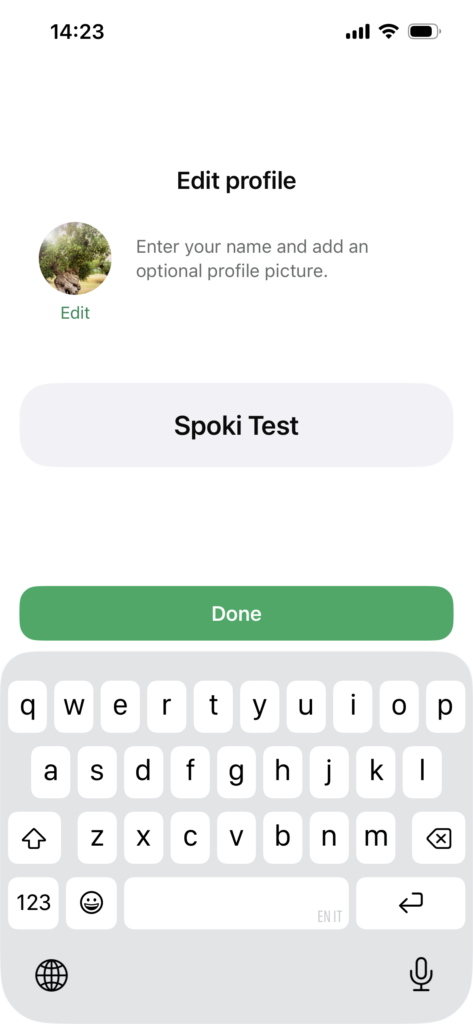
⚠️Once registration is complete, you can return to WhatsApp Business and proceed with the following steps:
6. Welcome to WhatsApp Business
The WhatsApp Business app now opens. Read the information about Meta and tap “Agree and continue”.
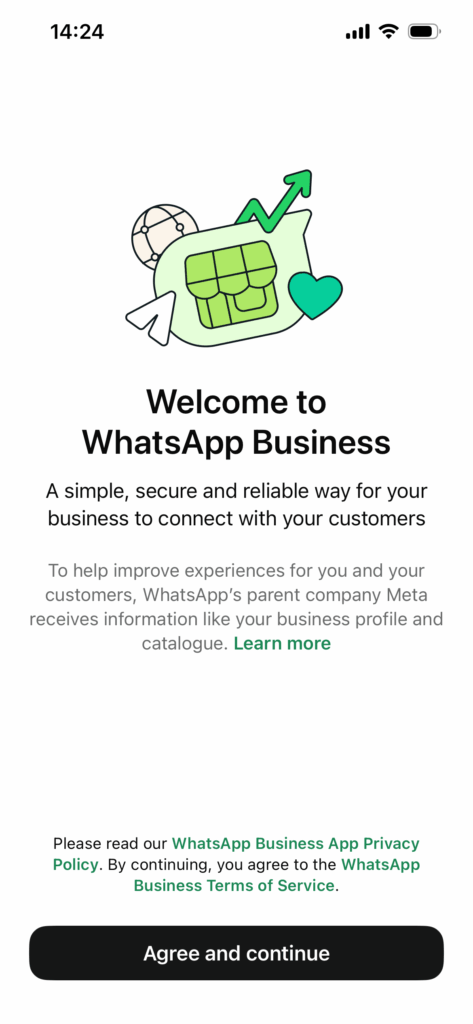
7. Confirm phone number
You are asked to confirm the number to use for transferring chats, contacts, and media to WhatsApp Business: tap the button with your number.
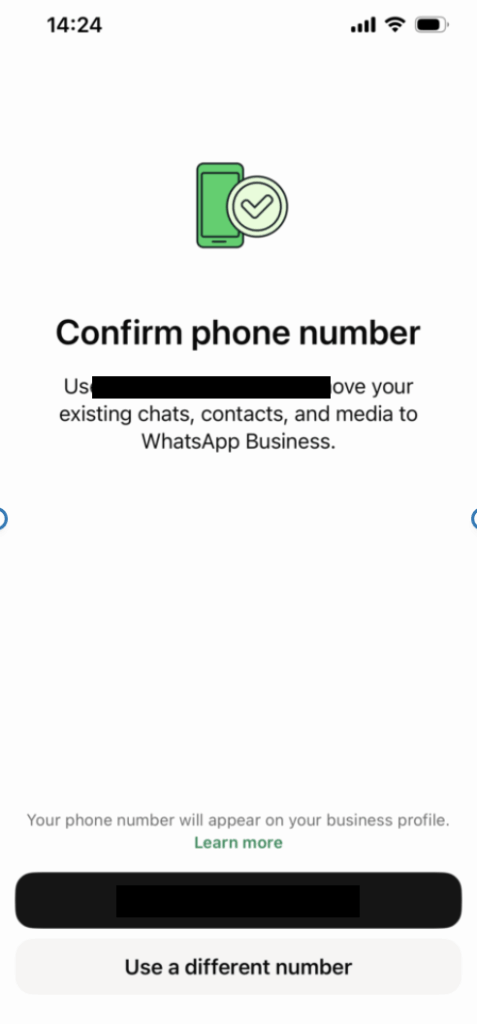
8. Connecting in progress
“Connecting…” appears again while the system transfers the data.
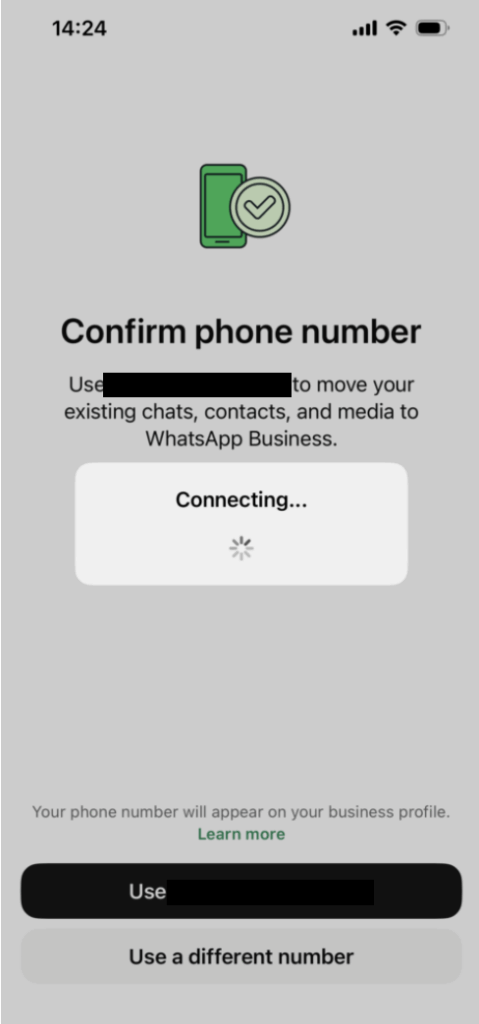
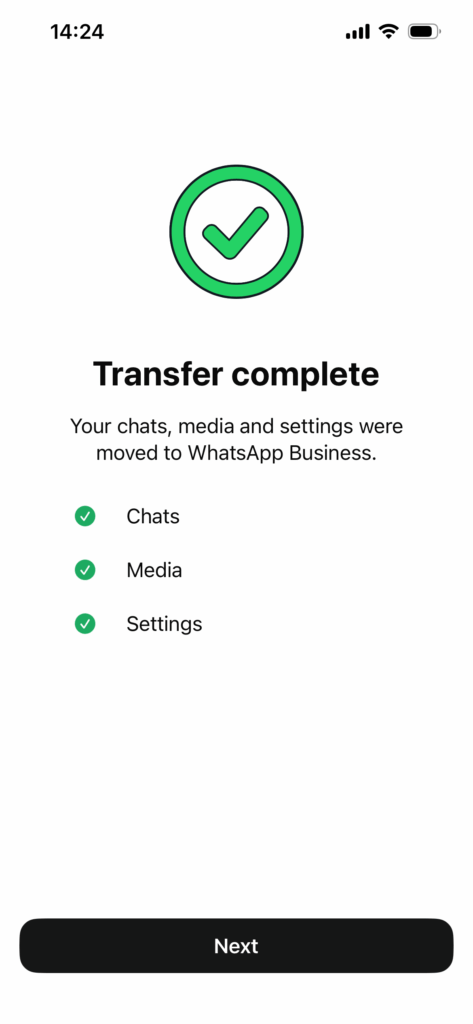
9. Transfer complete
The “Transfer complete” screen confirms that chats, media, and settings have been moved. Tap “Next”.
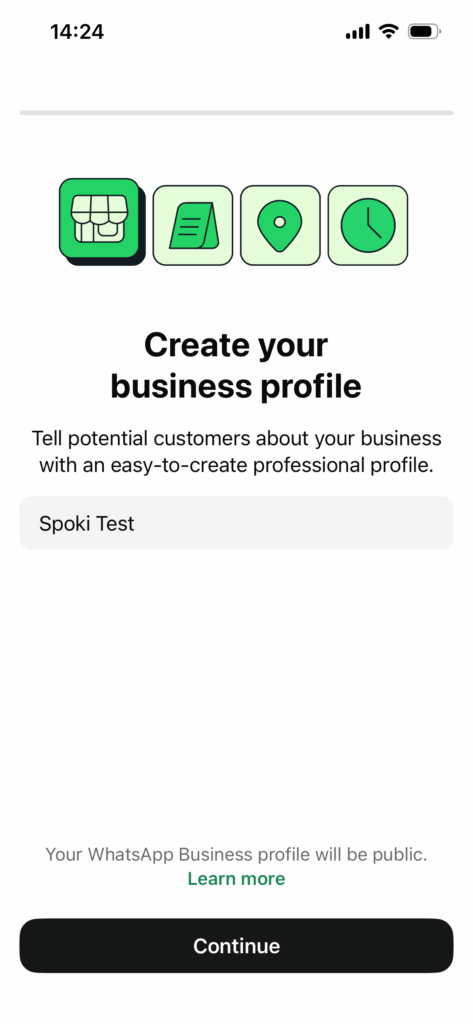
10. Create business profile
On the “Create your business profile” screen, verify/edit the business name and tap “Continue”.
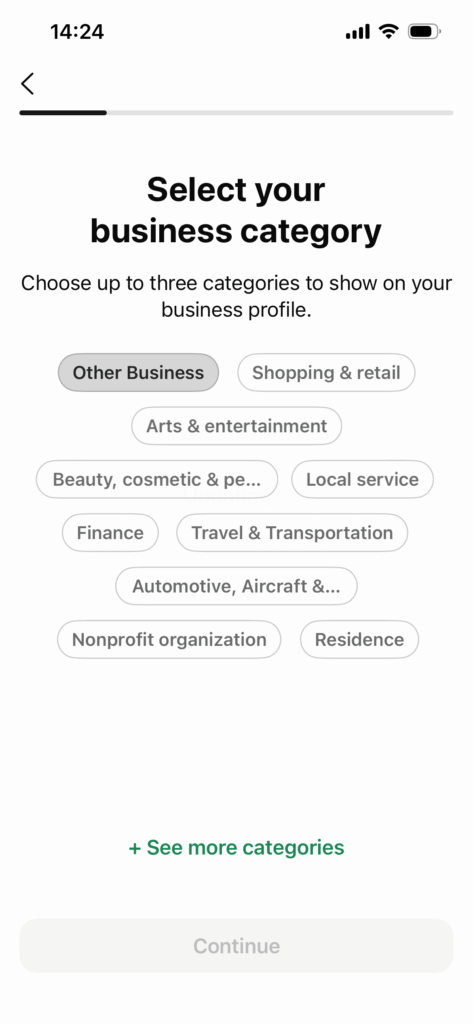
11. Select business category
On “Select your business category”, choose one or more categories (up to 3) from those offered, then tap “Continue” (active only after selection).
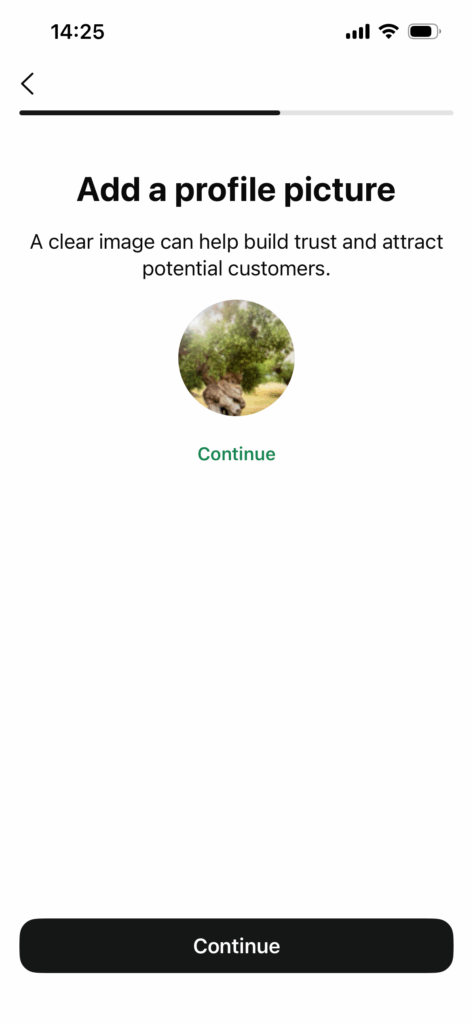
12. Add profile picture
On the “Add a profile picture” screen, a preview of the uploaded image is shown. Tap “Continue” to confirm.
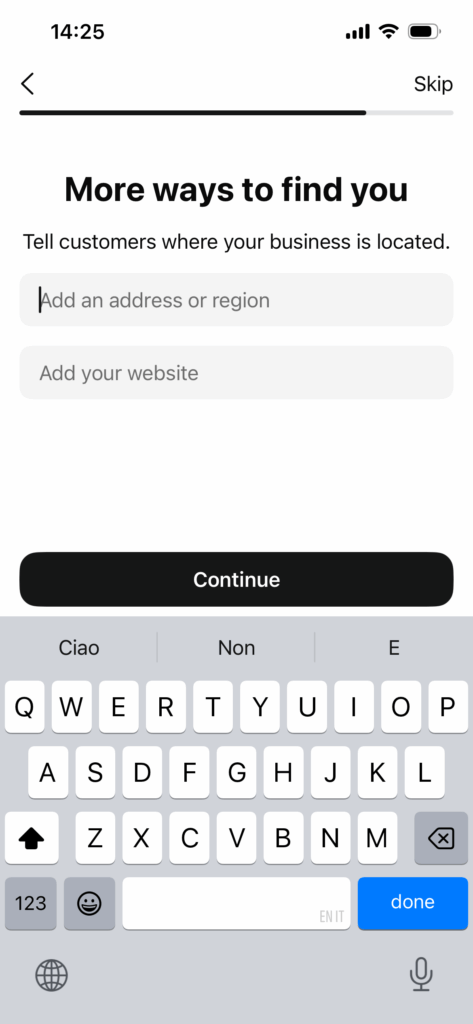
- Address and website
On “More ways to find you”, enter (optional):
- business address or area
- website
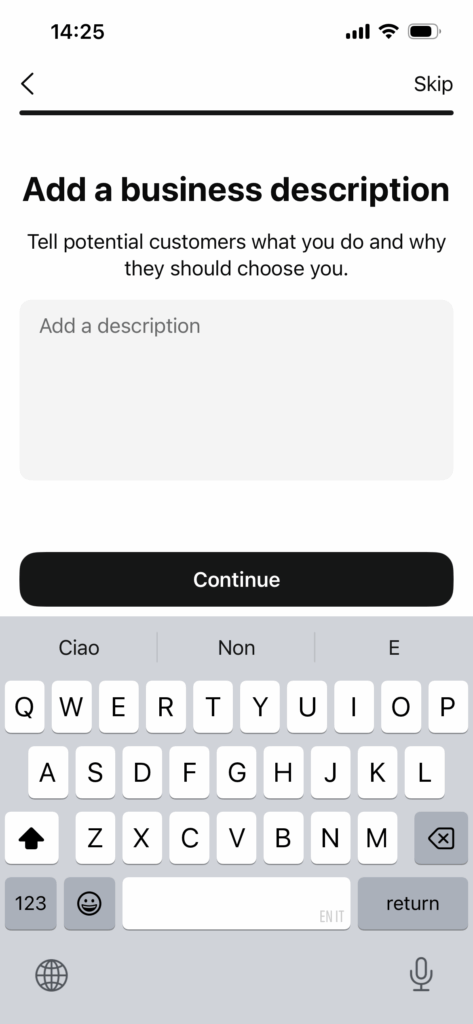
14. Business description
Finally, on “Add a business description”, write a short description of the business for potential customers and tap “Continue” to complete the setup.
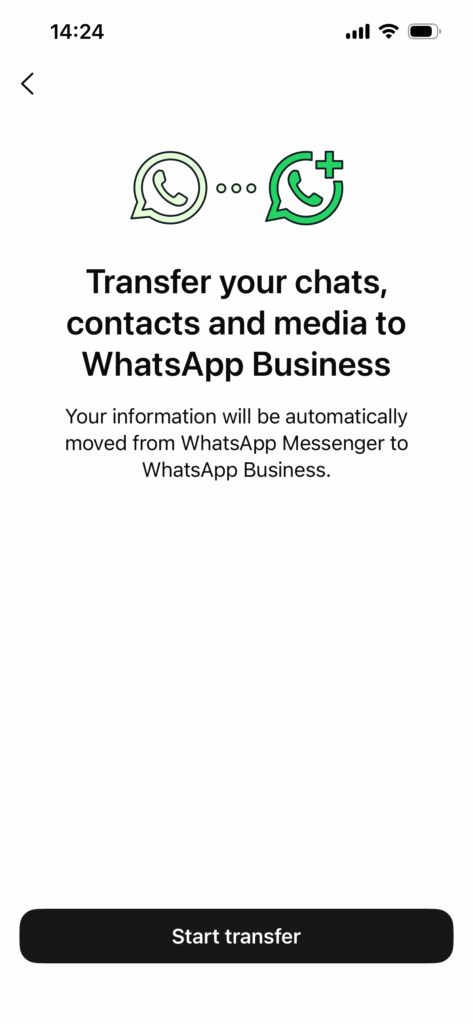
15. Transfer chats, contacts and media
On the “Transfer your chats, contacts and media to WhatsApp Business” screen, tap “Start transfer” to begin the automatic transfer of information from WhatsApp Messenger to WhatsApp Business.